Garmin G2000 Pilot’s Guide for the Cessna T240
190-01263-01 Rev. A264
Flight ManageMent
SYSteM
OVeRVieW
Flight
inStRUMentS
eiS
aUDiO Panel
& CnS
Flight
ManageMent
haZaRD
aVOiDanCe
aFCS
aDDitiOnal
FeatUReS
aPPenDiCeSinDeX
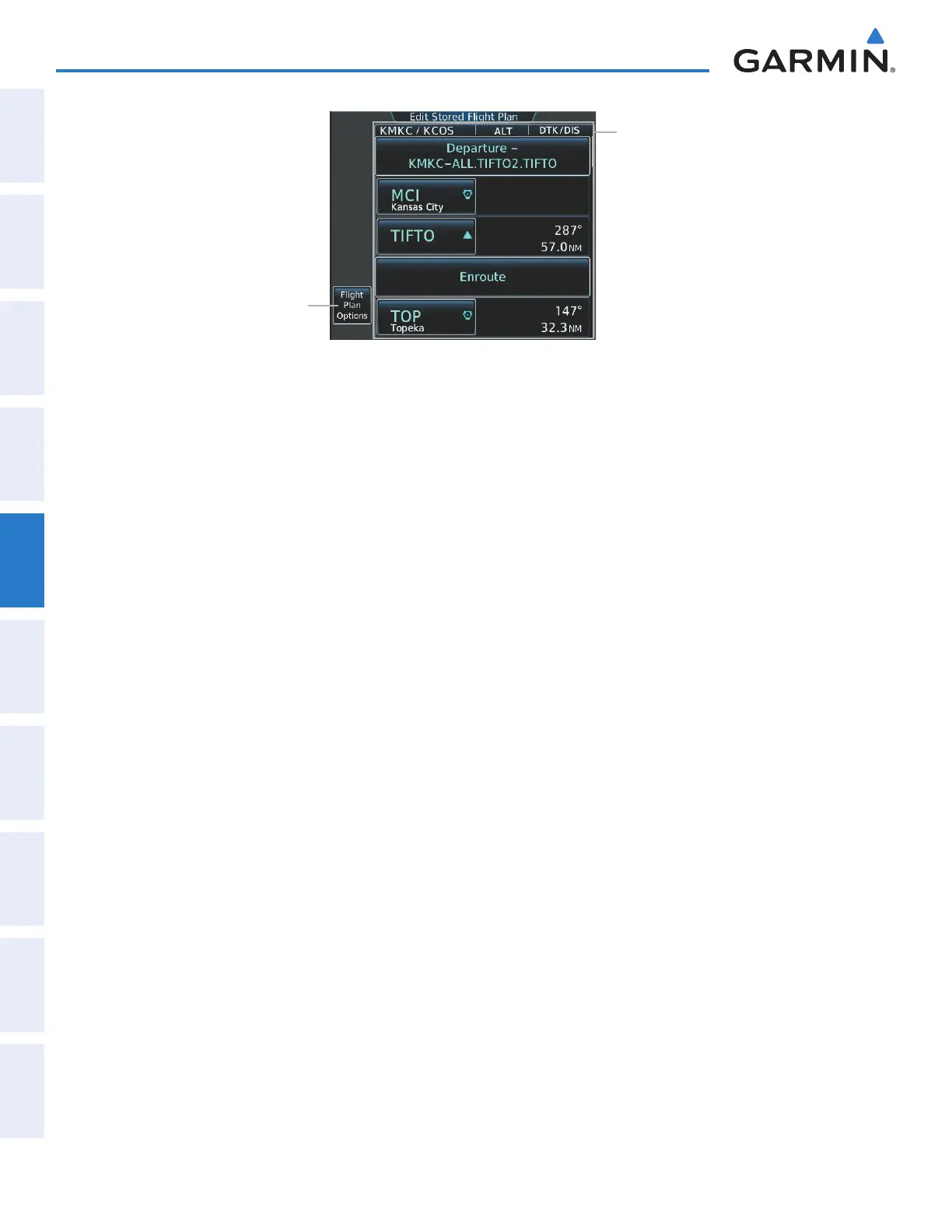
Figure 5-115 Edit Stored Flight Plan Screen
Flight Plan Options Button
Stored Flight Plan Selected
- Comment
- Procedure Identifier
- Waypoint Identifier
- Airway Identifier
- Flight Plan Segment Identifier
- Desired Track to Waypoint
- Distance to Waypoint
- Waypoint Altitude Constraint
Storing an active flight plan from the Active Flight Plan Screen:
1) From Home, touch Flight Plan > Flight Plan Options
2) Touch the Store Button.
3) Touch the OK Button in response to the question “Store XXXX/XXXX into catalog?”.
ACTIVATE A FLIGHT PLAN
Activating a stored flight plan erases the active flight plan and replaces it with the flight plan being activated.
Inverting a stored flight plan reverses the waypoint order, erases the active flight plan, and replaces it with the
flight plan being activated (the stored flight plan is not changed).
Activating a stored flight plan:
1) From Home, touch Flight Plan > Flight Plan Options
2) Touch the Catalog Button to display the Flight Plan Catalog Screen.
3) Touch a stored flight plan button to display the Catalog Options Window.
4) Touch the Activate Button.
5) Touch the OK Button in response to “Activate Selected Flight Plan and Replace Current Active Route?”. To
cancel the request, touch the Cancel Button.
Inverting and activating a stored flight plan:
1) From Home, touch Flight Plan > Flight Plan Options
2) Touch the Catalog Button to display the Flight Plan Catalog Screen.
3) Touch a stored flight plan button to display the Catalog Options Window.
4) Touch the Invert and Activate Button.
5) Touch the OK Button in response to “Invert and Activate Selected Flight Plan and Replace Current Active
Route?”. To cancel the request, touch the Cancel Button.
This manual downloaded from http://www.manualowl.com



 To Next Page