Garmin G2000 Pilot’s Guide for the Cessna T240
190-01263-01 Rev. A54
SyStem Overview
SyStem
Overview
FLiGHt
iNStrUmeNtS
eiS
AUDiO PANeL
& CNS
FLiGHt
mANAGemeNt
HAZArD
AvOiDANCe
AFCS
ADDitiONAL
FeAtUreS
APPeNDiCeSiNDeX
SyStem
Overview
FLiGHt
iNStrUmeNtS
eiS AUDiO & CNS
FLiGHt
mANAGemeNt
HAZArD
AvOiDANCe
AFCS
ADDitiONAL
FeAtUreS
APPeNDiCeSiNDeX
Activating SiriusXM Weather and SiriusXM Satellite Radio:
1) Position the aircraft so the GDL 69A antenna has an unobstructed view of the sky.
2) From Home touch Utilities > Setup > SiriusXM Info > Start. The Activation Window displays ‘ACTIVATING’.
3) If activating SiriusXM Weather, monitor Weather Products window on the SiriusXM Info Screen. Unavailable
weather product names appear in diminished text; available weather product names appear in white text.
SiriusXM Weather activation is complete when all weather products in the subscription are displayed as available.
4) If activating SiriusXM Satellite Radio, touch Home > Services > Music to display the Music Screen. Then
scroll in the channel list and verify the channels in the subscription are available. Then return to the SiriusXM
Info Screen.
5) When activation has completed, touch the Lock Button to save the activation changes, or touch the Cancel to
exit without saving changes.
SYSTEM TESTS
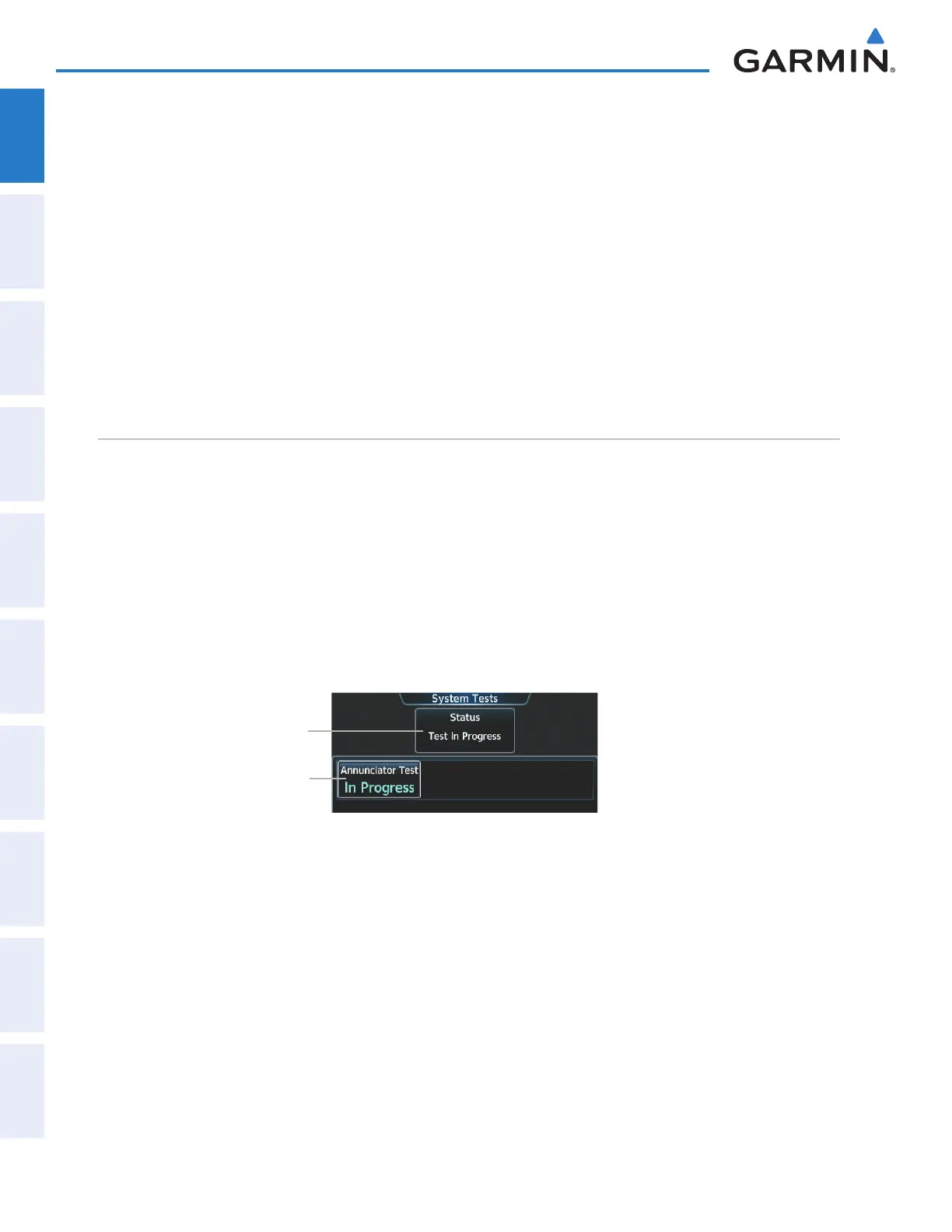
The System Tests Screen provides an Annunciator Test. A status window near the top of the screen indicates
the present status of the annunciator test.
If the annunciators have not been tested since the last power cycle, the Annunciator Test Button displays
dashes (‘---’).
Testing the aircraft annunciators:
1) From Home, touch Aircraft Systems > System Tests.
2) Touch the Annunciator Test Button. While the annunciators are being tested, the button displays ‘In Progress’.
The Button displays ‘Done’ when the test has completed.
Figure 1-37 System Tests Screen
Test Status Window
Annunciator Test
Button
This manual downloaded from http://www.manualowl.com



 To Next Page