Garmin G2000 Pilot’s Guide for the Cessna T240
190-01263-01 Rev. A276
Flight ManageMent
SYSteM
OVeRVieW
Flight
inStRUMentS
eiS
aUDiO Panel
& CnS
Flight
ManageMent
haZaRD
aVOiDanCe
aFCS
aDDitiOnal
FeatUReS
aPPenDiCeSinDeX
uSer-deFined holding patternS
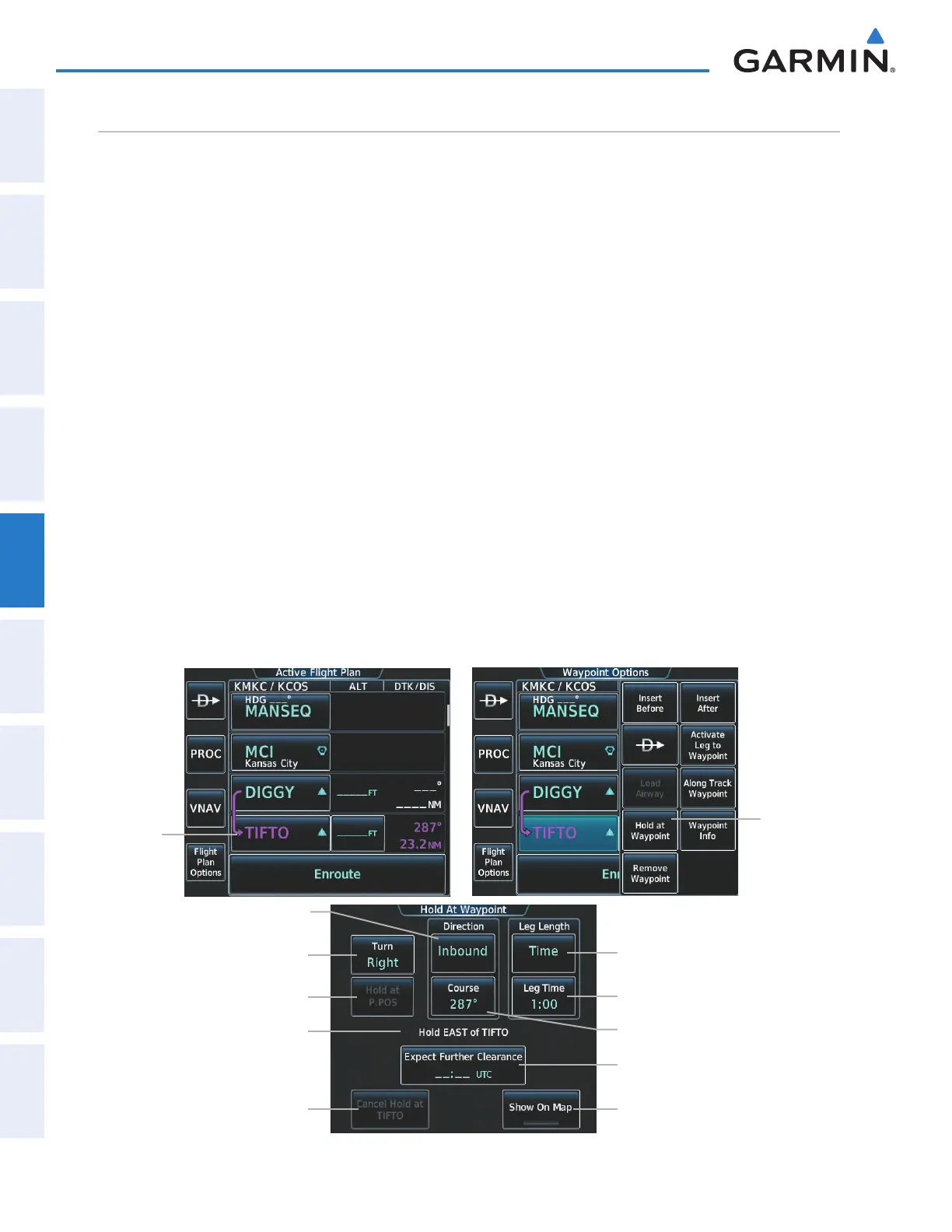
A holding pattern can be defined at any active flight plan waypoint, or at the aircraft present position.
Creating a user-defined hold at an active flight plan waypoint:
1) From Home, touch Flight Plan
2) Scroll the list, if necessary, and touch the waypoint selection button to select the the waypoint at which to define
the holding pattern. The Waypoint Options Window is displayed.
3) Touch the Hold at Waypoint Button. The Hold at Waypoint Screen is displayed.
4) Touch the Turn Direction Button, and touch the Right Button or the Left Button to select the turn direction.
5) Touch the Course Direction Button, and touch the Inbound Button or the Outbound Button to select the
course direction.
6) Touch the Hold Entry Course Button to display the keypad. Use the keypad and the Enter Button to select the
entry angle.
7) Touch the Leg Length Mode Button, and touch the Distance Button or the Time Button to select the length
mode.
8) Touch the Leg Time Button or the Leg Distance Button to display the keypad. Use the keypad and the Enter
Button to select the length of the leg.
9) Touch the Expect Further Clearance Button to display the keypad. Use the keypad and the Enter Button to
select the time for a reminder.
10) Touch the Create Button to add the hold into the flight plan.
Waypoint
Selection
Button
Hold at
Waypoint
Button
Figure 5-127 Creating a User Defined Holding Pattern at an Active Flight Plan Waypoint
Leg Length Mode Button
(Time or Distance)
Expect Further Clearance Button
Turn Direction Button
Hold at Present Position Button
Hold Location Information
Cancel Hold Button
Leg Time or Leg Distance Button
Hold Entry Course Button
Course Direction Button
(Inbound or Outbound)
Show on Map Button
This manual downloaded from http://www.manualowl.com



 To Next Page