Garmin G2000 Pilot’s Guide for the Cessna T240
190-01263-01 Rev. A496
AdditionAl FeAtures
sYsteM
oVerVieW
FliGHt
instruMents
eis
Audio PAnel
& Cns
FliGHt
MAnAGeMent
HAZArd
AVoidAnCe
AFCs
AdditionAl
FeAtures
APPendiCesindeX
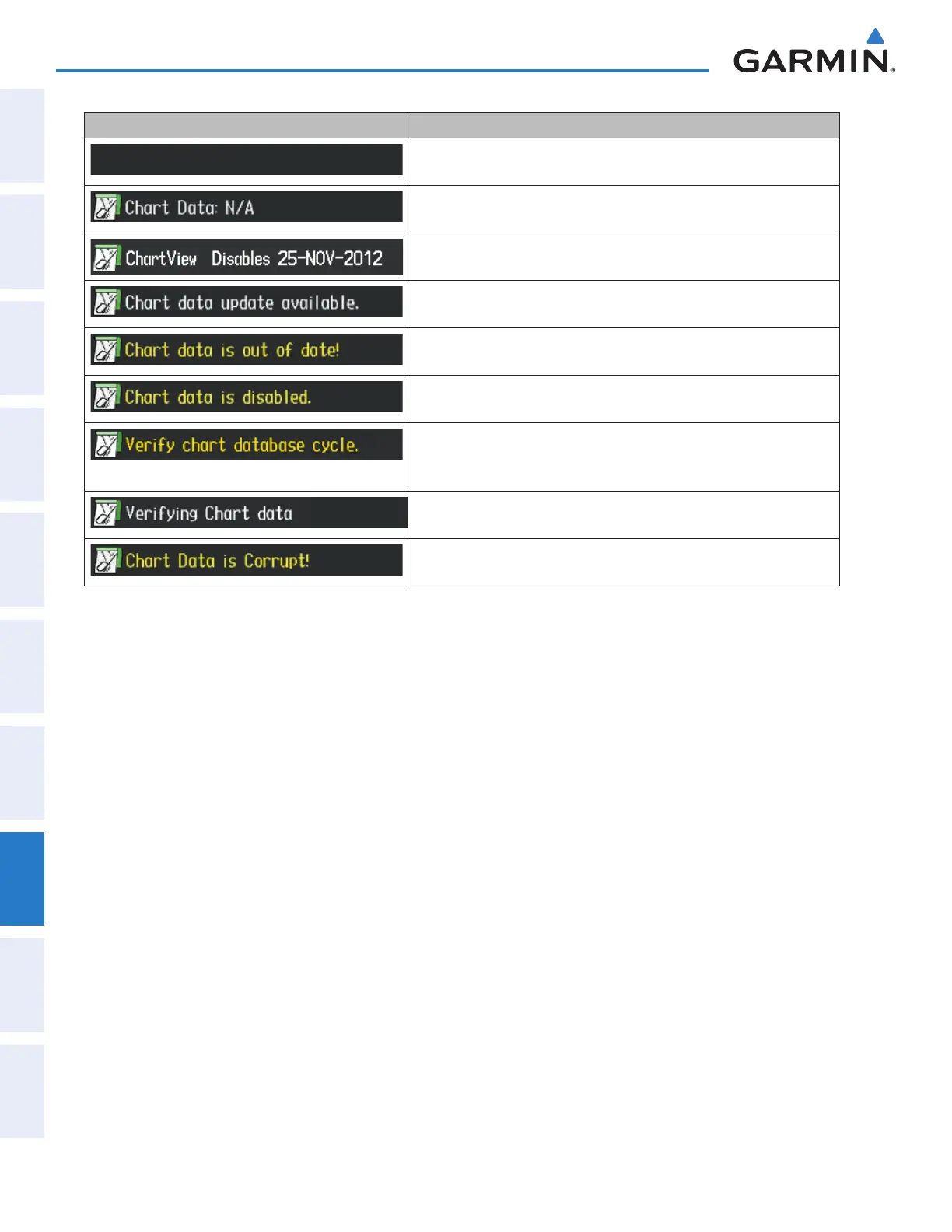
Power-up Display Definition
Blank Line. System is not configured for ChartView. Contact a Garmin-
authorized service center for configuration.
System is configured for ChartView but no chart database is installed.
Contact Jeppesen for a ChartView database.
Normal operation. ChartView database is valid and within current
cycle.
ChartView database is within 1 week after expiration date. A new cycle
is available for update.
ChartView database is beyond 1 week after expiration date, but still
within the 70 day viewing period.
ChartView database has timed out. Database is beyond 70 days after
expiration date. ChartView database is no longer available for viewing.
System time is not available. GPS satellite data is unknown or the
system has not yet locked onto satellites. Check database cycle number
for effectivity.
System is verifying chart database when new cycle is installed for the
first time.
After verifying, chart database is found to be corrupt. ChartView is not
available.
Table 8-2 ChartView Annunciations and Definitions
The ChartView status information can be found on the MFD1, PFD1, and GTC1 Databases Screens (Figure
8-18). The ‘Expires’ date is the revision date for the next database cycle. The ‘Expires’ date appears in yellow
when expired. ChartView becomes inoperative 70 days after the ChartView ‘Expires’ date is reached. This
is shown as the ‘Disables’ date. When the disables date is reached, the date is displayed in yellow. Also, the
Charts Button on the Home Screen appears subdued and is disabled until a new issue of ChartView is installed.
Viewing ChartView database information:
1) From the Home Screen, touch Utilities > Setup > Avionics Status.
2) Touch the Database Tab.
3) Touch the button corresponding to the display (MFD1, PFD1, or GTC1) for which the database information will
be viewed.
4) Scroll to display the ChartView database information as shown in Figure 8-18
This manual downloaded from http://www.manualowl.com



 To Next Page