Garmin G2000 Pilot’s Guide for the Cessna T240
190-01263-01 Rev. A
SYSTEM
OVERVIEW
FLIGHT
INSTRUMENTS
EIS
AUDIO
& CNS
FLIGHT
MANAGEMENT
HAZARD
AVOIDANCE
AFCS
ADDITIONAL
FEATURES
APPENDICESINDEX
578
Appendix B
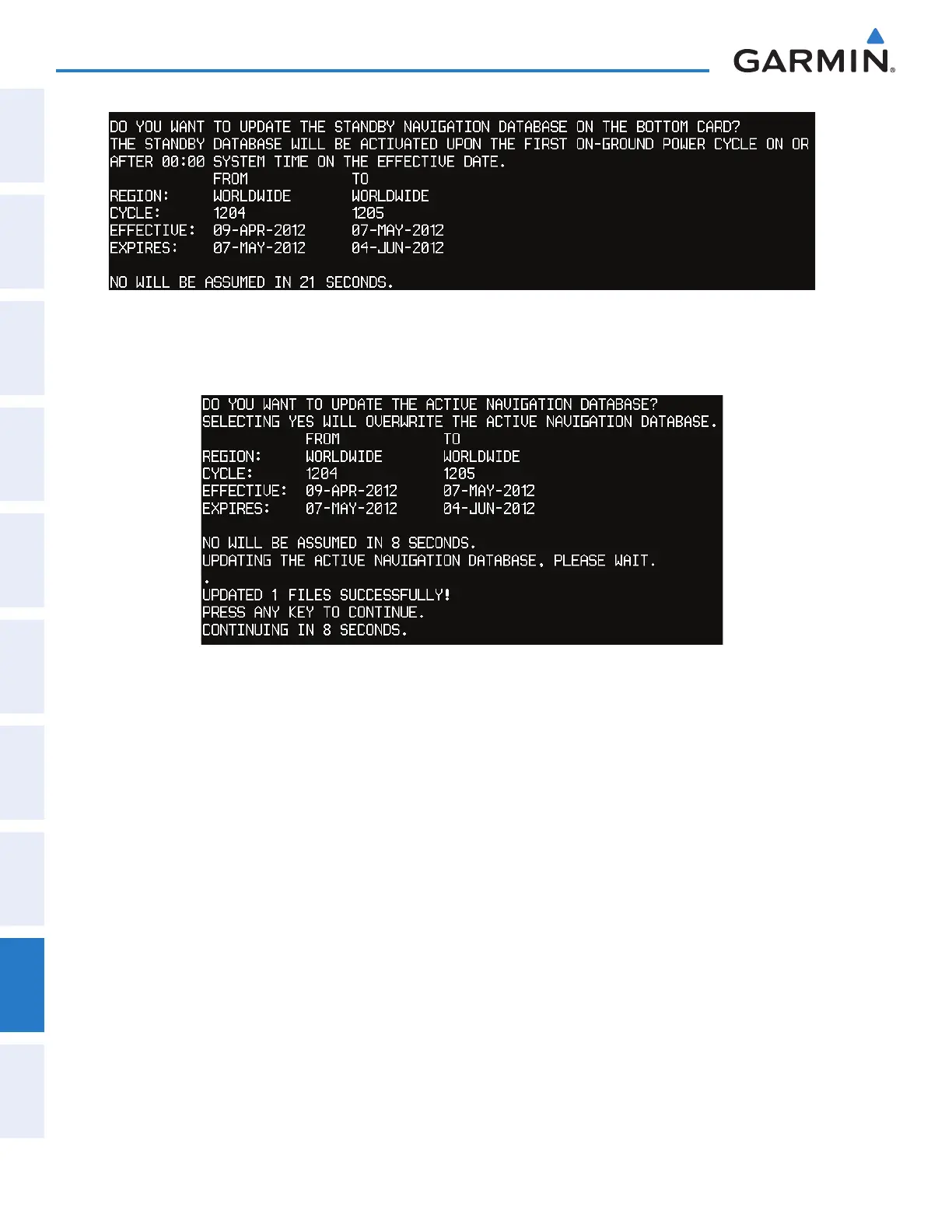
Figure B-1 Standby Navigation Database Prompt
3) Press the NO Softkey to proceed to loading the active database.
4) A prompt similar to the following is displayed. Press the YES Softkey to update the active navigation database.
Figure B-2 Database Update Confirmation
5) After the update completes, the display starts in normal mode.
6) Remove power from the system and remove the SD card from the top card slot.
7) Repeat steps 1 through 6 for the remaining display (PFD1 or MFD1).
8) Apply power to the system and press the right most softkey to acknowledge the Power-Up display.
9) From the Home Screen on the Touchscreen Controller, touch Utilities > Setup > Avionics Status.
10) Touch the Database Tab.
11) Touch the MFD1 Button. Check the active navigation database information to verify the database has been
updated.
12) Touch the Back Button.
13) Touch the PFD1 Button. Check the active navigation database information to verify the database has been
updated.
14) Touch the Back Button.
15) Touch the GTC1 Button. Check the database information to verify databases have been updated.
16) Touch the Back Button.
This manual downloaded from http://www.manualowl.com



 To Next Page