D1 Servo Drive User Manual Servo Drive Configuration
HIWIN MIKROSYSTEM CORP. 5-7
(1) Toolbar
: Open the operation window for PDL program.
: Save the parameters in the servo drive RAM as file.
: Load parameters from file to the servo drive RAM.
: Save the parameters from the servo drive RAM to Flash.
: Reset the servo drive.
(2) Status indicator
: The indicator is off when the servo drive is in disabling state. When the servo drive is in
enabling state, the indicator will be green.
: The indicator is green for hardware enabling. If hardware enabling is not
activated first, the motor cannot be successfully enabled. For the setting method of hardware
enabling by external input, please refer to section 5.4.1 and chapter 12.
: The indicator is green for software enabling. Only when hardware enabling and
software enabling are both activated, the motor can be successfully enabled. In Performance center,
click on Enable button to activate software enabling. Click on Disable button to deactivate software
enabling. When PC and the servo drive are not connected, the status of software enabling varies
with the status of hardware enabling. If PC and the servo drive are connected, while closing the
window, a message dialog will appear asking whether the software enabling should still be activated
or not.
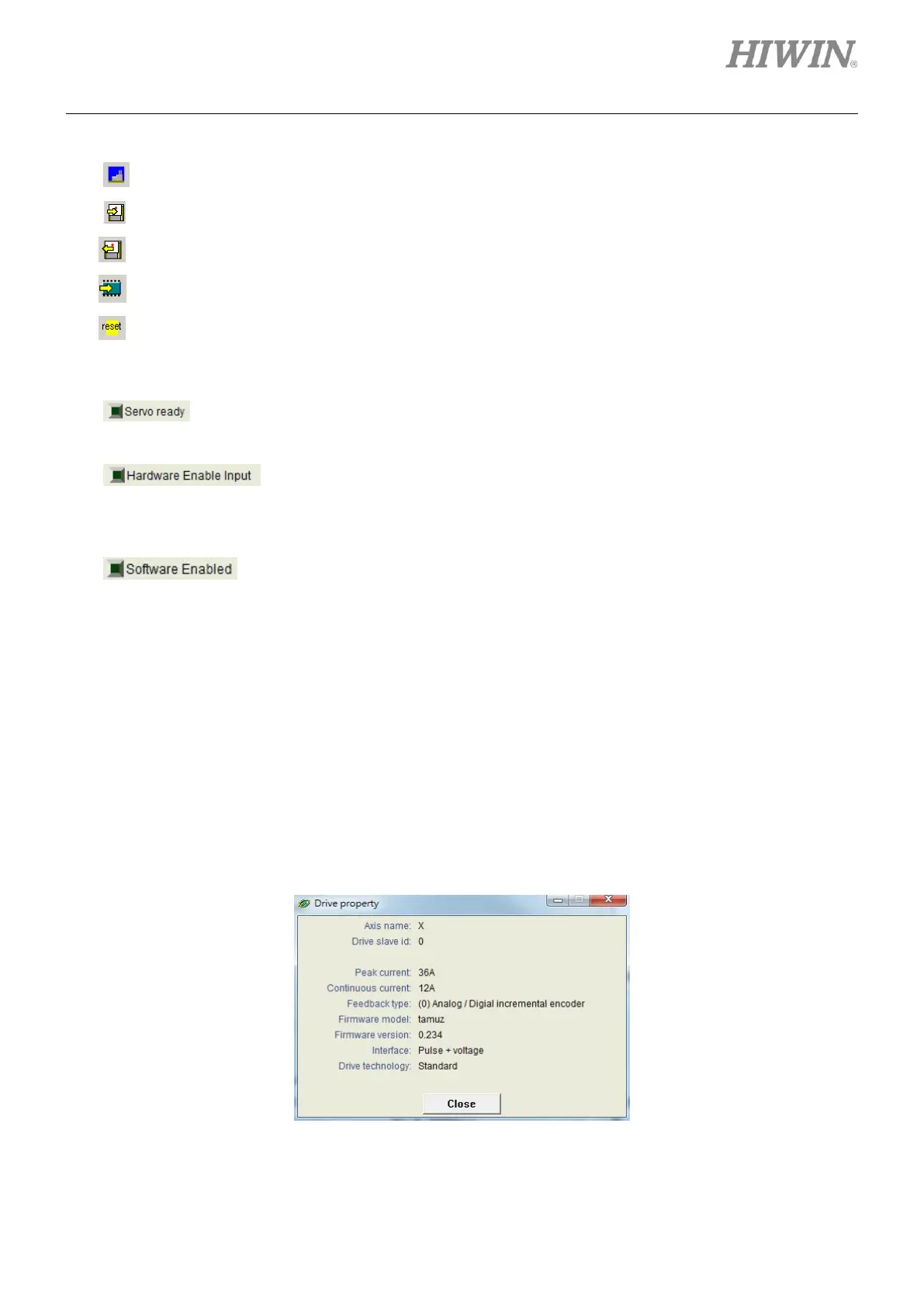
(3) Drive property
Right click on axis name and select Properties, the properties of the servo drive will be displayed as
figure 5.1.3.2.
Figure5.1.3.2


 To Next Page