4 - 72 (00292)H
■ Composite Display of Multiple GX-5/GX-5F Camera Heads (Split Screen Display)
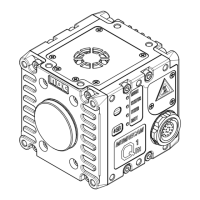
If there are multiple camera heads connected to the GX-5/GX-5F DRP, the video screen can be
split to display multiple camera images on the video.
As a result, it is possible to confirm all of the camera images in the viewfinder video monitor
during STOP / VIEW / ARM / REC / PLAY / LOOP.
Use any of the following to display the split display
menu.
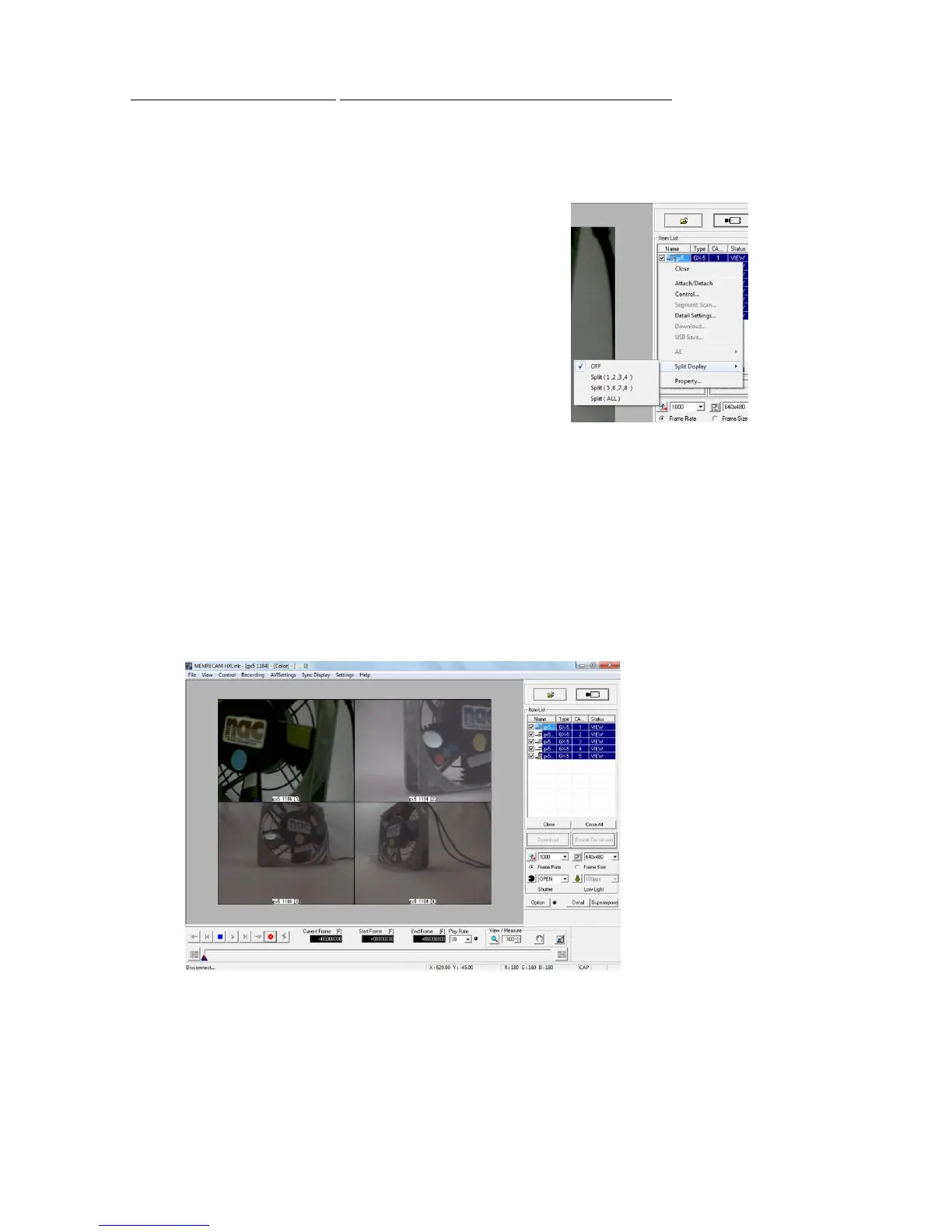
・ Right click on the GX-5/GX-5F camera item
displayed in the item list and select from the “Split
Display” on the menu.
・Select the GX-5/GX-5F camera and right click on
the monitor, and select from the “Split Display”
on the menu.
Items that can be selected with “Split Display” differ
according to the camera configuration setting. Camera heads
displayed on a four-part screen are displayed in the order of
the camera number.
For example, when using 8 P-CAM camera heads with
GX-5/GX-5F DRP, select any of the following.
OFF No split screen, displays the camera heads selected in the item list.
Split (1 ,2 ,3 ,4) Screen split into four sections, displays the images from camera 1, 2, 3, 4.
Split (5 ,6 ,7 ,8) Screen split into four sections, displays the images from camera 5, 6, 7, 8.
Split (ALL) Screen split into nine sections, displays the images from all eight of the
cameras.
When selecting the split display, the camera heads for HXLink live images are also subject to split
display in the same manner as the video screen.


 To Next Page