5 - 14 (00292)H
・Luminance
Input/output transfer properties when the image data is displayed. Luminance cannot be set to fx
cameras. Luminance cannot be set on MCFF files on ci cameras, fx RX-5 PM units and fx RX-5G
PM units but luminance can be set on other HX, GX, Q and fx cameras.
NORMAL Normal setting, image displayed with the input/output transfer properties
matching the dynamic range of the camera. Gain, gamma and knee can be
used.
LINEAR Ignores gain, gamma and knee settings, and converts the camera data to
linear display.
CUSTOM Setting displaying the camera data with the specified input/output transfer
properties.
Specify the maximum and minimum brightness input values and gamma
value to emphasize data with low luminance variance for display. Select
to display the “Custom Luminance” dialogue.
TABLE Setting to apply a file with user specific luminance.
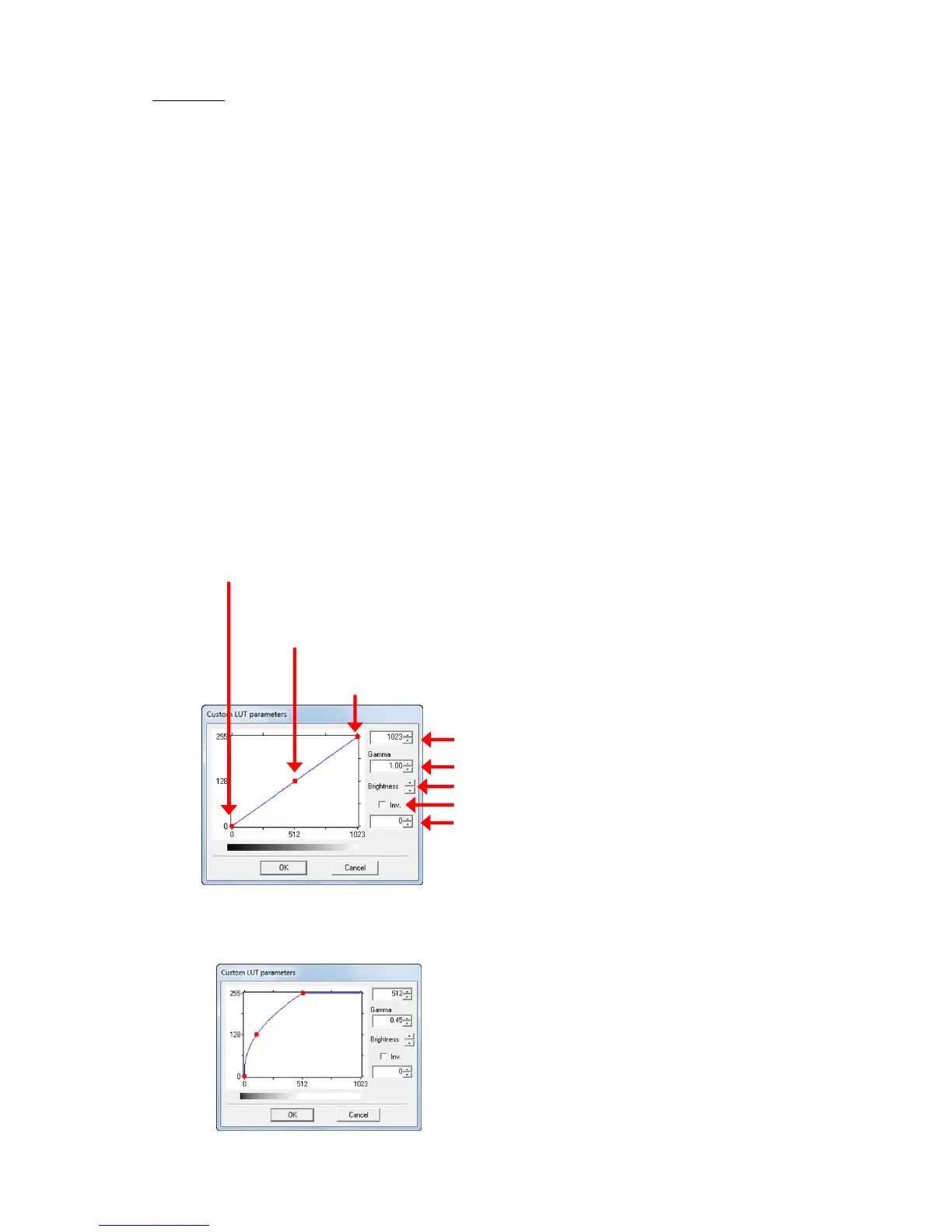
In the “Custom Luminance” dialogue, the brightness graph corresponding to the maximum
and minimum brightness input values and gamma is displayed, which are reflected on the
preview image on the monitor.
With a gamma value of 1.00, the input data for the range from the minimum brightness input
value to the maximum brightness input value is converted to maximum output data values
using linear properties.
Use the mouse to drag the “■” symbol on the graph to change the graph properties.
Also, each value can be directly input as a numerical value.
Click “OK” to see the settings and close the window.
Click “Cancel” to close the window without changing the settings.
If the gamma value is changed, non-linear
input/output transfer characteristics can be
specified.
With the GX camera, the normal gamma
settings are matched with the TV standards to
create a gamma value of 0.45.
If the custom luminance are set to
that shown in the figure to the left, the dark
sections can be displayed brighter.


 To Next Page