(00292)H 5 - 29
File name File name after format conversion
Save Folder If specifying either TIFF, JPEG or BMP in the "File Type" folder where the
files with the converted format are saved, a folder for "Save File As" will be
created under the specified folder, and the TIFF, JPEG or BMP will be
created in that folder.
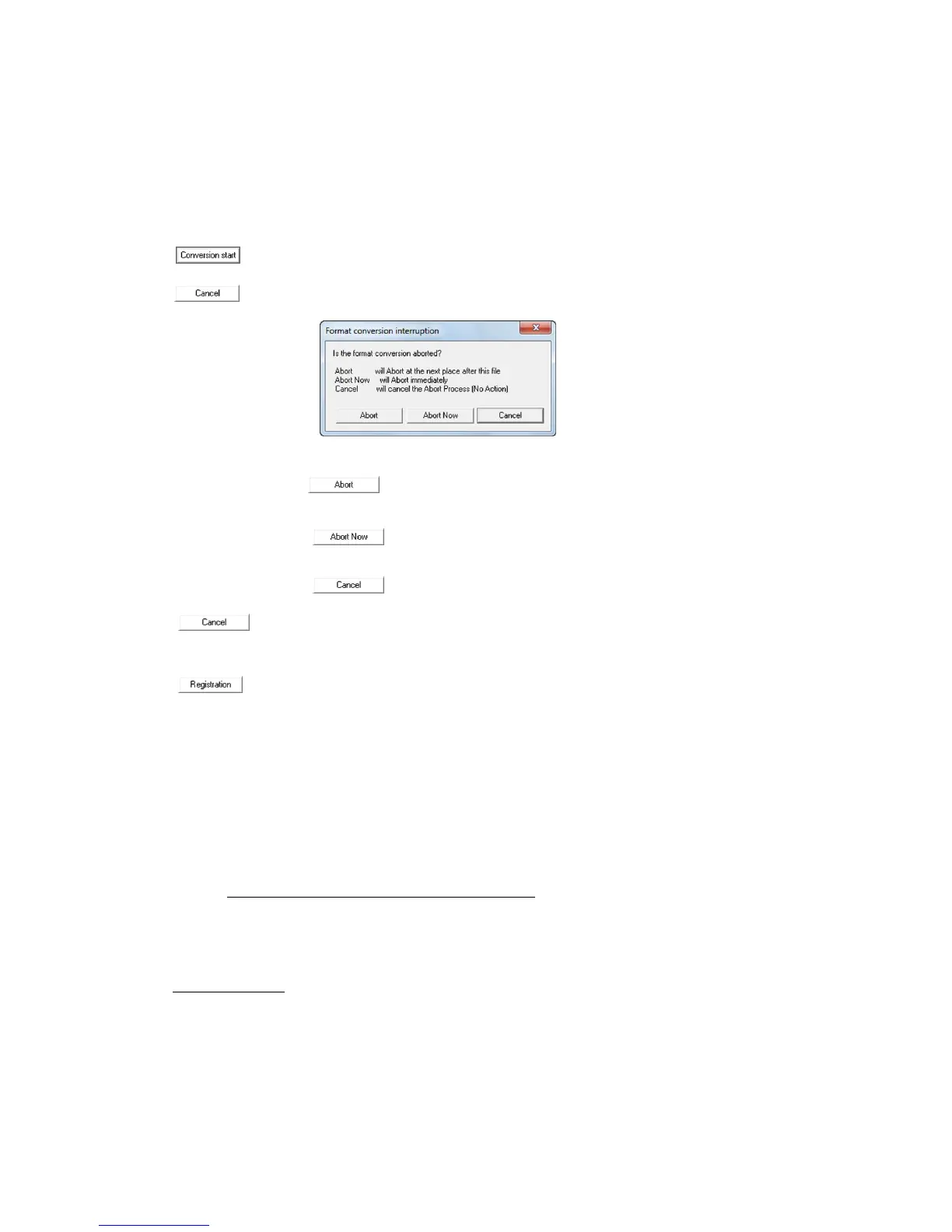
Start MCFF format conversion for those checked.
Select the abort process from the dialogue shown below.
Formatting in progress continues but subsequent format
conversions are cancelled.
Immediately aborts format conversions.
Cancels subsequent format conversions.
Does not abort format conversion.
Closes the "Format Conversion" dialogue.
Create a batch conversion setting file for “Batch File Conversion”.
Refer to page 11-3 for details.
With the default settings, if the format converted data is saved in a file, the files will be
automatically registered in the item list for selection. This format converted image is shown
on the monitor. (To prevent the converted file from being opened after format conversion,
set with "Default Conversion Settings" in "Options" on the "Settings" menu)
However, when converting to 16bit/48bit TIFF files, the TIFF files cannot be opened.
HXLink cannot open 16bit/48bit TIFF files for display.
Setting Fixed Values during Format Conversion
Click "Options" on the "Settings" menu to set fixed parameters used for format conversion.
Refer to page 7-21 for details.
・BMP Conversion
Use “Batch File Conversion” to convert from image files (BMP) to AVI format. Refer to page
11-12 for details.


 To Next Page