5 - 28 (00292)H
Click options on the "Settings" menu and if the "List" is selected for format conversion on the
"GUI Settings" tab, select the MCFF data to be converted from the item list and click on "Format
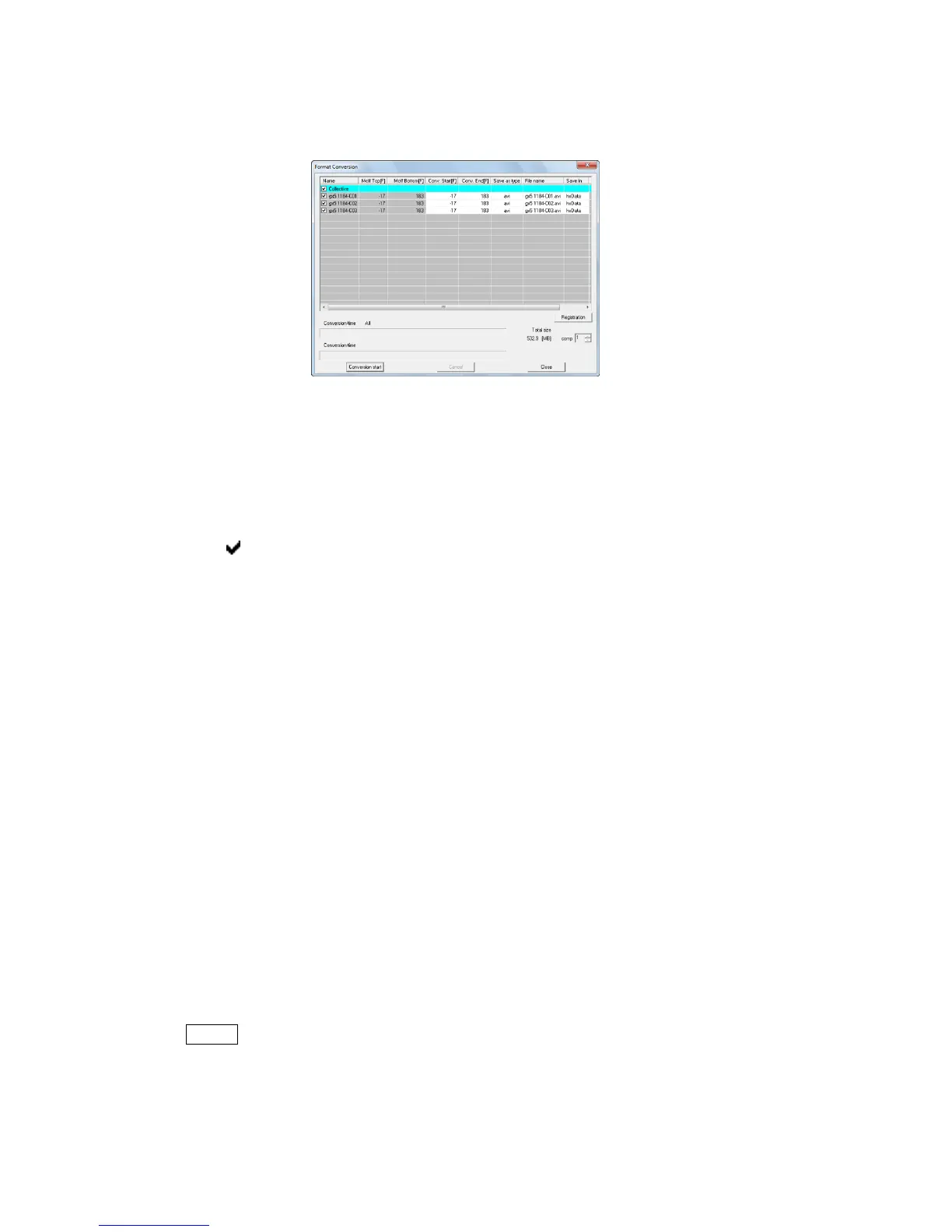
Conversion" to display the "Format Conversion" dialogue for saving converted files.
"Format Conversion" dialogue
Double click on each cell of the table to change the settings.
Settings can only be made for those items not shown in gray.
Parameters can be set for all of the MCFF in the "Batch" row.
Parameters can be set for the selected MCFF in each MCFF row.
The following five items can be set in the "Format Conversion" dialogue.
Format conversion for the MCFF checked.
Remove the check if there will be no format conversion.
Start Conversion [sec] Start time/frame for the conversion range.
[F] Units for the absolute time setting are seconds. Can be specified up to
one microsecond. The frame setting can be set at single frame units.
With multi trigger recording, the conversion start time/frame is set for
all blocks.
End Conversion [sec] End time/frame for the conversion range.
[F] Units for the absolute time setting are seconds. Can be specified up to
one microsecond. The frame setting can be set at single frame units.
With multi trigger recording, the conversion end time/frame is set for all
blocks.
Save As Specifies the type of file after conversion (AVI, TIFF, JPEG, BMP,
MCFF). The default setting can be made from "Options" in the
"Settings" menu. Refer to page 7-21 for details.
If selecting the compression file format (AVI, JPEG) for the image, the
“Compression Rate” is used to calculate the file size. The size of the file
to be saved is the “Compression Rate” value of the file size created
without compression.
The total for the saved file is show in the “Total Saved Size” and
HXLink checks for free space in the memory when starting the
conversion.
Caution With “Compression Rate”, the file size is a target. The actual file size varies
according to the CODEC used for compression.


 To Next Page