Compressing a Folder
1. Open File Station.
2. Locate the folder.
3. Perform one of the following actions.
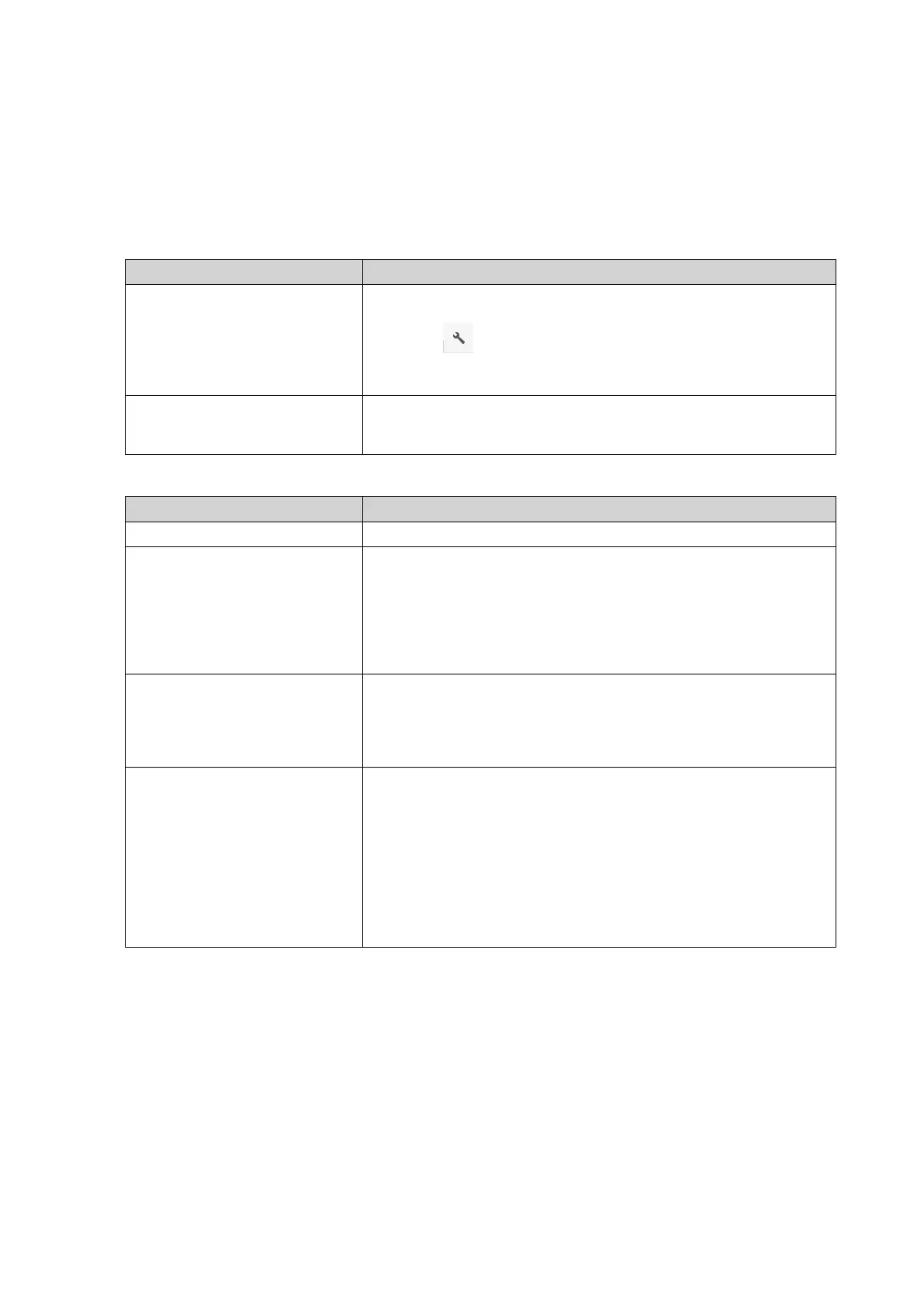
Action Steps
Use the toolbar a. Select the folder.
b.
Click .
c. Select Compress(Zip).
Use the context menu a. Right-click the folder.
b. Select Compress(Zip).
4. Configure the folder compression settings.
Option Task
Archive name Specify a name for the compressed file.
Compression level Select the type of compression method.
• Normal - Standard compression
• Maximum compression - Prioritizes compression quality
• Fast compression - Prioritizes compression speed
Archive format Select the format of file compression.
• zip
• 7z
Update mode Specify how the files should be updated.
• Add and replace files - Add and replace the specified files.
• Update and add files - Update old files and add new files.
• Update existing files - Update older versions of existing files.
• Synchronize files - Update old files, add new files, and
remove files that are no longer in the folder.
5. Optional: Specify a password to encrypt the file.
6. Click OK.
File Station compresses the selected folder and creates an archive file.
Deleting a Folder
1. Open File Station.
2. Locate the folder.
3. Perform one of the following actions.
QTS 4.5.x User Guide
File Station 159



 To Next Page
 Loading...