R&S
®
ZVA / R&S
®
ZVB / R&S
®
ZVT GUI Reference
Channel Menu
Operating Manual 1145.1084.12 – 30 306
2. R&S ZVA24/40/67 with 4 ports and 4 generators
All ports are independent. Possible connection: Analyzer port 1 to RF IN (converter 1), analyzer port 2 to
RF IN (converter 2), analyzer port 3 is not used, analyzer port 4 provides the LO IN signal for both
converters (via an external power splitter). This corresponds to the standard connection of two frequency
converters, if the true differential mode is not used.
3. R&S ZVT20 with 6 ports and 3 generators
Ports 1 / 2, 3 / 4 and 5 / 6 are coupled. Possible connection: Analyzer port 1 to RF IN (converter 1),
analyzer port 3 to RF IN (converter 2), the LO signal for both converters is provided by analyzer port 5 in
combination with an external power splitter.
SOURce<Ch>:TDIF[:STATe] ON | OFF
SOURce<Ch>:TDIF:TOLerance:AMPLitude
SOURce<Ch>:TDIF:TOLerance:PHASe
SOURce<Ch>:TDIF:CRFRequency
Port Groups
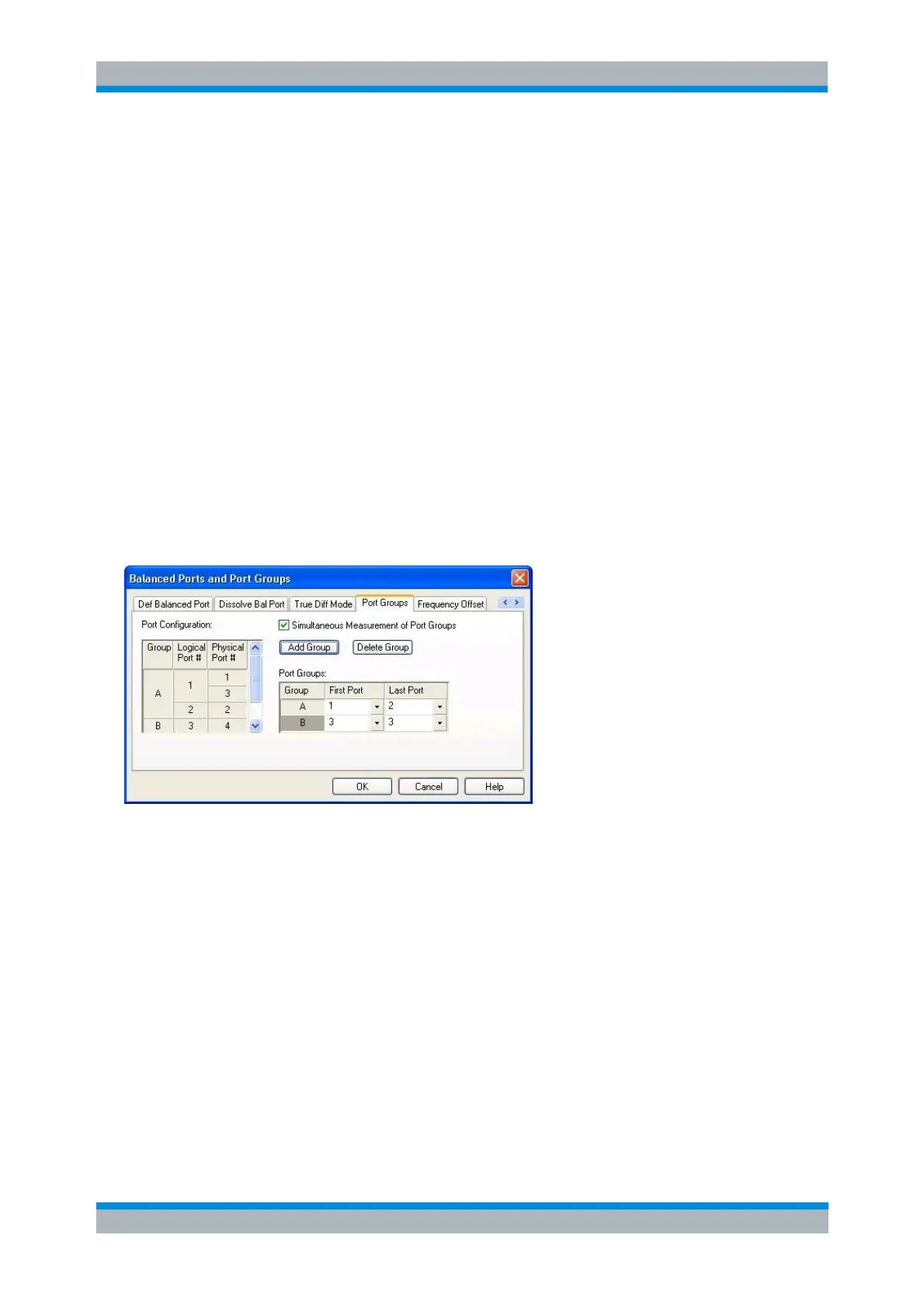
The Port Groups tab of the Balanced Ports and Port Groups dialog defines port groups that can be used
for simultaneous measurement of multiple independent devices under test.
The Port Configuration table on the left of this tab shows an overview of the logical and physical
numbering and grouping of the ports. This table is displayed as an information only and cannot be
edited.
Simultaneous Measurement of Port Groups activates/deactivates the simultaneous measurement
of port groups. Please note that port groups can be defined independent of the selection of
Simultaneous Measurement of Port Groups. To set up a simultaneous measurement this check
box must be checked and at least two port groups must be defined.
The Port Groups table shows the existing port groups, each consisting of a continuous range of
measured ports. Selecting another First Port or Last Port changes the range. To avoid ambiguities
the ports are always logical ports.
The Add Group button adds a port group after the group selected in the Port Groups table. The
logical ports contained in the selected port group are distributed among this group and the newly
added group. If currently no port groups are defined, pressing the Add Group button will create
two port groups at once.
The Delete Group button removes the port group currently selected in the Port Groups table. The
logical ports contained in the deleted group will be added to the port group before or after (only


 To Next Page