R&S
®
ZVA / R&S
®
ZVB / R&S
®
ZVT GUI Reference
Display Menu
Operating Manual 1145.1084.12 – 30 516
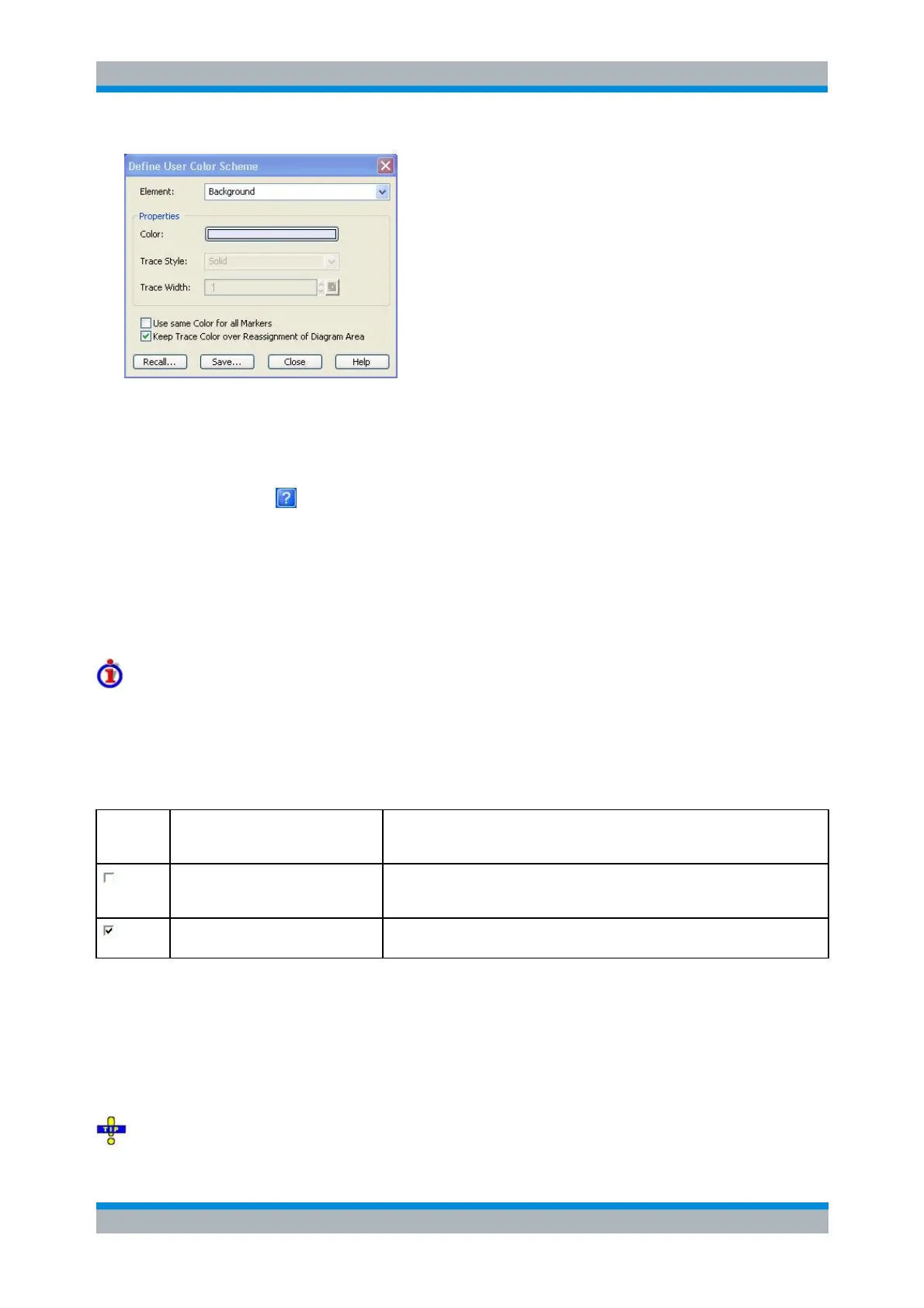
The following control elements change the current color scheme:
The screen element to be modified is selected from the Element drop-down list. The list contains
the background and all traces, text elements and lines in the diagrams.
Color opens a standard color dialog to assign a color to the selected element. Use the What's
This? help button in the dialog to obtain detailed information.
Trace Style and Trace Width are enabled if the selected element is a trace.
Use same Color for all Markers allows to select a common marker color, which is independent of
the trace colors. To define the common color, select the Same Color for all Markers element.
Keep Trace Color over Reassignment of Diagram Area controls the color of traces that are
assigned to another diagram area or created together with a new diagram areas; see background
information below.
Effects of Keep Trace Color...
The analyzer assigns trace colors according to a predefined scheme, starting with the colors that are
easiest to distinguish. On one hand it is advantageous to use the colors at the beginning of the scheme.
On the other hand, it is often desirable to use different colors in different diagram areas so that any trace
that is moved from one diagram area to another can keep its color.
Keep Trace Color... changes between these two alternative color modes as shown below.
Move trace to another diagram
area (Trace Manager)
Add Trace + Diag. Area (Trace – Trace Select...)
Trace color changed according to
the new diagram area's color
scheme
Color scheme of the new diagram area is independent, restarts with the first
colors. Consequently the new trace is displayed with a color that has been
already used.
Color scheme of the new diagram area continues color scheme of the
previously active area. The new trace is displayed with a new color.
See also program example for DISPlay:CMAP<Element>:TRACe:COLor[:STATe].
Two buttons at the bottom of the dialog are used to save or recall user-defined color schemes.
Save... opens a Save As... dialog to select a color scheme file and save the current settings. Color
scheme files are non-editable files with the extension *ColorScheme; the default directory is
C:\Program Files\Rohde&Schwarz\Network Analyzer\ColorSchemes.
Recall... opens an Open File... dialog to load and apply a color scheme saved before.
To recall a color scheme file (*.ColorScheme) you can also use the Windows Explorer and simply



 To Next Page