63 22 726 D3561
158 D3561.201.01.03.02 05.2012
4 Operation Sirona Dental Systems GmbH
4.13 Configuration of the treatment center (setup) Operating Instructions SINIUS / SINIUS CS
4.13.2 Configuring the EasyTouch user interface
Configuring the EasyTouch user interface
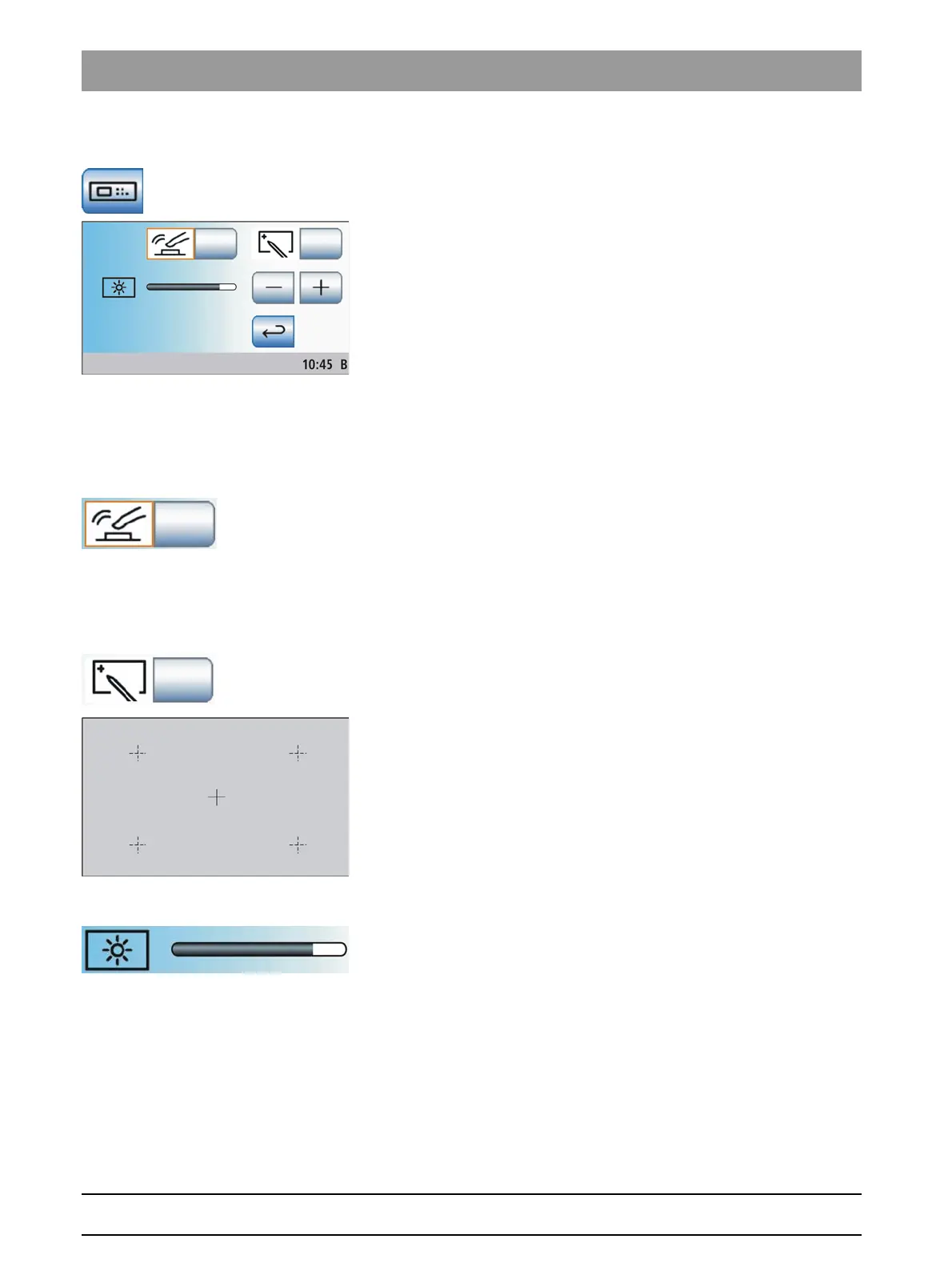
➢ Touch the
EasyTouch user interface
key in the setup program.
The sub-screen opens.
4.13.2.1
Switching the key tone on/off
Switching the key tone on/off
A setting can be made to activate or deactivate an acoustic signal that
sounds when the operator touches a key on the touchscreen or a fixed
key.
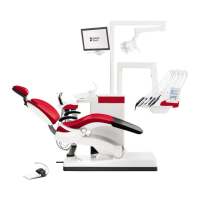
➢ Touch the
Key tone
key.
If the key is highlighted orange, the key tone is activated.
4.13.2.2
Calibrating the touchscreen
Calibrating the touchscreen
If the touchscreen is no longer able to precisely locate the position of a
contact, it must be recalibrated.
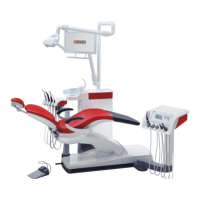
1. Touch the
touchscreen calibration
key.
A calibration field is displayed.
2. Touch the small cross on the touchscreen with a blunt pen.
The cross is displayed at another location on the touchscreen.
3. Repeat this procedure until the cross no longer appears.
4. Touch the empty touchscreen again.
The touchscreen is now calibrated. The
User interface
setup
program is displayed again.
4.13.2.3
Adjusting the touchscreen brightness
Adjusting the touchscreen brightness
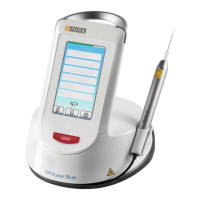
➢ Use the – and + keys to set the brightness of the touchscreen.





 To Next Page