63 22 726 D3561
52 D3561.201.01.03.02 05.2012
4 Operation Sirona Dental Systems GmbH
4.2 Control concept of touchscreen Operating Instructions SINIUS / SINIUS CS
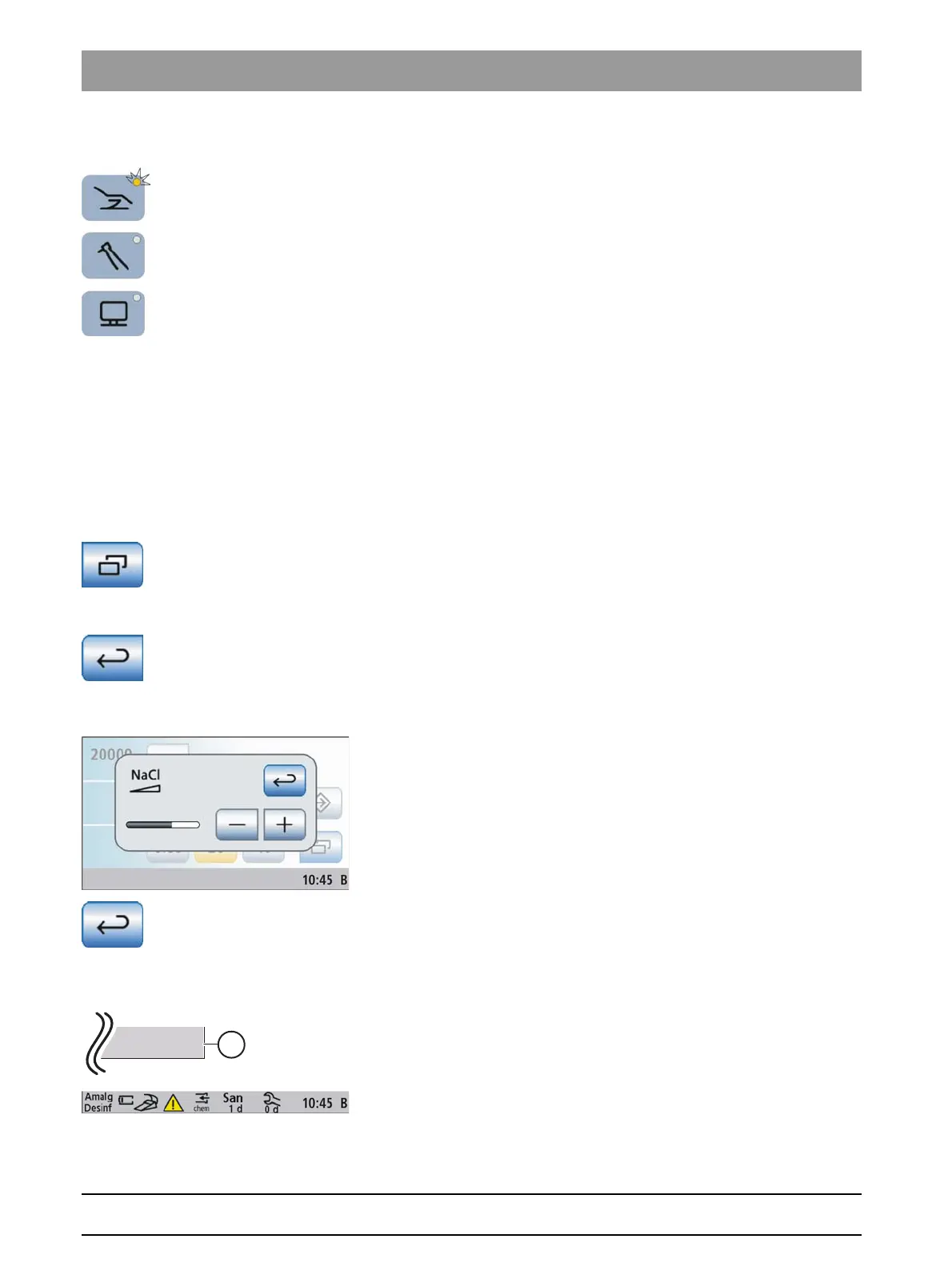
Program change keys
The LED of the relevant program change key will light up in the
Start
program without instrument functions
according to the selected program.
In the
Start program with instrument functions
the LED will light up in the
Start
sub-screen, in the sub-screen of the removed instrument and in the
SIVISION program.
It is not possible:
● to switch to the instrument program or the sub-screen of an
instrument when no instrument has been removed
● to switch to the SIVISION program when the PC connection has not
been configured
You can change from sub-screens and settings screens to a main
program by touching one of the three keys in the
Start program without
instrument functions
.
4.2.3 Sub-screens and settings screens
Sub-screens and settings screens
Sub-screens
Some programs are divided into a main program and sub-screens.
The function keys for the basic functions are displayed in the main
programs. The
Sub-screen
key (two rectangles) leads to further setting
possibilities.
Sub-screens usually are automatically hidden after a certain period has
elapsed. The
Return
key (return arrow) closes the opened sub-screen
immediately.
Settings screens
In many cases, functions not only can be switched on or off, but also can
be set. If a function key is pressed and held (> 2 s), the corresponding
settings screen appears. This screen superimposes the current screen.
The screen located in the background has a semitransparent appearance
and is temporarily disabled for inputs.
Settings screens usually are automatically hidden after a certain period
has elapsed. The
Return
key (return arrow) closes the opened settings
screen immediately.
4.2.4 Footer
Footer
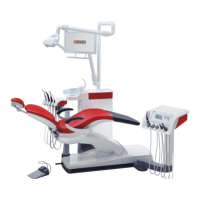
A status line is located at the bottom of the touchscreen. If multiple A user
profiles are preselected, the active user profile A to F is displayed along
with the current time beside it.
Status messages are displayed to indicate, for example, the need to
change the amalgam separator or add disinfectant, the need to charge
the battery of the wireless foot control, error messages, the need to refill





 To Next Page