63 22 726 D3561
56 D3561.201.01.03.02 05.2012
4 Operation Sirona Dental Systems GmbH
4.3 Foot control Operating Instructions SINIUS / SINIUS CS
4.3.3 Using the cursor control
Using the cursor control
only possible in Start program with instrument functions mode
The cursor control cannot be used in the
Start program with instrument
functions
mode.
4.3.3.1
Functionality
Functionality
Cursor control as an alternative mode of operation
The touchscreen and the fixed keys of the dentist element can also be
operated hand-free via the foot control. This method of operation
optimally supports hygiene, especially in connection with sterile treatment
work.
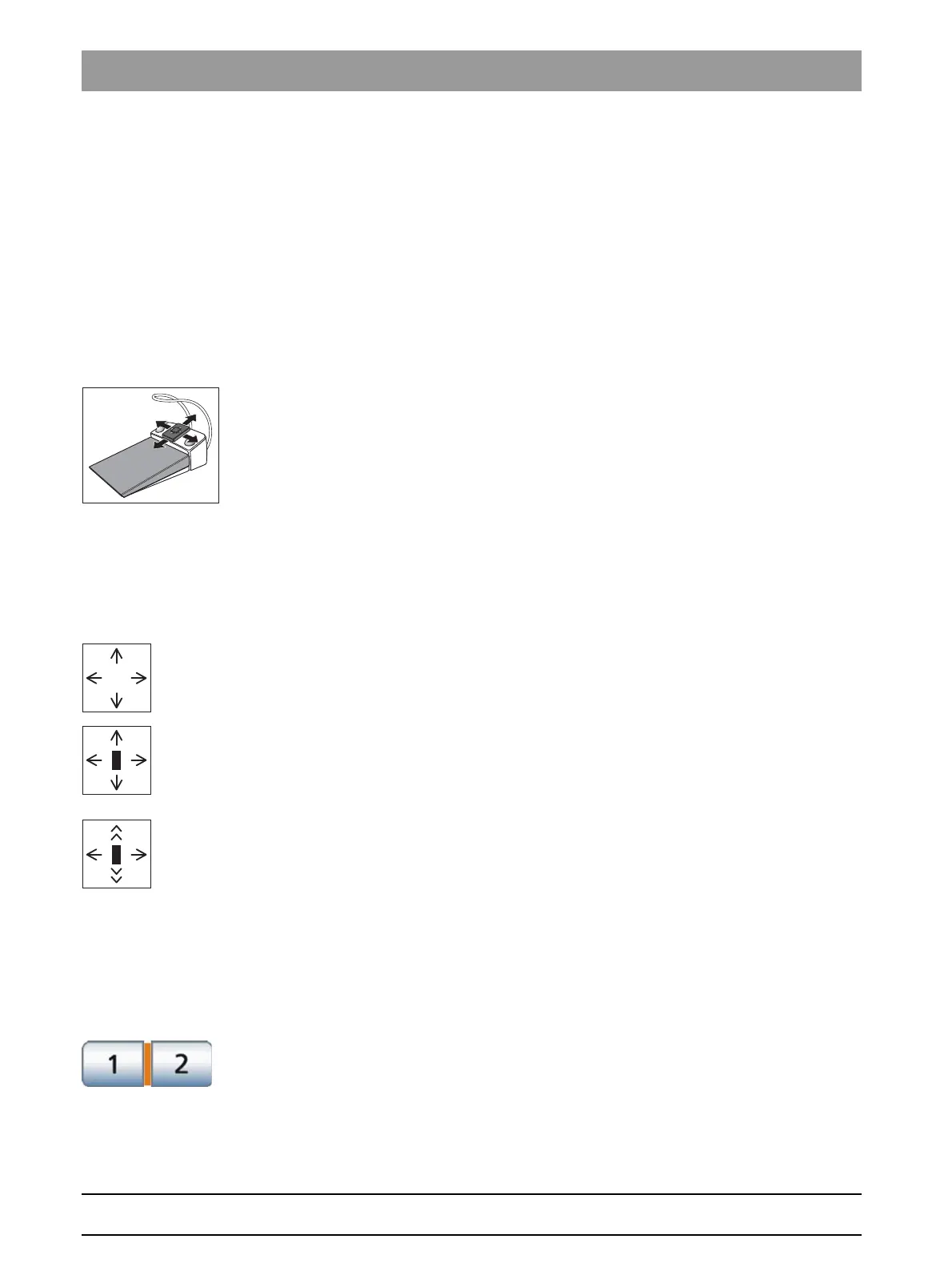
For cursor control, the foot control features a 4-way foot control plate that
can be moved in four directions.
The cursor position is optically displayed on the touchscreen or on the
fixed keys.
The cursor control is reserved for the Start and Instrument programs. The
SIVISION programs cannot be controlled via the cursor.
Cursor control setting options
Note that different settings can be made for the cursor control in the Setup
program. The functions assigned to the 4-way foot control plate vary
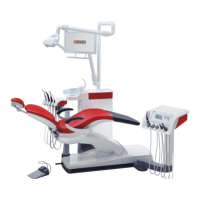
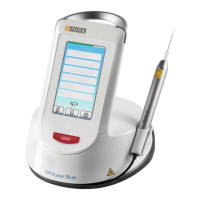
according to its setting. The adjacent symbols for setting the cursor are
used in the Setup program.
Without motor-driven travel track
● Cursor control switched off:
Counterclockwise or clockwise instrument motor rotation can be
selected by sliding the 4-way foot control plate to the left or right.
● Cursor control switched on, without program change:
The cursor can be moved along the cursor path by holding or
repeating upward or downward actuation of the 4-way foot control
plate.
● Cursor control switched on, with program change:
The cursor can be moved along the cursor path by holding or
repeating upward or downward actuation of the 4-way foot control
plate. If the cursor is located at the end of the cursor path, it can be
toggled between the Start program and the Instrument program.
Please also note the information on "orange and blue bars," see below.
To set the cursor control to the mode you prefer, refer to "Setting the
cursor control" [ → 160].
Current cursor position
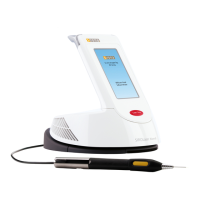
If the cursor control is activated, the current position of the cursor is
displayed by an orange bar located between the pairs of keys on the
touchscreen or between the fixed keys on the EasyTouch control panel.





 To Next Page