159
Patient Image Analysis Image Enhancement Gammas
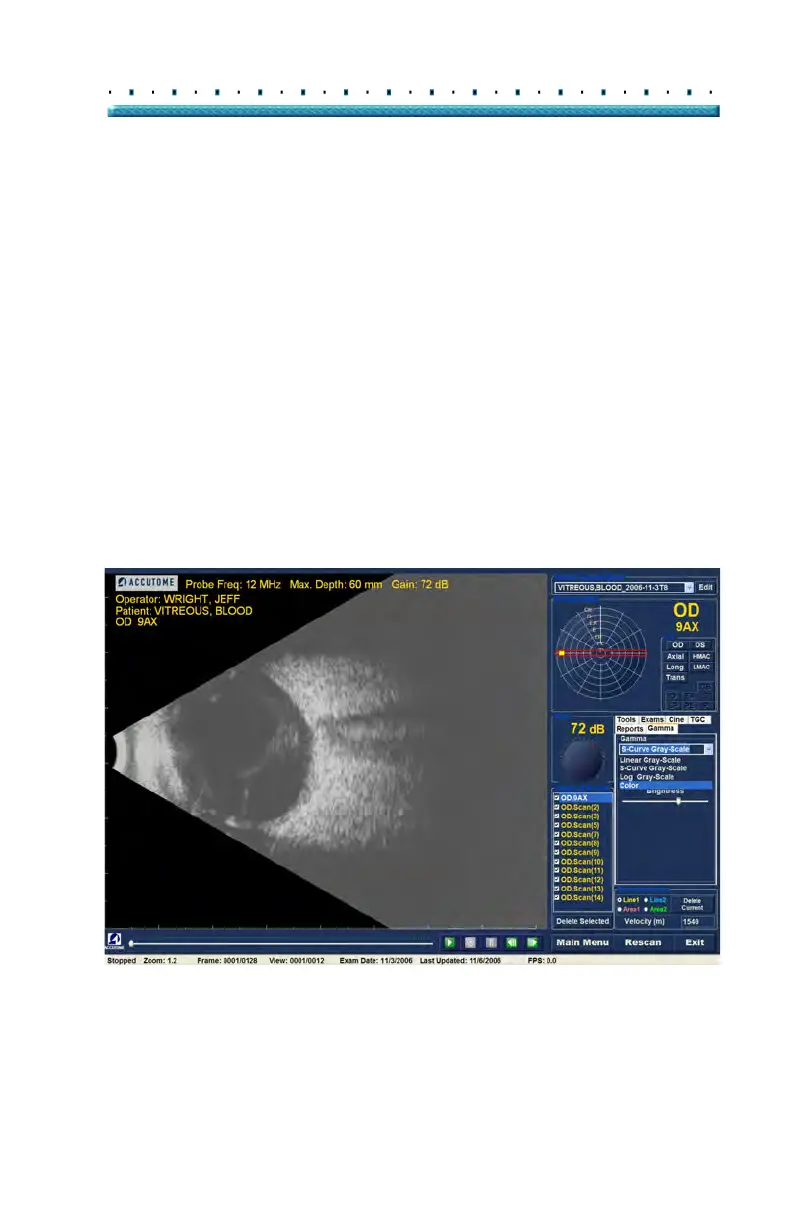
Changing Gamma Settings
To change the gamma setting you must first select the
"Gamma" tab from the tools palette. With the Gamma
tab displayed, position the cursor on the small arrow at
the right of the gamma field. Left click to open the drop
down list as shown in Figure 123 below. Position the
mouse over the up/down arrows
at the right of the drop
down list Click the mouse to move through gamma list.
Once you see the gamma setting you want to select
position the mouse cursor over the setting and left click.
The selected gamma will adjust the image on the screen.
Once you have selected the new gamma setting you can
fu
rther adjust the Contrast and Brightness settings by
dragging the indicator and viewing the results on the
screen. Higher contrast enhances denser tissue; lower
contrast enhances lower density tissue such as vitreous
membrane.
Figure 123 Selecting a New Gamma Setting
Exam Info
Current View
Probe Controls
Scan Controls
All Views
TGC Adjustments
Gamma Adjustments
Edit Exam Info
Zoom Controls



 To Next Page