ADOBE AFTER EFFECTS 7.0
User Guide
112
See also
“To undo changes” on page 56
Setting frame size
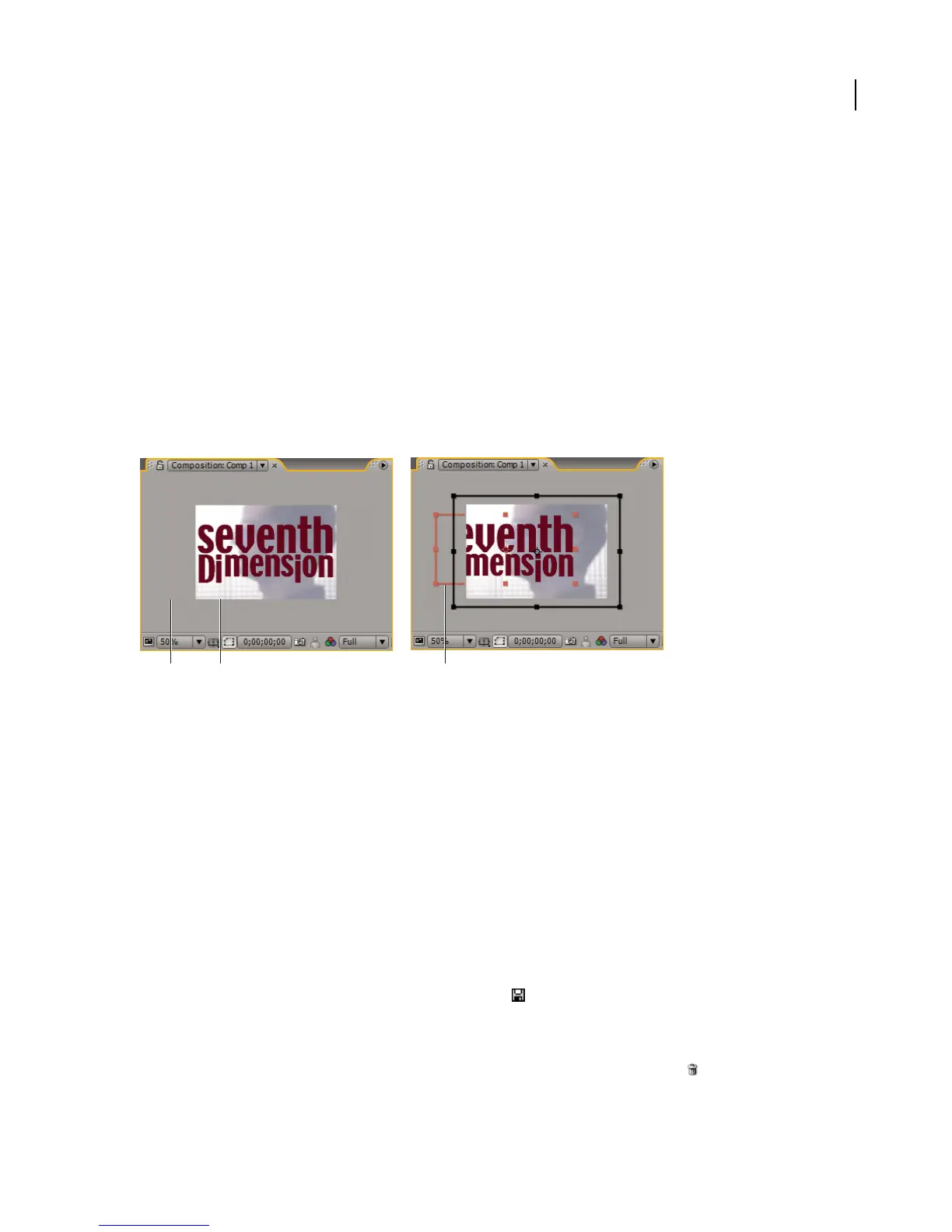
The Composition panel in After Effects contains the viewing frame and an area outside the frame that you can use
to move layers into and out of the frame. For your convenience, After Effects includes a variety of presets, each
containing settings for frame size, pixel aspect ratio, and frame rate. You can also create a custom preset and save it
for later use.
Because After Effects can position footage items outside the frame, specify a frame size no larger than the actual size
of the final viewing screen. After Effects previews and renders only the footage items within the frame.
The viewing frame occupies the center of the frame’s pixel area, which is centered in a larger work area. You can
position items outside the frame if, for example, you want a layer to enter the frame from one side, cross the screen,
and leave the frame on the other side.
The viewing frame within a composition panel
A. Composition work area B. Viewing frame C. Footage item partially outside the frame
To set the anchor
When you change the frame size of a composition, by default the layers are centered within the new dimensions. Use
the Anchor control to anchor the layers to a corner or edge of the composition as it is resized.
❖ Click the arrow button in the Anchor diagram (in the Advanced column of the Composition Settings dialog box)
to indicate where to position the existing layers.
To work with composition settings presets
You can save values you set in the Composition Settings dialog box so that you can reapply them to other composi-
tions. Settings for the Width, Height, Pixel Aspect Ratio, and Frame Rate options are saved with the presets. However,
the Resolution, Start Timecode, Duration, and Advanced composition options are not saved.
• To save custom preset values, in the Composition Settings dialog box specify the Width, Height, Pixel Aspect
Ratio, and Frame Rate values, and then click the Save button . Type a name for the preset and then click OK.
• To reuse custom preset values, in the Composition Settings dialog box select the custom name from the Preset
menu.
• To delete presets, choose the custom name from the Preset menu and click the Delete icon .
A BC



 To Next Page