ADOBE AFTER EFFECTS 7.0
User Guide
16
To display menus
In addition to choosing from the menus at the top of your screen, you can choose from context menus, which display
commands relative to the active tool or selected item. Panel menus display commands relative to the active panel.
• To display panel menus, click the triangle in the upper right corner of the panel.
Displaying panel menu by clicking triangle
• To display context menus, right-click (Windows) or press Control and hold down the mouse button (Mac OS).
Customizing the workspace
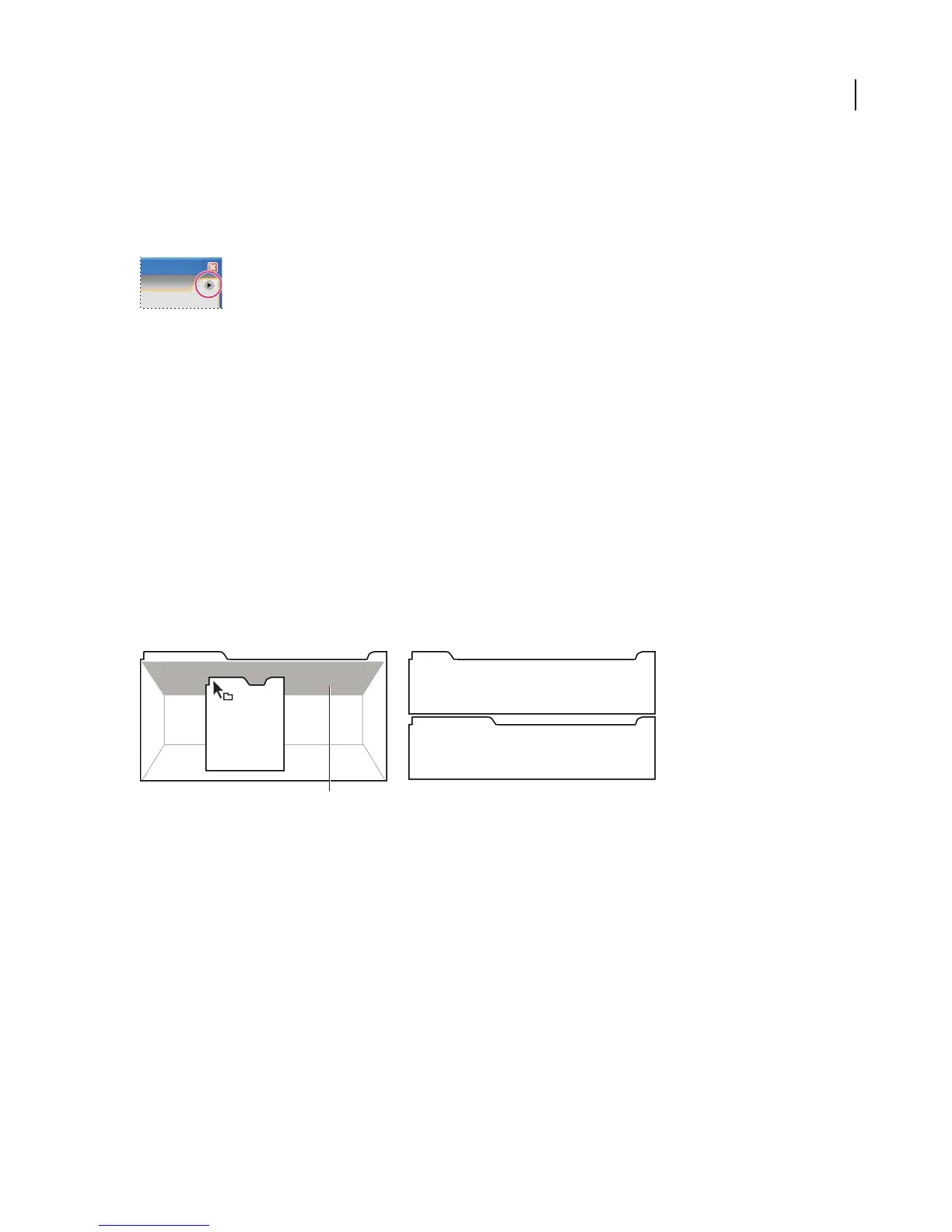
Drop zones
Drop zones are areas onto which you can drop or move panels. As you drag a panel, the drop zones become
highlighted. The drop zone determines where and how the panel is inserted into the workspace. Dragging a panel to
a drop zone results in one of two behaviors: docking or grouping.
Docking
Drop zones along the edges of a panel, group, or window are docking zones. Docking a panel places it adjacent to the
existing group, resizing all groups to accommodate the new panel.
Dragging panel (A) onto docking zone (B) to dock it (C)
Grouping
Thedropzoneinthemiddleofapanelorgroup,aswellasthezonealongthetabareaofapanel,aregroupingzones.
Grouping a panel adds it to an existing group, placing it at the top of the stacking order. Grouping a panel does not
resize other groups.
C
B
A



 To Next Page