ADOBE AFTER EFFECTS 7.0
User Guide
405
An unsafe level merely means that if some portions of your movie exceed the safe level, they will not look as you
intended when viewed on a television monitor. Here are some guidelines for using color in movies intended for
broadcast:
• Avoid using highly saturated colors. For example, a red value of 255 used with green and blue values of 0 will cause
red to smear on an NTSC monitor.
• RenderatestofyourmovieandplayitbackonanNTSCmonitortoensurethatcolorsarerepresentedaccurately.
• Avoid pure black and white values. Commonly used values for black and white are 235 and 16, respectively.
Note: The output you are creating should determine whether you use this effect. Many video systems alter colors for
broadcast during the encoding process.
You can adjust the following controls for the Broadcast Colors effect:
Broadcast Locale Specifies the type of broadcast standard you intend to use. NTSC (National Television Systems
Committee) is the North American standard, which is also used in Japan. PAL (Phase Alternating Line) is used in
most of Western Europe and South America.
How To Make Color Safe Specifies the method of reducing the signal amplitude. Reduce Luminance reduces a pixel’s
brightness by moving it towards black. This is the default setting. Reduce Saturation moves the pixel toward a gray
of similar brightness, making it less colorful. Key Out Unsafe makes unsafe pixels transparent and Key Out Safe
makes safe pixels transparent.
Maximum Signal Amplitude (IRE) Specifies the IRE unit level above which your layer’s pixels are altered. The range
is Amplitude (IRE) from 100 to 120 IRE. A level of 100 can affect a layer noticeably; a level of 120 is the maximum
possible IRE and is risky. The default, 110 IRE units, is conservative.
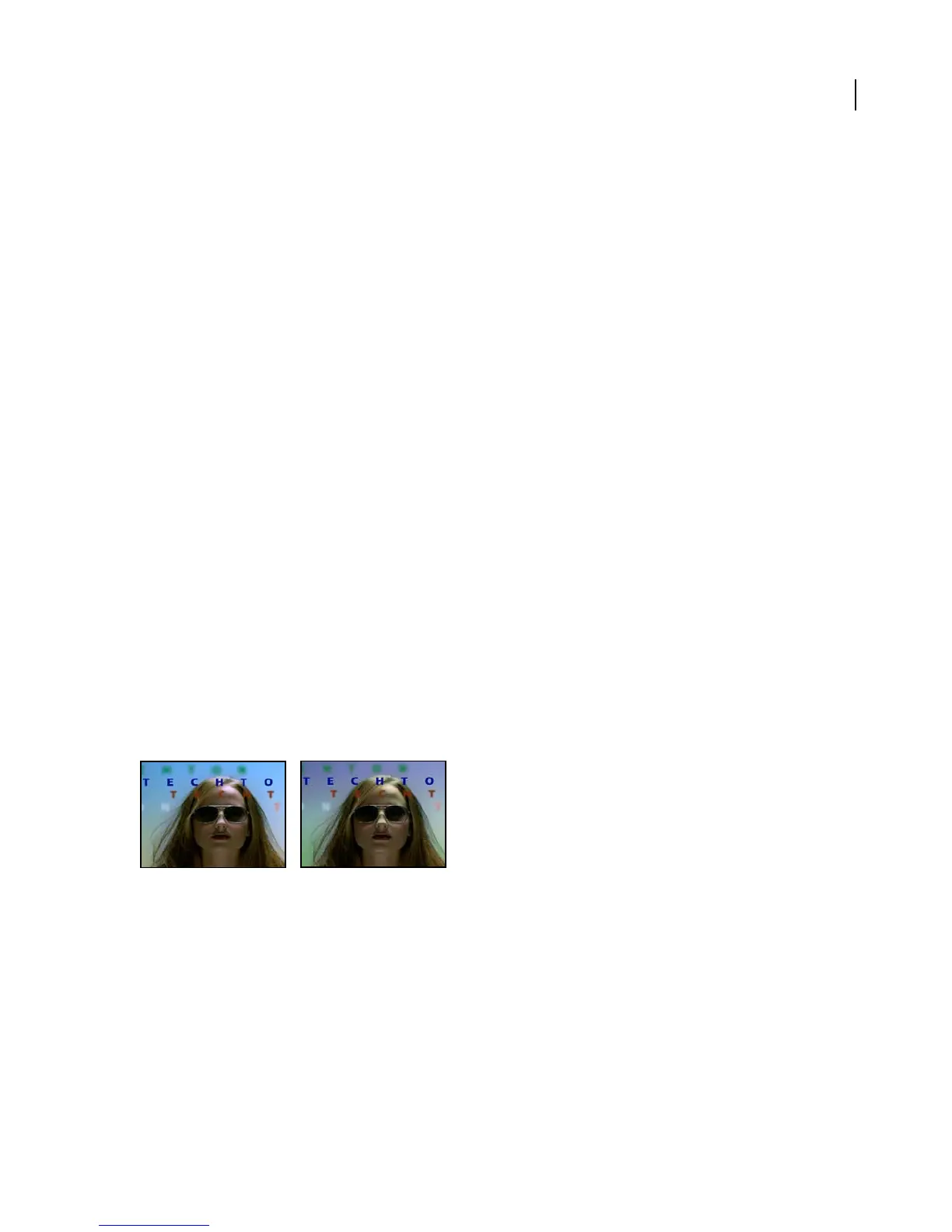
Change Color effect
The Change Color effect adjusts the hue, saturation, and lightness of a range of colors. Choose the range by speci-
fying a base color and similarity values. The similarity can be an RGB similarity, a hue similarity, or a chroma
similarity.
This effect works with 8-bpc and 16-bpc color.
Original (left), and with effect applied (right)
Adjust the following controls for the Change Color effect:
View Specifies what to view in the composition. Corrected Layer shows the results of the Change Color effect. Color
CorrectionMaskshowstheareasofthelayerthatwillbechanged.Whiteareasinthecolorcorrectionmaskaretrans-
formed the most, and dark areas are transformed the least.
Hue Transform Specifies the amount, in degrees, to adjust the hue of the selected colors.
Lightness Transform Specifies the amount to increase or decrease the lightness of the selected colors. Positive values
brighten the selected regions; negative values darken them.



 To Next Page