ADOBE AFTER EFFECTS 7.0
User Guide
310
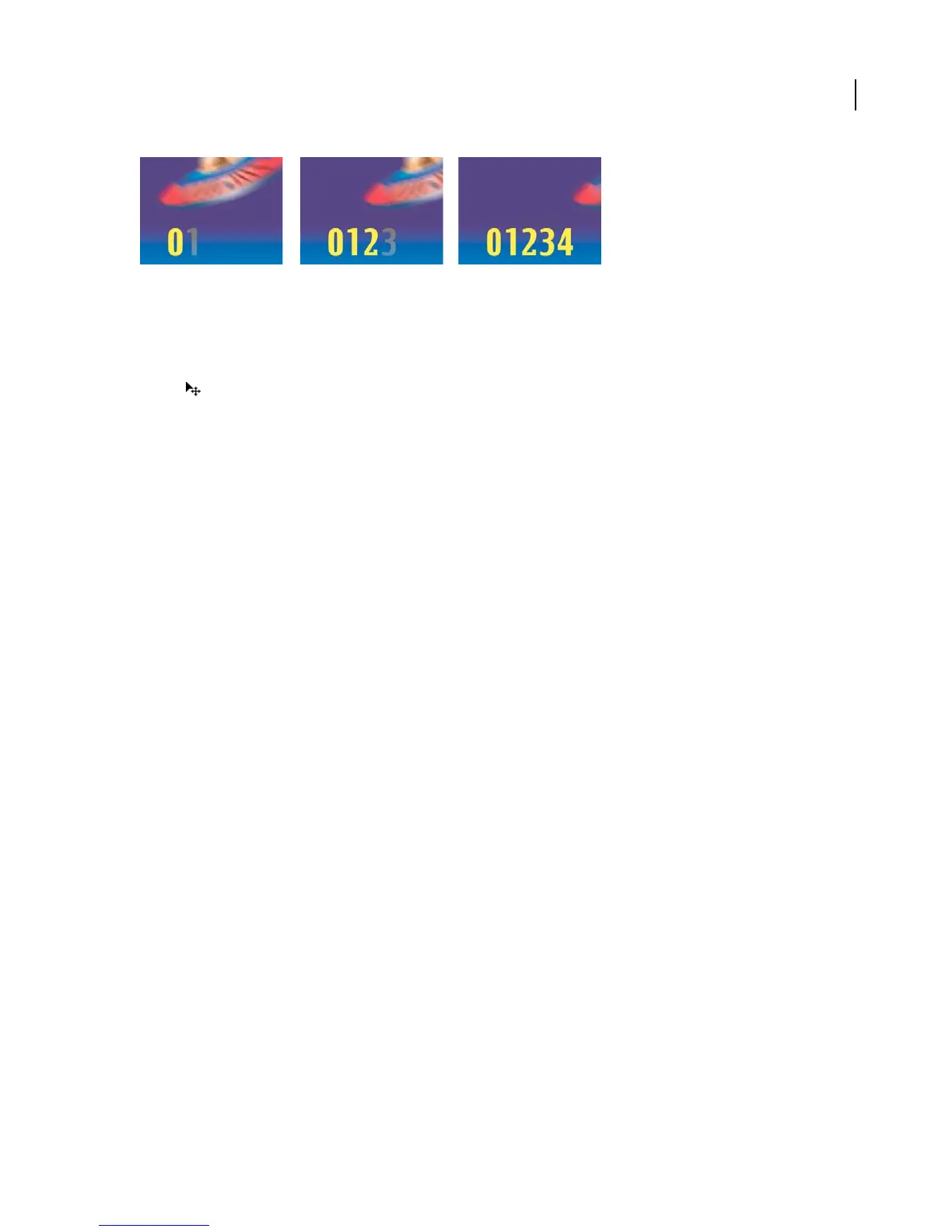
Writing text on using the Opacity property
1 Create a new composition.
2 Create a text layer with the characters 01234.
3 PositionthepointerawayfromthetextintheCompositionpanelandwhenthetypepointerchangestothemove
pointer , drag to move the text to the center of the panel. Resize it if necessary so that it fits within the panel.
4 Choose Animation > Animate Text > Opacity.
5 Set Opacity to 0%.
6 Expand the Range Selector 1 and click the stopwatch icon for Start.
7 In the Composition panel, drag the start selector to the left edge of the text (the value will be at 0).
8 Move the current-time indicator to 5 seconds and drag the start selector in the Composition panel to the right
edge of the text (the value will be 5).
9 Preview the animation.
10 By default, the Smoothness property is set to 100%. To create a typewriter appearance, expand the Advanced
property and set Smoothness to 0%.
See also
“To create a composition” on page 109
“To enter point text” on page 283
“Range selector properties” on page 300
“Wiggly selector properties” on page 302
“Using keyframes” on page 192
“Methods for previewing compositions” on page 134
Example: To animate text with multiple selectors
This example uses the selectorValue parameter with the Wiggly selector to make a string of characters flash on and
off randomly.
1 Create a new composition.
2 Create a new text layer.
3 In the Timeline panel, choose Opacity from the text layer’s Animate menu.
4 Expand the text layer and its animator in the Timeline panel.
5 Select the Range Selector and delete it.
6 Choose Add Selector > Wiggly next to the text layer’s Animator property group.



 To Next Page