ADOBE AFTER EFFECTS 7.0
User Guide
226
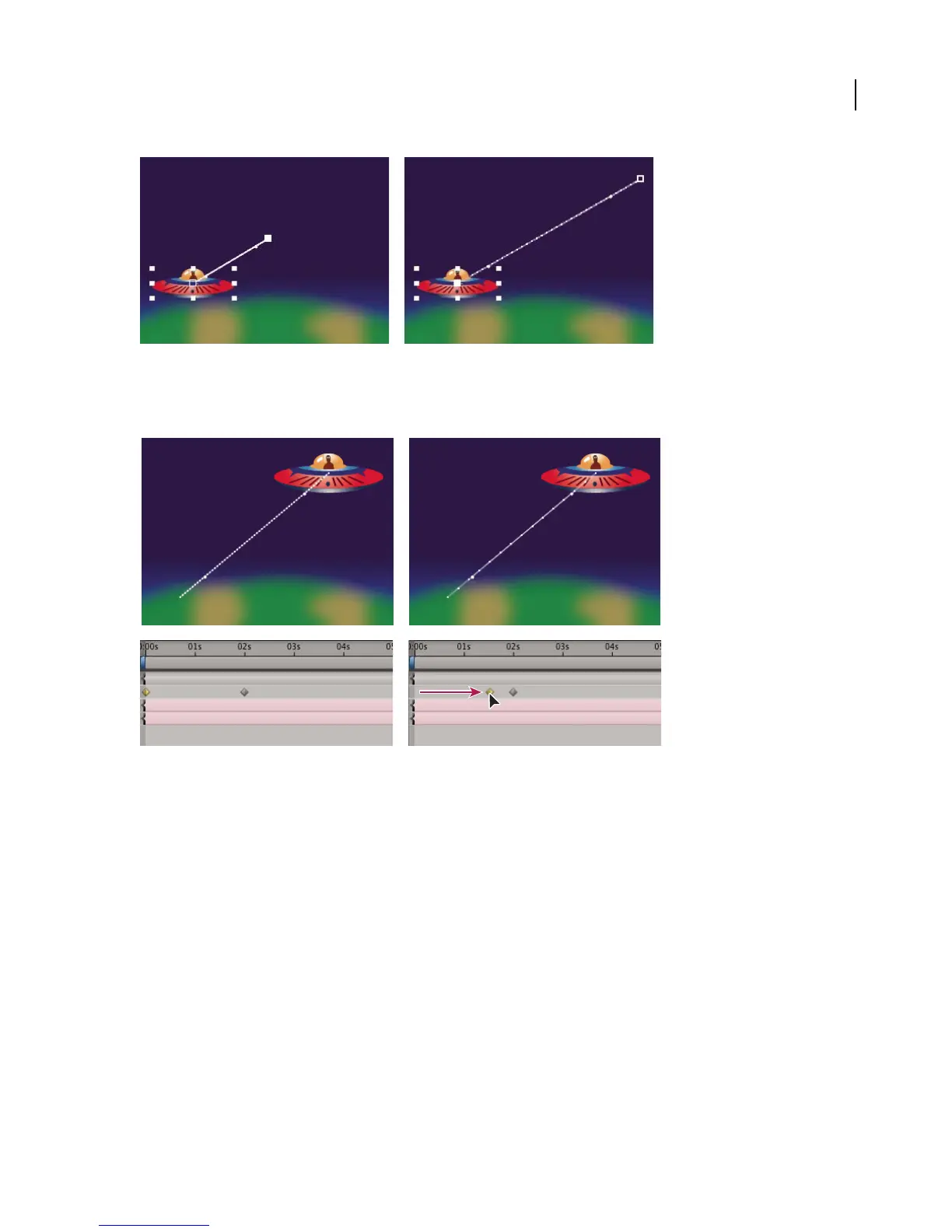
More spatial distance between keyframes increases layer speed.
• In layer bar mode or in the Graph Editor, adjust the time difference between two keyframes. Decrease speed by
movingonekeyframefartherawayfromtheother,orincreasespeedbymovingonekeyframeclosertotheother.
Shorter temporal distance between keyframes increases layer speed.
• Apply the Easy Ease keyframe assistant, which automatically adjusts the speed of change as motion advances
toward and retreats from a keyframe.
See also
“To automatically ease speed” on page 231
Adjusting rate of change with the speed graph
After you have set the shape of a motion path or created keyframes for a property, you may want to adjust the speed
to better simulate the natural world. Using the speed graph, you can adjust motion or the rate of change for a value
just before and just after a keyframe.
Forexample,youcanchangethemotionofalayersothatitslowsjustbeforeakeyframeandthenspeedsupjustafter
the keyframe, or so that it moves quickly over a certain distance and then slows down smoothly. By adjusting the rise
and fall of the speed graph, you can control how fast or slow a value changes from keyframe to keyframe.



 To Next Page