ADOBE AFTER EFFECTS 7.0
User Guide
116
To set the rendering plug-in
You can animate layers in 3D space. This 3D environment includes shadows, specular highlights, rack focus, and an
automatic method of compositing layers based on depth. The default 3D rendering plug-in is Advanced 3D. You can
use the Advanced tab of the Composition Settings dialog box to specify the Standard 3D or Advanced 3D rendering
plug-in. You can also specify third-party rendering plug-ins as they become available. Note that the Standard 3D
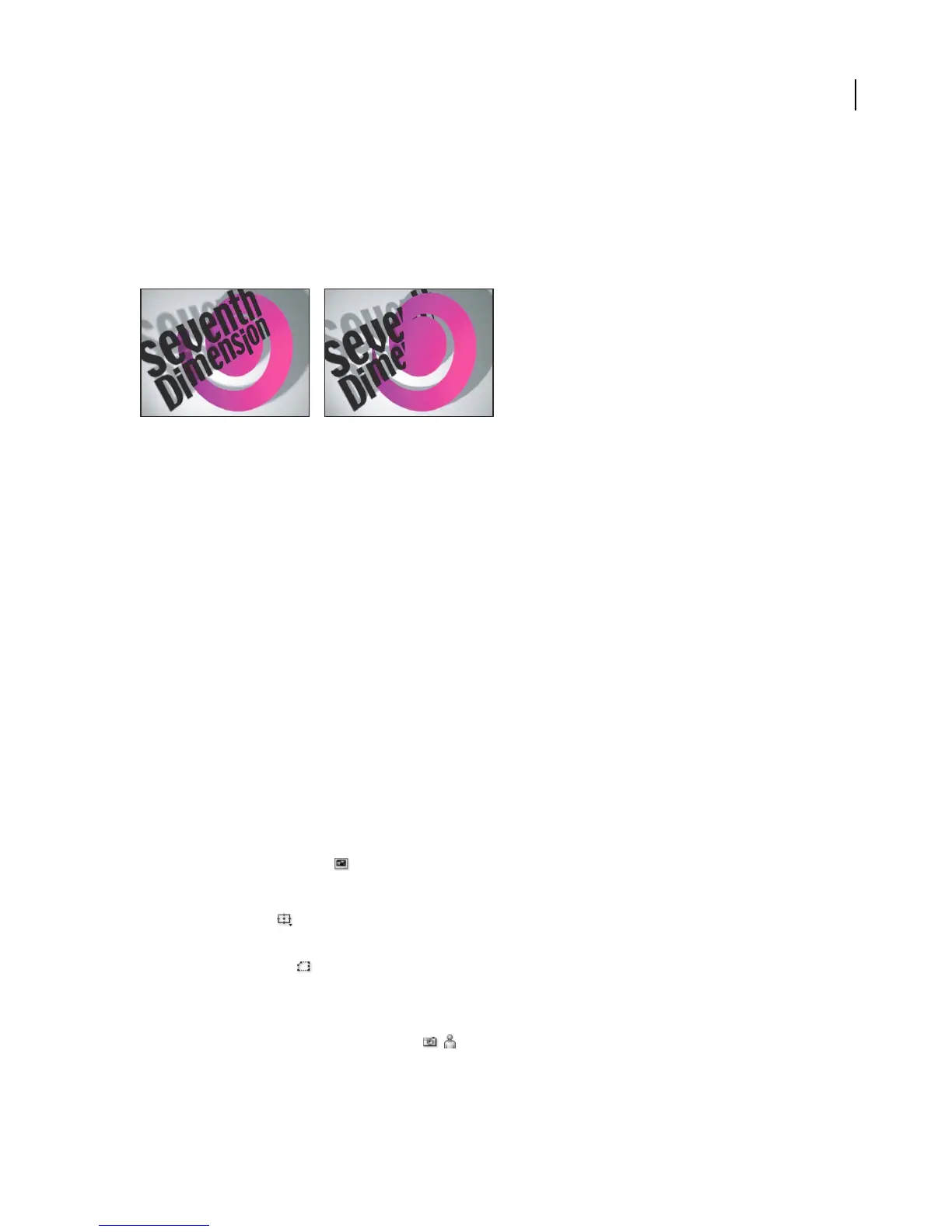
rendering plug-in does not support intersecting 3D layers.
Example of 3D file with intersecting layers rendered with Standard 3D rendering plug-in (left) and Advanced 3D rendering plug-in (right)
1 Choose Composition > Composition Settings, and click on the Advanced tab in the Composition Settings dialog
box.
2 Choose Standard 3D, Advanced 3D, OpenGL Hardware, or a third-party plug-in (if available) from the Rendering
Plug-in menu.
3 Click Options and specify the following settings in either the Standard 3D Options, or the Advanced 3D Options
dialog box, and then click OK:
Standard 3D Choose an option from the Antialiasing menu.
Advanced 3D Choose an option from the Shadow Map Resolution menu.
Composition panel
About the Composition panel
Use the Composition panel to preview the composition and animate its contents manually. For example, you can
move a layer by dragging it, scale a layer by dragging its handle, and scroll with the Hand tool. You can also change
the background color of the composition. The Composition panel contains a number of features and controls to help
you work with layers.
Always Preview This View button Toggles the current view as the default view for previews.
Magnification Ratio menu Specify a magnification from the menu.
Title-Action Safe menu Toggle Title/Action Safe Zone, Proportional Grid, Grid, Guides, Rulers, and 3D
Reference Axis. See “To view and use safe zones and grids” on page 142.
Toggle View Masks button Toggles between viewing masks in a composition and viewing the image without
masks.
Current Time button Opens the Go To Time dialog box. Specify a new frame or time in the text box.
Take Snapshot and Show Last Snapshot buttons Captures or shows an image of the contents of the panel.
Snapshots are not saved to disk. Click and hold the Show Last Snapshot button to view the most recent snapshot
instead of the active composition.



 To Next Page