ADOBE AFTER EFFECTS 7.0
User Guide
300
Note: Only add selectors to existing animator groups—you can’t create an animation unless you have a property to
animate.
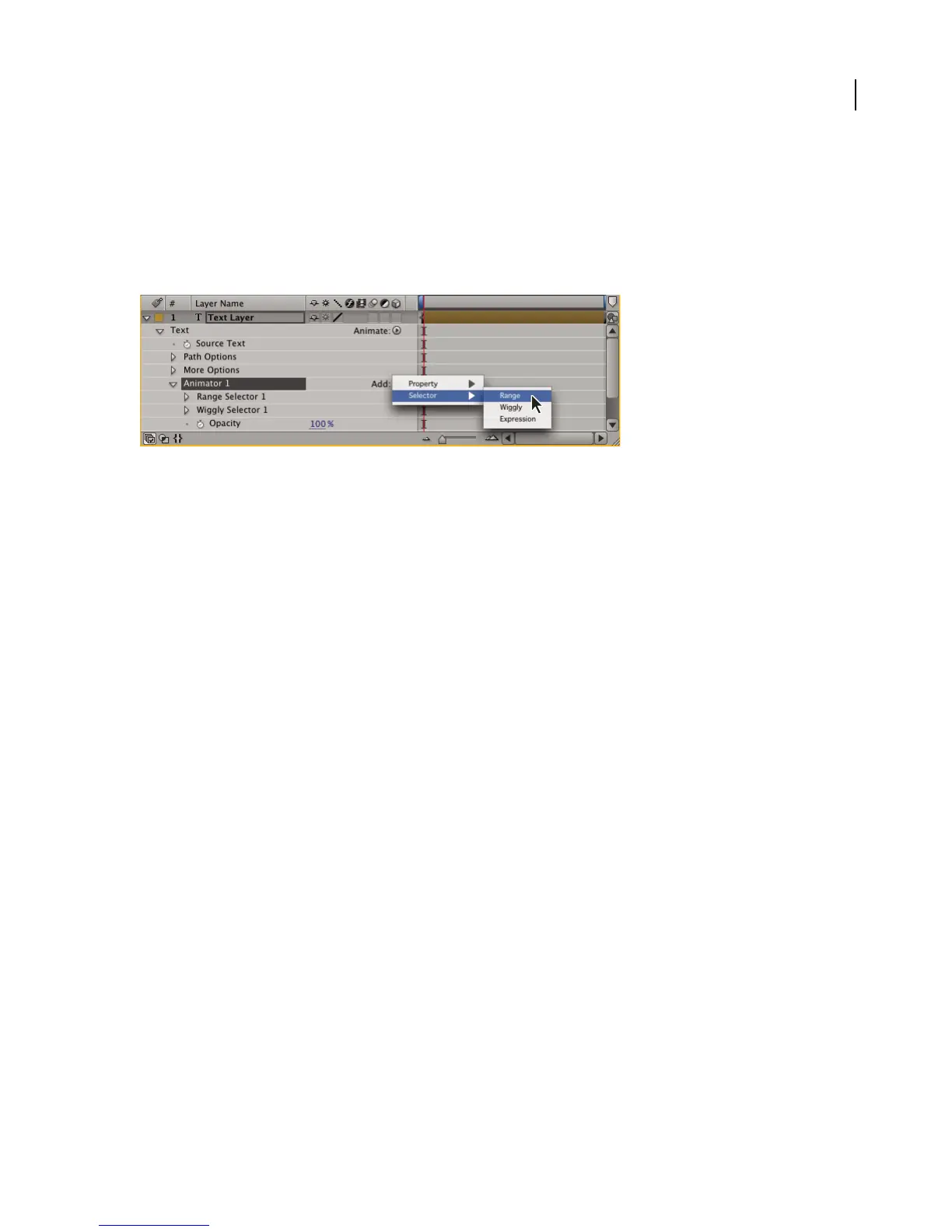
To add a new selector to an animator group
❖ In the Timeline panel, select an animator group and choose Selector from the Add menu; then choose either
Range or Wiggly from the submenu.
Adding a new Range selector to an animator group
To specify ranges with the Range selector
❖ In the Timeline panel, do one of the following:
• To specify an animated range that gradually applies the animator property to all of the characters, set an End
keyframe of 0% at 0 seconds and 100% at the end of the animation.
• To specify a static range of individual characters in the Composition panel, drag the left selector bar to the left edge
of the first character you want in the range and drag the right selector bar to the right edge of the last character
you want in the range.
• To specify an animated range of individual characters in the Composition panel, drag both selector bars to the left
side of the first character in the range and set a Start or End keyframe, move the current-time indicator to the end
of the animation, and then drag the right selector bar to the right side of the last character in the range.
• To move both the Start and End values by an equal amount, set a value for Offset.
See also
“Using keyframes” on page 192
Range selector properties
The Range selector includes the following properties:
Start and End The beginning and end of the selection (relative to the number of characters, words, or lines as
specified by the Units and Based On properties). For example, if you set Start to 0%, and set keyframes for End for
0% at 0 seconds and 100% at 4 seconds, the animator property will gradually take effect over those 4 seconds.
Offset Specifies how much you want to offset the Start and End of the selection. This property is useful for animating
the selector through the text, because the value you specify moves the Start and End values equally, saving you the
trouble of animating them both exactly the same way. To set the offset in the Composition panel while you edit the
Start or End values, Shift-click the Start or End selector bars.
Units and Based On The units for Start, End, and Offset. You can use either the percentage or index units and base
the selection on the characters, characters excluding spaces, words, or lines. If you select Characters, After Effects
counts spaces and effectively pauses the animation between words as it animates the spaces between words.



 To Next Page