ADOBE AFTER EFFECTS 7.0
User Guide
298
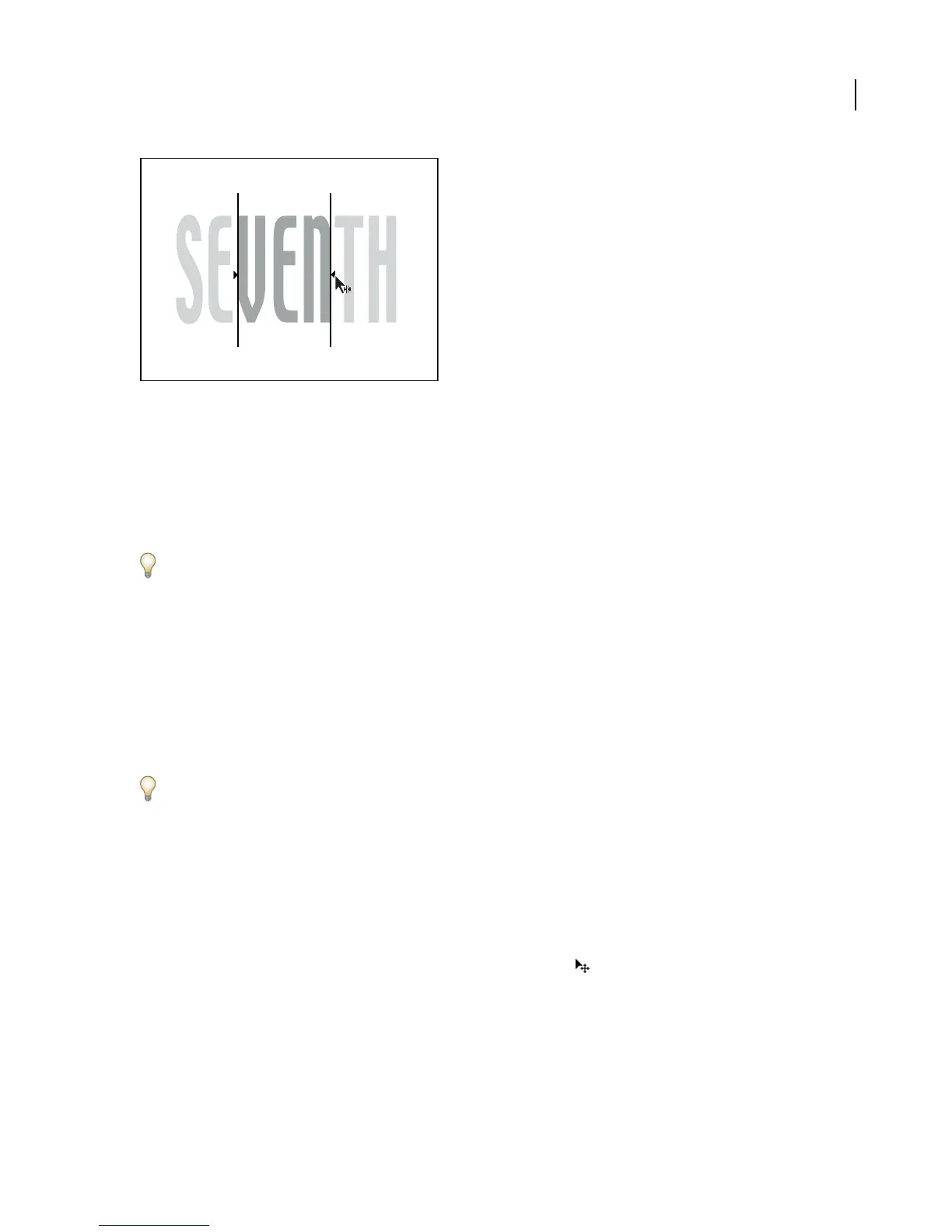
Selector bars surrounding the three middle characters VEN
5 To refine the selection, expand Advanced and specify options and values as desired.
For information about using selectors, see “About selectors” on page 299.
Because all of the animator groups that you add to a text layer appear with the name “Animator” in the Timeline
panel, you may want to rename them using more descriptive names. You can rename animator groups and selectors
the same way you rename layers. (See “To rename a layer” on page 158.)
To remove animators from a text layer, select the text layer in the Timeline panel, and choose Animation > Remove
All Text Animators.
To set a text layer’s anchor point properties
1 Expand the text layer in the Timeline panel, and expand the More Options group.
2 Do any of the following:
• Choose how to group the text layer’s character anchor points from the Anchor Point Grouping menu.
• Lower the Grouping Alignment values to move each anchor point up and to the left.
• Raise the Grouping Alignment values to move each anchor point down and to the right.
To center the anchor point in a string of capital letters, try a Grouping Alignment value of 0%, -50%. To center the
anchor point in a string of lowercase letters, or if you’re using both lowercase and uppercase letters, try 0%, -25%.
Animator properties
Use animator properties to animate text in text layers.
Most animator properties are identical to other layer properties, such as Position, Scale, and Opacity; however, the
following properties are unique to text layers or behave differently for text layers:
Position The position of the characters. You can specify values for this property in the Timeline panel, or in the
Composition panel using the Selection tool, which changes to a move tool when positioned over text characters.
Skew The slant of the characters. The Skew Axis specifies the axis along which the character is skewed.
All Transform Properties All of the Transform properties are added at once to the animator group.
Fill Color (RGB, Hue, Saturation, Brightness, Opacity) The color of the character’s fill.
Stroke Color (RGB, Hue, Saturation, Brightness, Opacity) The color of the character’s stroke (outline).



 To Next Page