ADOBE AFTER EFFECTS 7.0
User Guide
289
Some fonts include robust kern-pair specifications. For other fonts, or for two different typefaces or sizes in a line,
you may want to use the optical kerning option. Optical kerning adjusts the spacing between adjacent characters
based on their shapes. You can also use manual kerning, which is ideal for adjusting the space between two letters.
Tracking and manual kerning are cumulative, so you can first adjust individual pairs of letters and then tighten or
loosen a block of text without affecting the relative kerning of the letter pairs.
Note: Values for kerning and tracking affect Japanese text, but normally these options are used to adjust the aki (spacing)
between Roman characters.
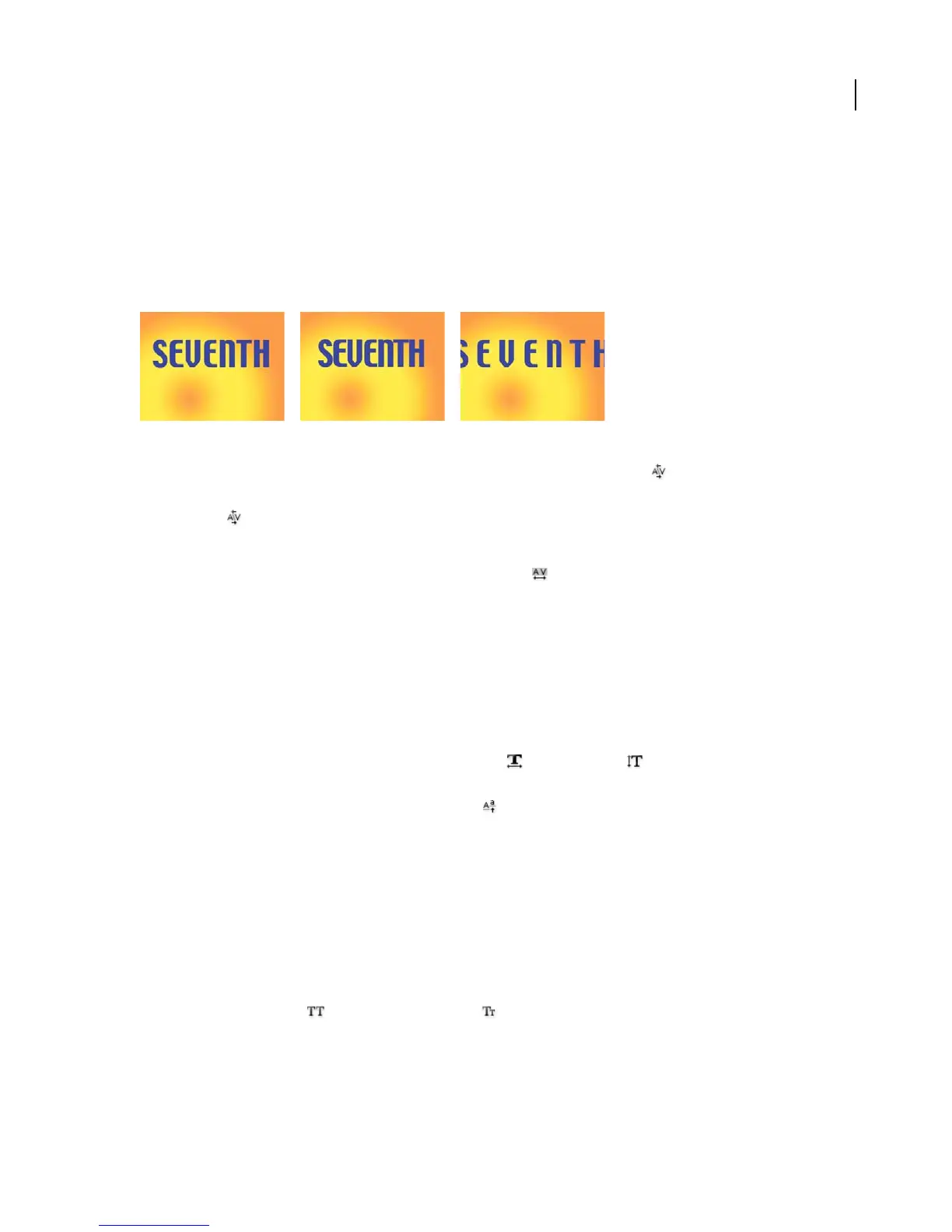
Tracking set to default value of 0 (left), Tracking set to -50 (center), and Tracking set to 200 (right)
• To use a font’s built-in kerning information, choose Metrics from the Kerning menu in the Character panel.
• To adjust kerning manually, click between two characters with a type tool, and enter, drag or select a numeric value
for Kerning in the Character panel.
Note: If a range of text is selected, you can’t manually kern the characters. Instead, use tracking.
• To specify tracking, enter or select a numeric value for Tracking in the Character panel.
To adjust scale or specify baseline shift
Horizontal scale and vertical scale specify the proportion between the height and width of the text. Unscaled
characters have a value of 100%. You can adjust scale to compress or expand selected characters in both width and
height.
Baseline shift controls the distance that text appears from its baseline, either raising or lowering the selected text to
create superscripts or subscripts.
• To adjust scale, enter a new percentage for Horizontal Scale or Vertical Scale in the Character panel, or
drag the underlined value.
• To specify baseline shift, enter a value for Baseline Shift in the Character panel, or drag the underlined value.
A positive value moves horizontal text above and vertical text to the right of the baseline; a negative value moves
text below or to the left of the baseline.
To change the case of text
You can enter or format text as uppercase characters, either all caps or small caps. When you format text as small
caps, After Effects uses the small caps designed as part of the font, if they are available. If the font does not include
small caps, After Effects generates faux small caps.
❖ Do one of the following:
• Click the All Caps button or the Small Caps button in the Character panel.
• Choose All Caps or Small Caps from the Character panel menu. A check mark indicates that the option is selected.
Note: Selecting Small Caps will not change characters that were originally typed in uppercase.



 To Next Page