ADOBE AFTER EFFECTS 7.0
User Guide
228
To create a bounce or peak
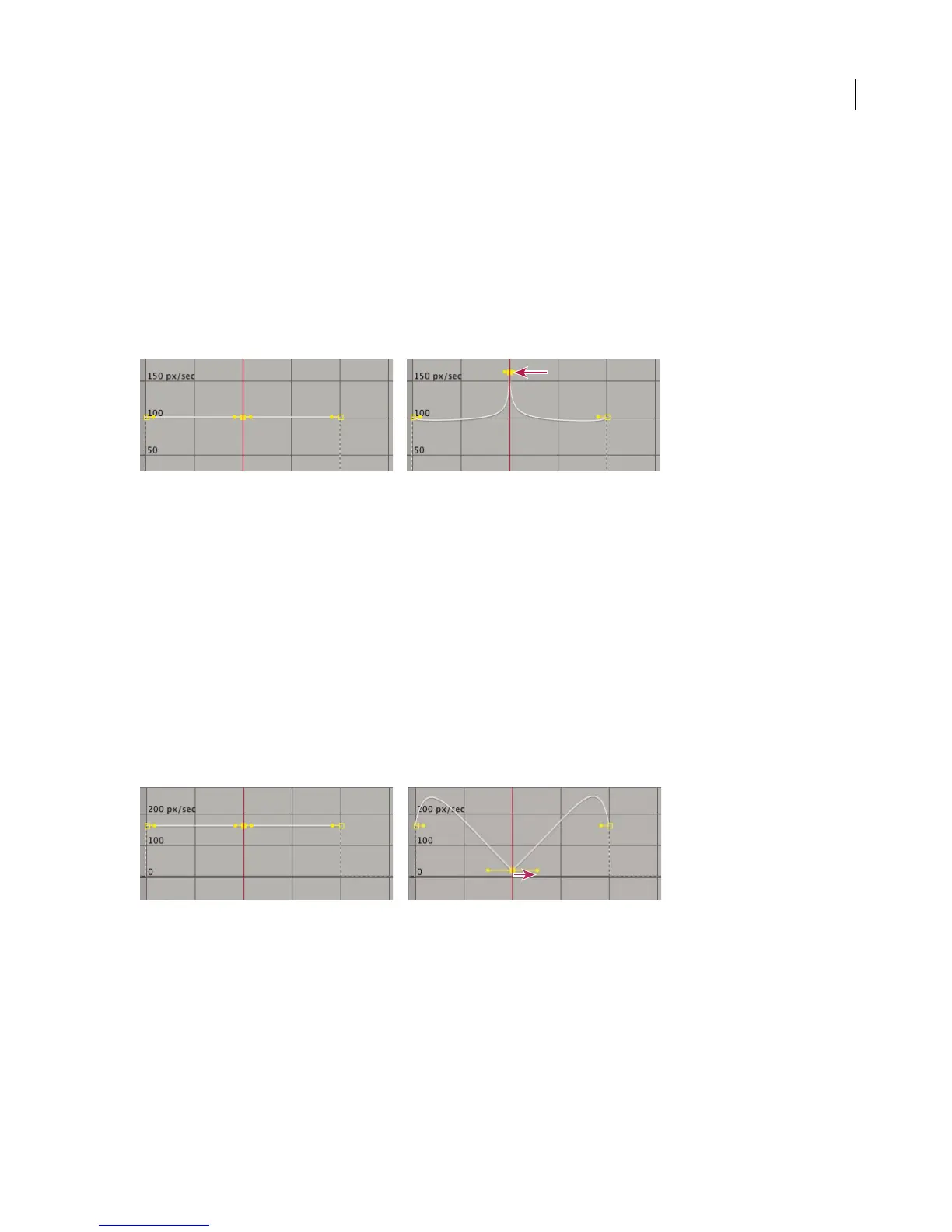
Use direction handles to simulate the type of acceleration seen in a bouncing ball. When you create this type of effect,
the speed graph appears to rise quickly and peak.
1 In the Timeline panel, expand the outline for the keyframe you want to adjust.
2 Click the Graph Editor button and display the speed graph for the property.
3 Make sure the interpolation method for the keyframe you want to peak is set to Continuous Bezier or Bezier.
4 Drag the desired keyframe (with joined direction handles) up until it is near the top of the graph.
5 Drag the direction handles on either side of the keyframe toward the center of the keyframe.
Dragging direction handle to create a peak
See also
“Applying and changing interpolation methods” on page 222
To start or stop change gradually
Direction handles can create gradual starts and stops, such as a boat slowing to a stop and then starting again. When
you use this technique, the speed graph resembles a smooth U shape.
1 In the Timeline panel, expand the outline for the keyframe you want to adjust.
2 Click the Graph Editor button and display the speed graph for the property.
3 Make sure the interpolation method for the keyframe you want to adjust is set to Continuous Bezier or Bezier.
4 At the desired keyframe, drag the direction handle down until it is near the bottom of the graph.
5 Drag the direction handles on either side of the keyframe away from the center of the keyframe.
Dragging the direction handle to make a gradual change
See also
“Applying and changing interpolation methods” on page 222



 To Next Page