ADOBE AFTER EFFECTS 7.0
User Guide
425
Liquify effect
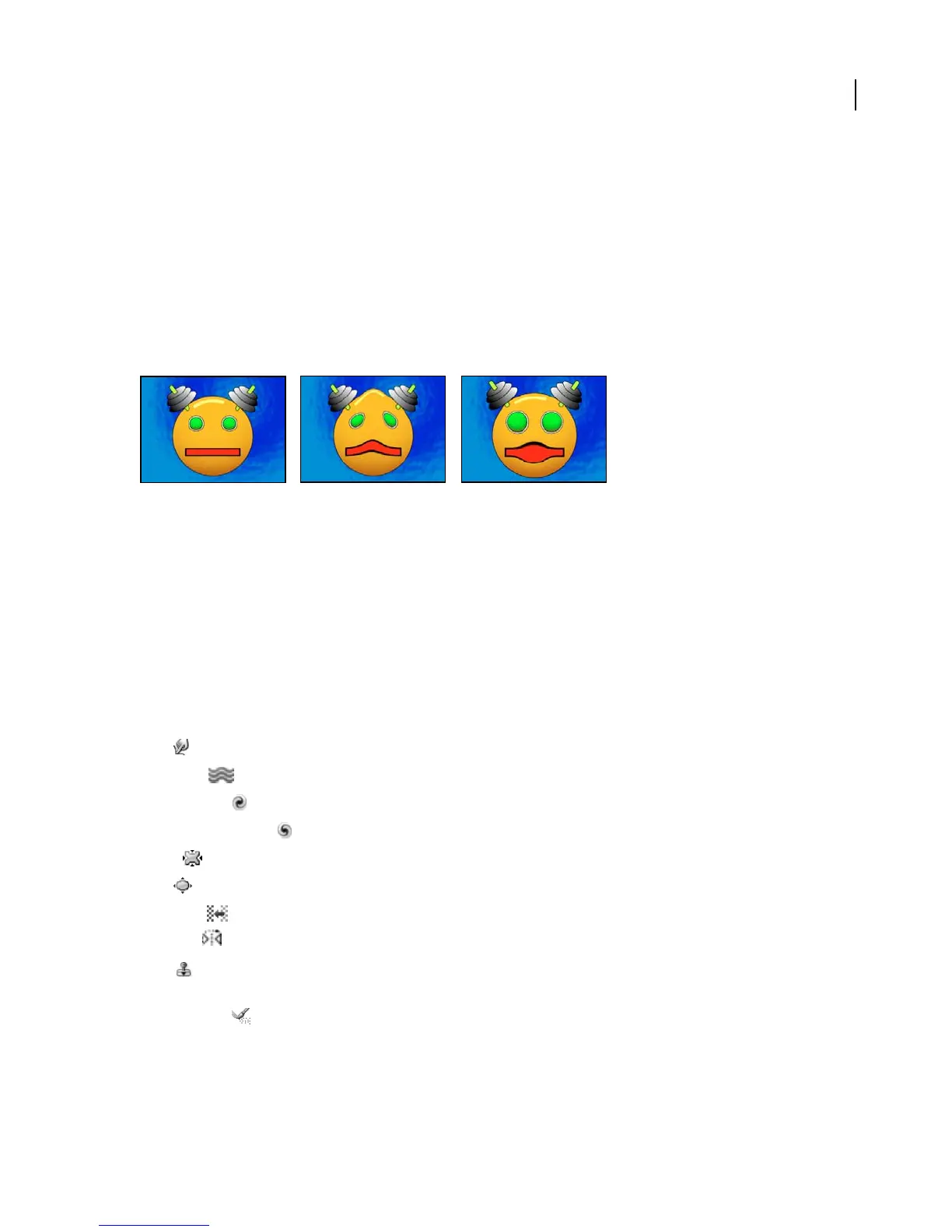
The Liquify effect lets you push, pull, rotate, enlarge and shrink areas in a layer. Several Liquify tools distort the brush
area when you hold down the mouse button or drag. The distortion is concentrated at the center of the brush area,
and the effect intensifies as you hold down the mouse button or repeatedly drag over an area.
YoucanlimittheareaofalayeryoudistortusingFreezeAreaMask.UsetheReconstructionmodetolessenorundo
distortions you’ve created.
The Liquify effect can extend beyond the boundaries of the target layer. This is useful when the target layer is smaller
than the composition.
This effect works with 8-bpc and 16-bpc color.
Original (left) and with variations of Liquify applied (center and right)
Mask properties for the Liquify effect
Freeze Area Mask Determinestheareaoftheimageinwhichthedistortionisaffectedbymaskopacityandfeather
settings. Areas outside the mask are distorted; areas within the mask are distorted according to Mask Opacity and
Mask Feather settings.
Mask Opacity Determines how the area within the mask is affected by the distortion. When Mask Opacity is set to
100%, the area within the mask is not affected by the distortion; when it’s set to 50%, the area within the mask is
somewhat affected. If you set the opacity to 100%, make sure to feather the mask to prevent jagged edges on the mask.
Mask Feather The width of the feather used to blend pixels between the masked area and the non-masked area.
Liquify tools
Warp Pushes pixels forward as you drag.
Turbulence Smoothly scrambles pixels. It is useful for creating fire, clouds, waves, and similar effects.
Twirl Clockwise Rotates pixels clockwise as you hold down the mouse button or drag.
Twirl Counterclockwise Rotates pixels counterclockwise as you hold down the mouse button or drag.
Pucker Moves pixels toward the center of the brush area as you hold down the mouse button or drag.
Bloat Moves pixels away from the center of the brush area as you hold down the mouse button or drag.
Shift Pixels Moves pixels perpendicular to the stroke direction.
Reflection Copies pixels to the brush area.
Clone Copies the distortions from around a source location to the current mouse location. Select the source
location by Alt-clicking (Windows) or Option-clicking (Mac OS) the source point.
Reconstruction Reverses distortions or applies them in different ways.
To distort an image with the Liquify effect
1
Select the layer, and choose Effect > Distort > Liquify.



 To Next Page