ADOBE AFTER EFFECTS 7.0
User Guide
257
Note: The mask must contain keyframes that create enough movement to result in a realistic motion blur.
1 Select one or more masks.
2 Choose Layer > Masks > Motion Blur, and choose one of the following options:
Same As Layer To control the mask’s blur using the Motion Blur button.
On To render the mask blur even if the Motion Blur button is not selected. (The Enable Motion Blur button must be
selected for this option to work.)
Off To apply no motion blur to the mask.
3 Click the Enable Motion Blur button in the Timeline panel to view the blur.
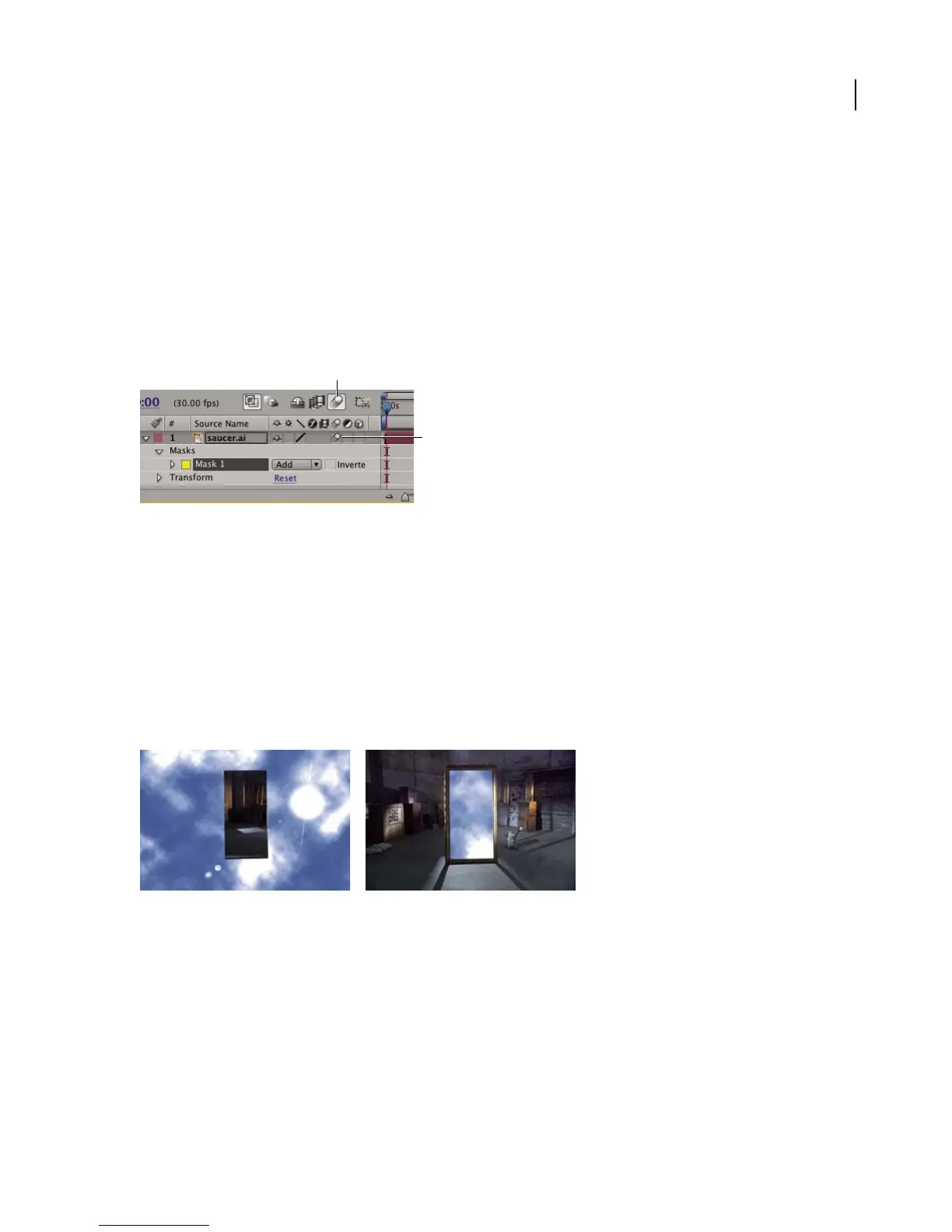
Motion blur settings for a layer and a composition
A. Enable Motion Blur button B. Motion Blur switch
See also
“About motion blur” on page 214
To invert a mask
The image area inside the mask outline is fully opaque, and the area outside the mask outline is transparent. If you
want to create the appearance of a hole in a video layer to reveal a layer underneath, switch the inside and outside
areas by inverting the mask. You cannot change the mask state using keyframes; a mask is either inverted or not
inverted for the entire duration of a composition.
Default behavior for a drawn mask (left); same mask inverted (right)
1 Select the mask you want to invert. (You can select multiple masks to simultaneously invert them all.)
2 In the Timeline panel, select the Inverted option next to the mask name.
Ifyouhavemultiplemasksinonelayer,youcanapplymaskmodestocreatecomplextransparentshapesorvarying
levels of transparency.
A
B



 To Next Page