ADOBE AFTER EFFECTS 7.0
User Guide
383
Adjust the following controls for the Depth Of Field effect:
Focal Plane Specifies the specific distance, or plane, along the z axis that you want to focus on in the 3D scene.
Identify this distance by clicking different parts of the 3D scene in the Composition panel, while keeping an eye on
the z-axis values that appear in the Info panel. Note that you must select the effect in the Effect Controls panel before
you click.
Maximum Radius Describes how much blur is applied to objects outside this plane.
Focal Plane Thickness Determines the depth of the region that’s in focus.
Focal Bias Sets the speed with which the out-of-focus elements lose focus. The higher the value, the more quickly
elements drop out of focus.
See also
“About 3D layers” on page 173
Fog 3D effect (Pro only)
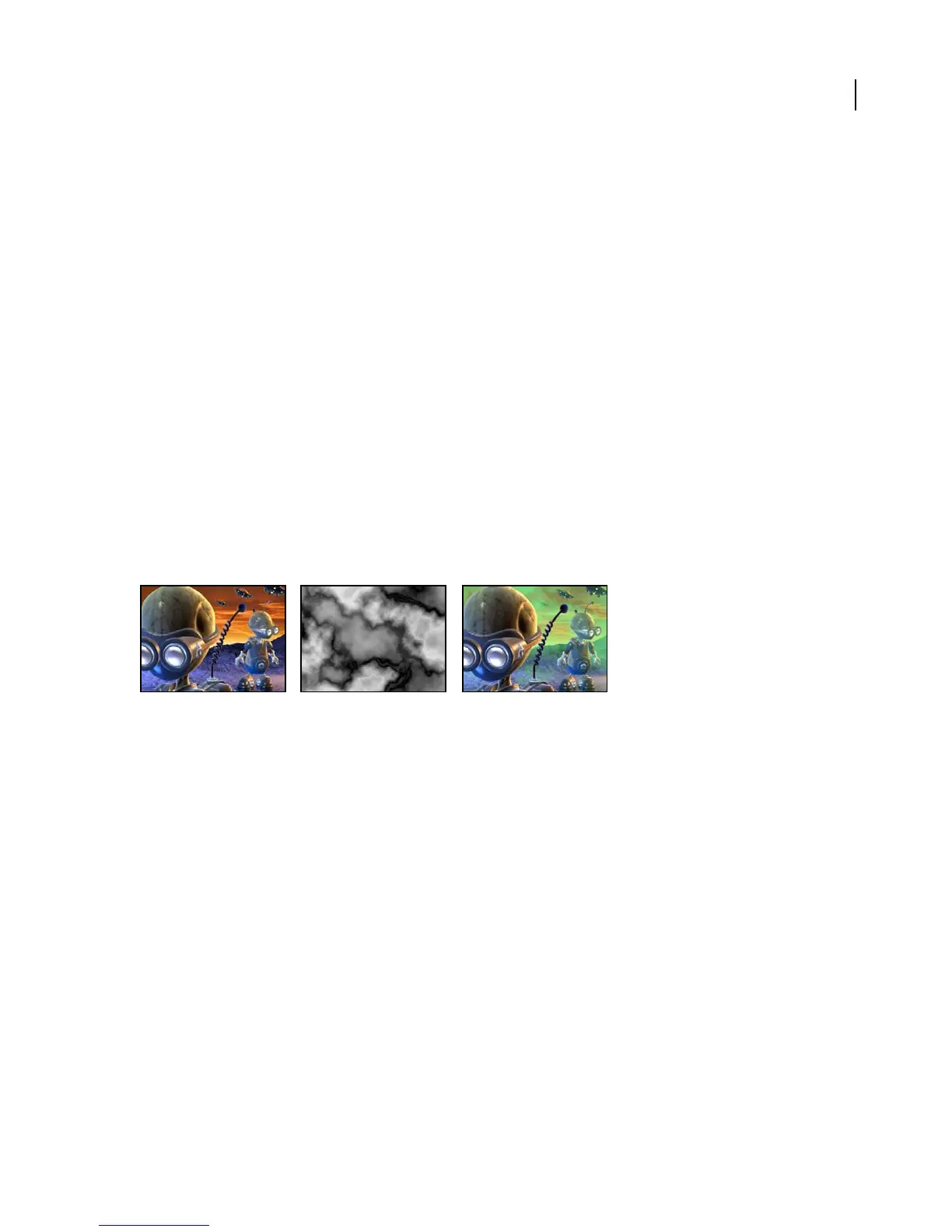
The Fog 3D effect applies fog along the z axis, so the distant parts of a 3D scene look hazier or disappear behind the
fog. Fog 3D simulates fog by behaving as though there is a scattering medium in the air that makes objects look more
diffuse as they get more distant along the z axis.
This effect works with 8-bpc color.
Original (left), Gradient Layer (center), and with Fog 3D applied (right)
Adjust the following controls for the Fog 3D effect:
Fog Color Specifies the color of the fog.
Fog Start Depth Determines where along the z axis the diffuse scattering begins. To specify this point, first select
different elements in the 3D scene and note their z depth in the Info panel.
Fog End Depth Determines where the most diffuse area appears along the z axis.
Fog Opacity Determines the opacity of the fog.
Scattering Density Determines how quickly the scattering occurs. The higher the value, the more dense the fog
appears from its starting point.
Foggy Background Creates a foggy background and is selected by default. Deselect this control to create trans-
parency at the back of the 3D scene for compositing on top of another image or scene.
Gradient Layer Specifies a grayscale layer to use as medium for increasing or decreasing the fog density. After Effects
reads the luminance value in the grayscale image and applies it as the scattering medium. You could, for example,
create a gradient layer from a swirling, drifting texture to create a more atmospheric fog effect. For best results, make
sure that the dimensions of the gradient layer are the same as the dimensions of the footage, not the same as the
dimenstions of the composition.



 To Next Page