ADOBE AFTER EFFECTS 7.0
User Guide
252
• Todeleteallmasks,selectthelayercontainingthemasksyouwanttoremoveandchooseLayer>Masks>Remove
All Masks.
To duplicate a mask
Ifyoucreateamaskononeareaofalayerandwanttoputacopyofitonanotherareaofthelayer,usetheDuplicate
command.
1 Select the mask in the Composition, Layer, or Timeline panel, and then do one of the following:
• Choose Edit > Duplicate.
• Choose Edit > Copy, deselect the mask, and then choose Edit > Paste.
2 In the Composition or Layer panel, drag the duplicated mask to another location on the layer.
Controlling mask color
To help you identify and work with masks, the Composition and Layer panels outline a mask’s shape with color, and
the Timeline panel displays that same color next to the mask’s name. By default, After Effects uses the color yellow
for all masks. To make each mask more distinct, you can manually change a mask’s color using the Timeline panel,
or you can set After Effects to cycle mask colors.
To apply a new color to a mask outline
To make it easier to work with multiple masks in the Composition panel, you can apply different colors to each mask
outline.
1 Select the mask in the Timeline panel.
2 If necessary, expand the Mask properties by pressing the M key.
3 Click the color swatch just to the left of the mask name, pick a new color, and click OK.
To set After Effects to cycle mask colors
1
Choose Edit > Preferences > User Interface Colors.
2 Select Cycle Mask Colors.
After Effects cycles through eight different mask colors.
To specify a mask as target for new mask shapes
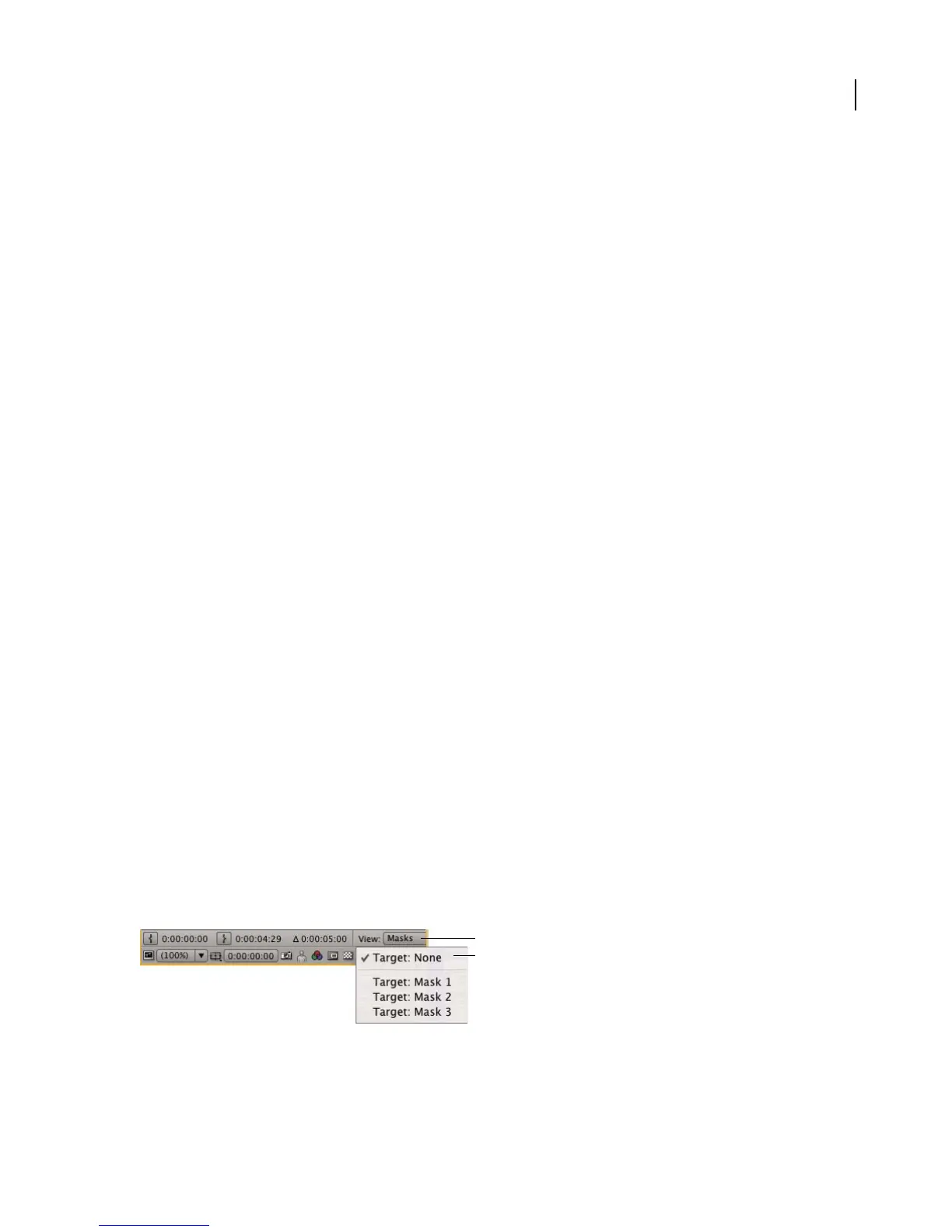
As soon as you draw the first point on your first mask for a layer, the Layer panel displays a Target menu, which you
use to specify a mask as the target for all new mask shapes.
❖ In the Layer panel, choose the mask name from the Target menu.
Menu selections to specify a mask in the Layer panel
A. View pop-up menu B. Target pop-up menu
A
B



 To Next Page