ADOBE AFTER EFFECTS 7.0
User Guide
309
“Range selector properties” on page 300
“Using keyframes” on page 192
“Methods for previewing compositions” on page 134
Example: To change transitions between characters
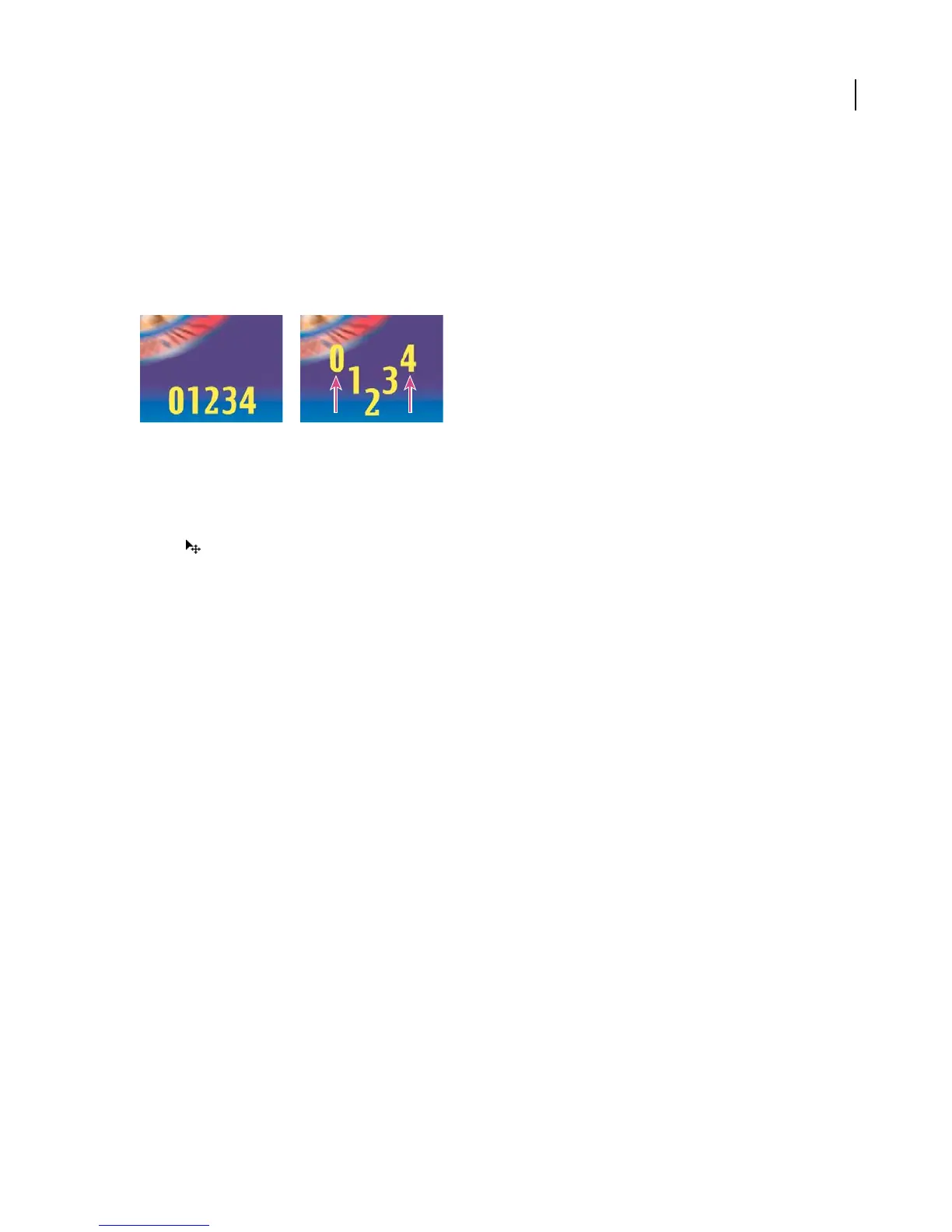
Using different Shape options, you can significantly change the appearance of an animation.
Setting Shape to Triangle
1 Create a new composition.
2 Create a text layer with the characters 01234.
3 PositionthepointerawayfromthetextintheCompositionpanelandwhenthetypepointerchangestothemove
pointer , drag to move the text to the top of the panel. Resize it if necessary so that it fits within the panel.
4 Choose Animation > Animate Text > Position.
5 Expand Range Selector 1.
6 Make sure the current-time indicator is at 0 seconds and click the End stopwatch and set End to 0.
7 Move the current-time indicator to 5 seconds and set End to 5.
8 Adjust the y Position value so that the text appears at the bottom of the Composition panel.
9 Preview the animation.
10 Click Advanced and choose Triangle from the Shape menu; then preview the animation.
11 Choose Square from the Shape menu and preview the animation; then set Ease High to 100% and preview the
animation.
12 Set Ease High to -100 and preview the animation again.
13 Set different options from the Shape menu and preview the resulting animations.
See also
“To create a composition” on page 109
“To enter point text” on page 283
“Range selector properties” on page 300
“Using keyframes” on page 192
“Methods for previewing compositions” on page 134
Example: To create a write-on animation
You can easily create the appearance of writing on the screen by using the Opacity animator property.



 To Next Page