ADOBE AFTER EFFECTS 7.0
User Guide
455
Stroke Specifies how the effect treats the edges of the filled area.
• Antialias Anti-aliases the edges of the filled area.
• Feather Creates a feathered edge for the filled area. Feather Softness values create a more gradually disappearing
edge.
• Spread Expands the area of the fill color. The Spread Radius value indicates the number of pixels the fill color
extends beyond the edge of the fill area.
• Choke Contracts the area of the fill color. The Spread Radius value indicates the number of pixels the fill color
shrinks from the edge of the fill area.
• Stroke Confines the fill to just the border of the selected area. The Stroke Width value indicates the width of the
stroke, in pixels.
Each of the options has a corresponding slider, except for Antialias.
Invert Fill Reverts all currently filled pixels to their original colors and transparency, and fills the previously unfilled
pixels using the current settings.
Color Specifies the color to use as the fill color.
Opacity Specifies the transparency of the filled area.
Blending Mode Specifies the blending mode the effect uses to create the operation between the new fill color and
the original layer. All of these blending modes appear in the Mode menu in the Timeline panel, except for Fill Only.
Use Fill Only if you don’t wish to composite the fill with the original image. Only the fill remains visible.
Note: If you apply multiple instances of Paint Bucket to a layer, be sure not to set more than one to use the Fill Only
blending mode. If you set more than one instance to use this blending mode, only the first application of the filter is
displayed. The blending mode drops out the original image, thereby changing the fill point selection for the following
applications of the filter.
Radio Waves effect
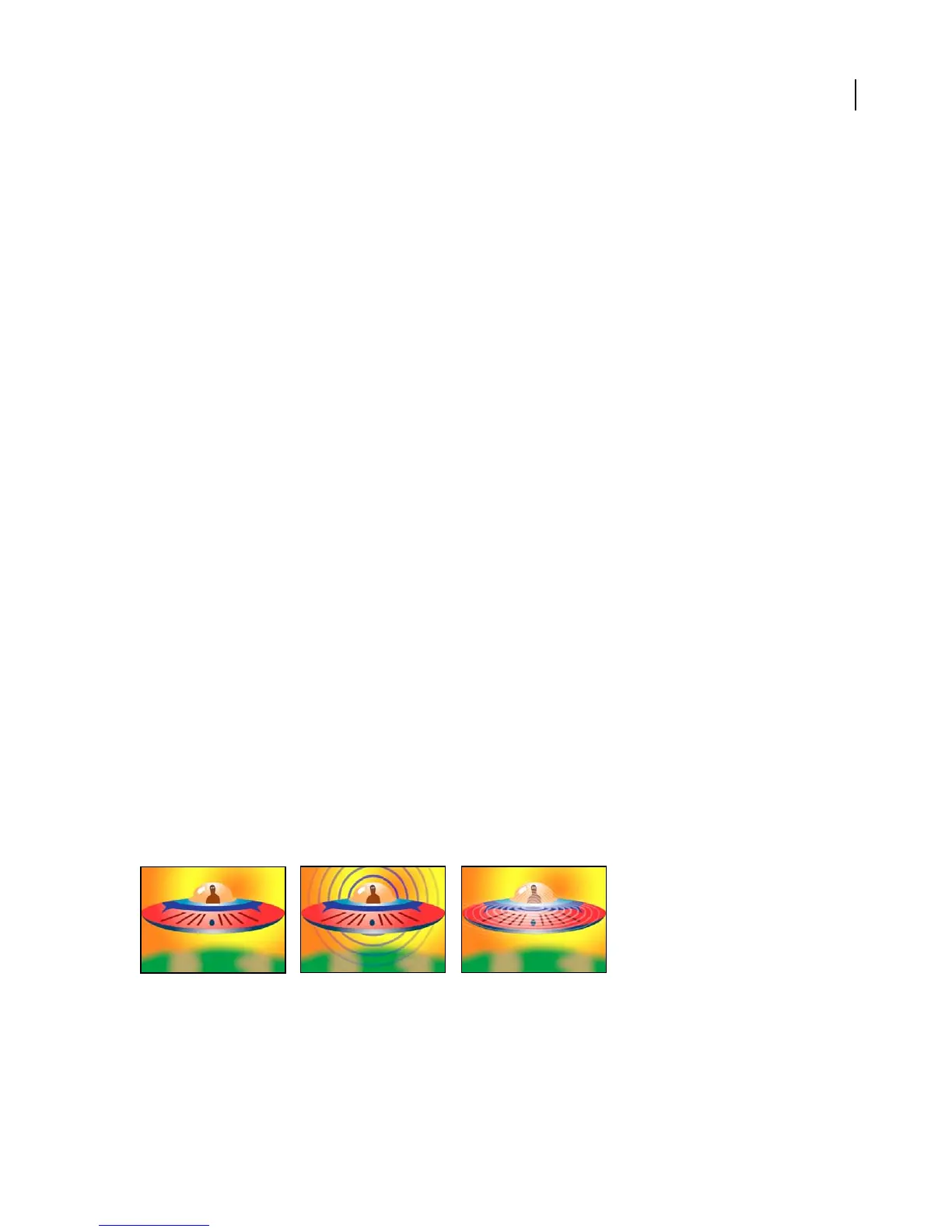
The Radio Waves effect creates radiating waves from a stationary or animated effect point. You can use this effect to
generate pond ripples, sound waves, or intricate geometric patterns. You can control the emitted waves’ shape, width,
color, speed, rotation, life span, fade rate, and other properties. Use the Reflection control to make the shapes bounce
off the sides of the layer. You can also use Radio Waves to create realistic wave displacement maps that work well with
the Caustics effect.
This effect works with 8-bpc color.
Polygon wave type with a square stroke profile (center) and Image Contour wave type with Sine stroke profile (right)
Adjust the following controls for the Radio Waves effect:
Producer Point Specifies the point from which the waves appear.



 To Next Page