ADOBE AFTER EFFECTS 7.0
User Guide
120
About the time graph
The time graph portion of the Timeline panel contains a time ruler, markers to indicate specific times, duration bars
for the layers in your composition while in layer bar mode, and the Graph Editor while in Graph Editor mode. Use
the time graph to adjust the range of time shown in the Timeline panel, and to specify a range of time to render when
creating or previewing a movie.
The time graph also contains controls for adjusting time for layers and controlling motion and changes over time.
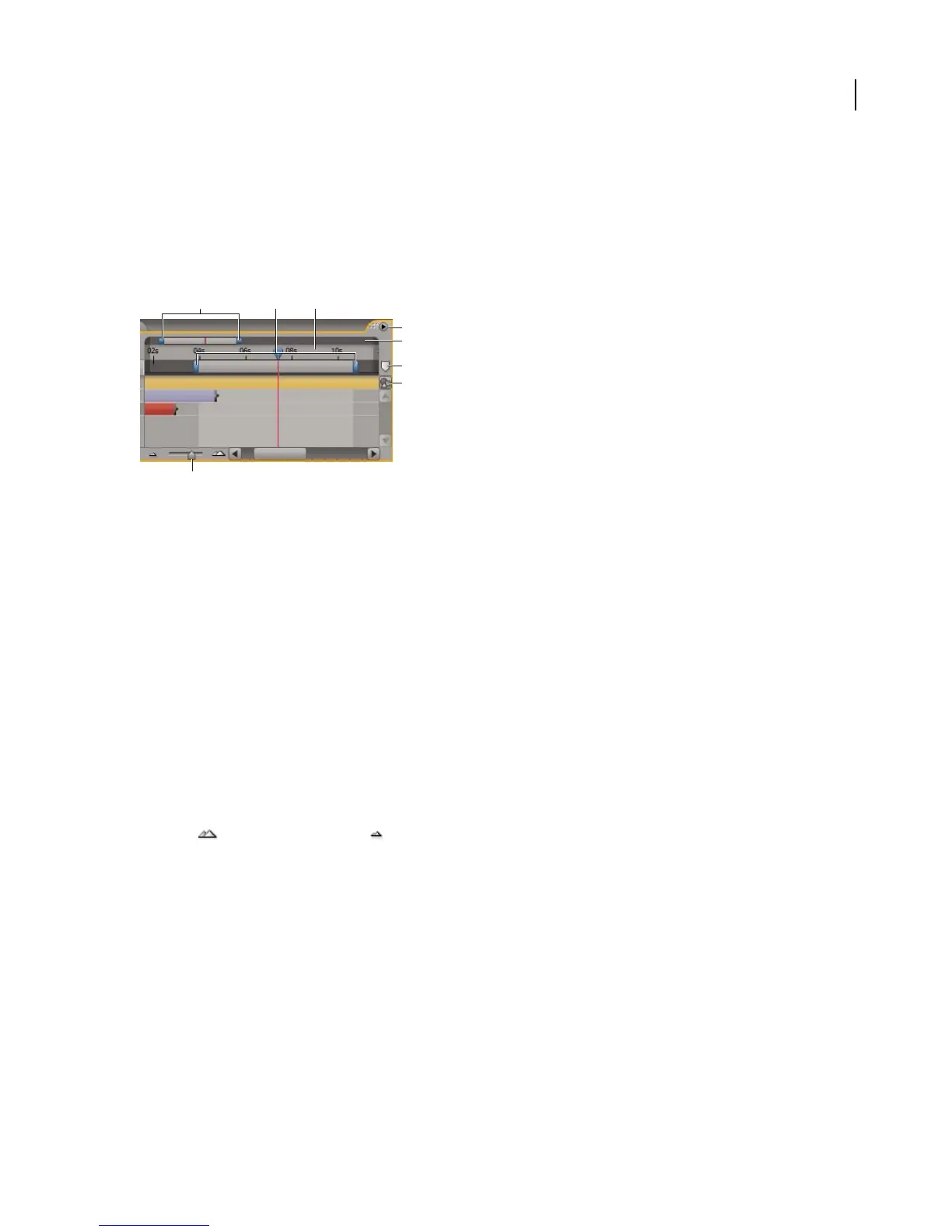
Time graph portion of Timeline panel
A. Time navigator start and end brackets B. Work area start and end brackets C. Time ruler D. Timeline options E. Navigator view F. Comp
marker bin G. Comp button H. Zoom slider
Time Navigator start and end brackets Drag to magnify or shrink a section of the time ruler. These markers are part
of the navigator view, described below. Drag to view a specific area.
Time ruler Indicates the part of the composition duration currently displayed in the time graph.
Navigator view Contains the absolute work area and the absolute current-time indicator.
Work area start and end brackets Indicates the part of the composition that will be rendered or previewed.
Timeline Options Displays the Timeline Options menu, which includes functions affecting layers and keyframes, as
well as providing access to the Composition Settings dialog box.
Comp marker bin Add composition-time markers to the time ruler. Drag the marker to a point on the time ruler.
Drag the marker back to the bin to remove the marker.
Comp button Click to bring forward the composition related to the active Timeline panel.
Zoom slider Drag to magnify a portion of the time graph or to see more of the time graph. You can also use the Zoom
In button or the Zoom Out button .
Viewing and setting the current time
A composition’s current time is indicated by the current-time indicator. A composition’s current time also appears
in the current time display in the upper left corner of the Timeline panel.
To move the current-time indicator
❖ Do one of the following:
• To move the current-time indicator by dragging, in the navigator view or on the time ruler, drag the current-time
indicator to a new location on the time graph, or click on the time ruler.
• To move the current-time indicator numerically, click the current time in the Timeline or Composition panel, type
a new time, and click OK.
A
H
C
E
B
D
F
G



 To Next Page