ADOBE AFTER EFFECTS 7.0
User Guide
352
• It can be relocated anywhere in the Timeline panel’s stacking order.
• It cannot interact with other effects with Comp Camera attributes, 3D layers, or shadows.
• The image is rendered on the layer, not the composition, so make sure that you apply these effects to layers that
are the same size as the composition and are exactly centered in the composition.
Modifying effects
About effect properties
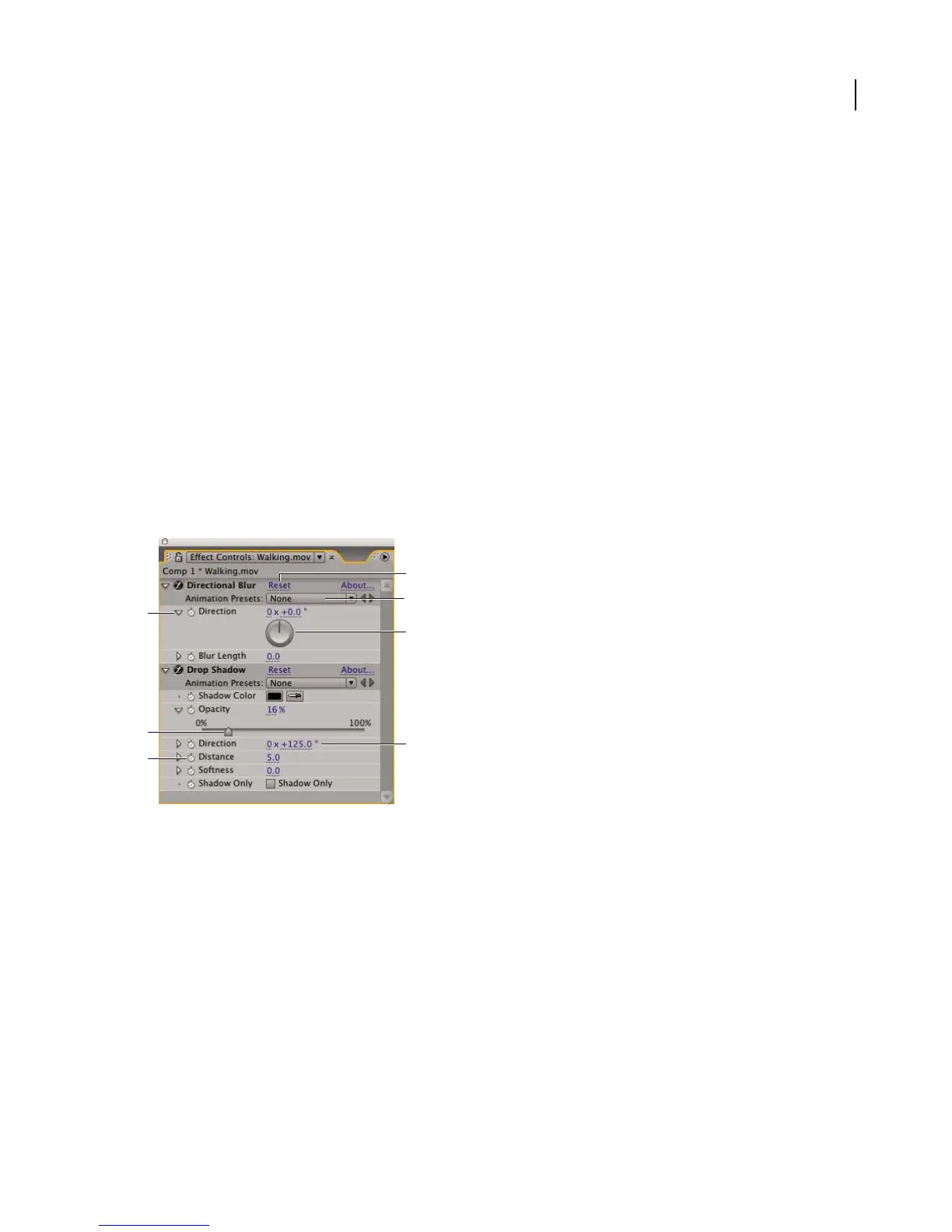
The Effect Controls panel shows all the controls used to change the property values for an effect. These controls can
include underlined values, sliders, effect point icons, angle controls, menus, color swatches, eyedroppers, and graphs.
YoucanalsochangethepropertyvaluesforaneffectintheTimelinepanel,althoughusingtheEffectControlspanel
is often quicker and easier.
By default, when you apply an effect to a layer, the controls you specify do not change for the duration of a layer.
Animate effect properties in the same way that you animate any other properties—by adding keyframes or expres-
sions to one or more of the effect’s properties.
Effect properties in the Effect Controls panel
A. Click to expand or collapse an effect’s controls. B. Drag left to decrease or right to increase a value. C. Click to set or remove keyframes.
D. Clicktoreturntothedefaultvalues. E. Click to view animation presets that contain the current effect. F. Dragthelineintheanglecontrol
to set a new value. G. Drag or type to set a new value.
See also
“Using keyframes” on page 192
“About expressions” on page 555
To change the value of an effect property
1 In the Effect Controls panel, click the effect name to select it.
2 If the effect’s controls are not visible, click the triangle to the left of the effect name.
A
D
G
E
F
B
C



 To Next Page