ADOBE AFTER EFFECTS 7.0
User Guide
415
2 Select a value from the Channels menu in the Effect Controls panel:
Master Adjust all channels simultaneously.
Individual Channels Adjust channels individually.
3 Set any of the following options:
Exposure This setting simulates the exposure setting on the camera that captures the image, multiplying all light
intensity values by a constant. The units for Exposure are f-stops.
Offset Darkens or brightens the shadows and midtones with minimal change to the highlights.
Gamma The value of gamma to use for adding an additional power-curve adjustment to the image. Negative values
are mirrored around zero (that is, they remain negative but still get adjusted as if they were positive). The default
value is 1.0, which corresponds to no additional adjustment.
Bypass Linear Light Conversion Select this option to apply the Exposure effect to the raw pixel values, which can be
useful if you manage your color manually using the Color Profile Converter effect.
See also
“High dynamic range footage (Pro only)” on page 62
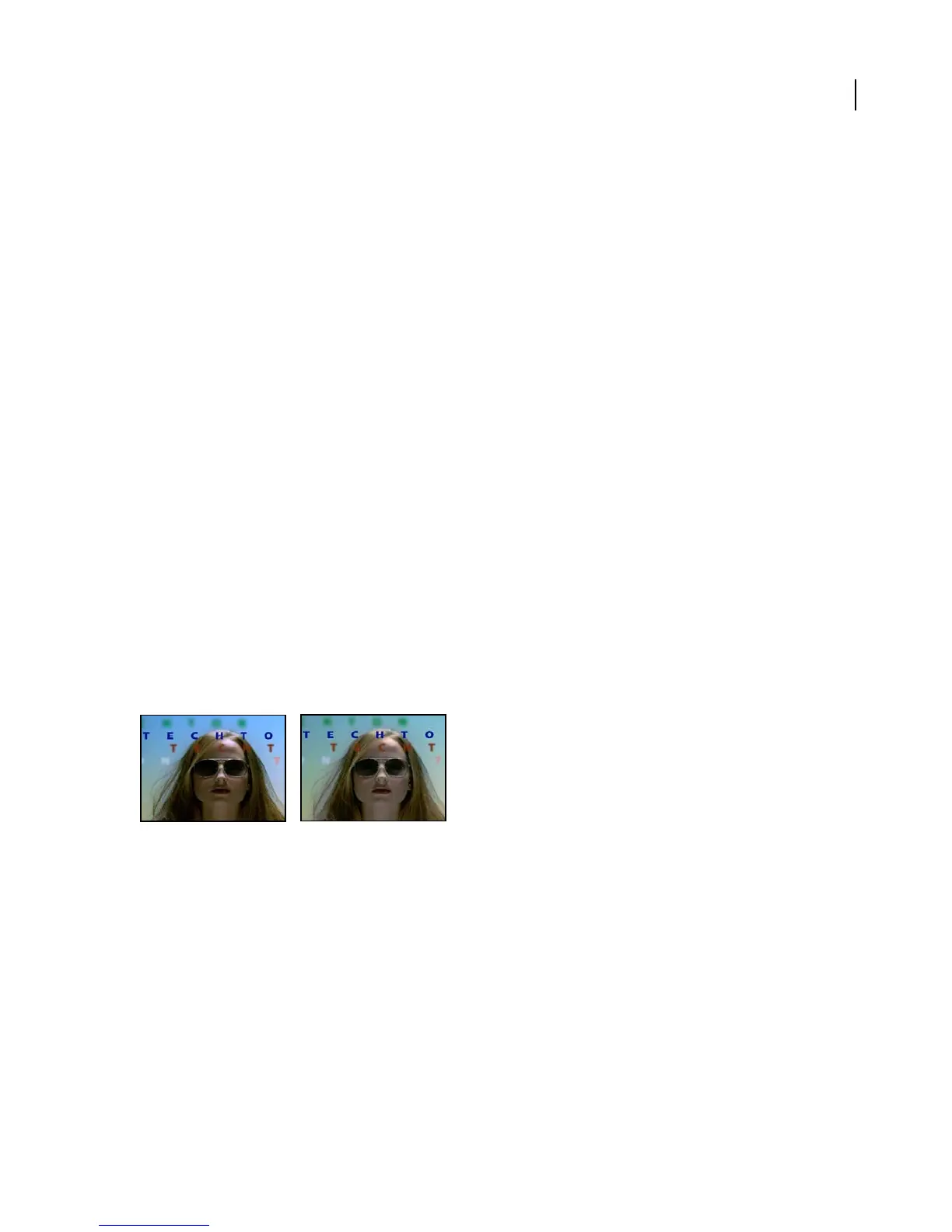
Gamma/Pedestal/Gain effect
The Gamma/Pedestal/Gain effect adjusts the response curve independently for each channel. For pedestal and gain,
a value of 0.0 is completely off, and a value of 1.0 is completely on.
The Black Stretch control remaps the low pixel values of all channels. Large Black Stretch values brighten dark areas.
The effect is the same in all quality settings. Gamma specifies an exponent describing the shape of the intermediate
curve. The Pedestal and Gain controls specify the lowest and highest attainable output value for a channel.
This effect works with 8-bpc color.
Original (left), and with effect applied (right)
Hue/Saturation effect
The Hue/Saturation effect adjusts the hue, saturation, and lightness of individual color components in an image. This
effect is based on the color wheel. Adjusting the hue, or color, represents a move around the color wheel. Adjusting
the saturation, or purity of the color, represents a move across its radius. Use the Colorize control to add color to a
grayscale image converted to RGB, or to add color to an RGB image.
This effect works with 8-bpc, 16-bpc, and 32-bpc color.



 To Next Page