ADOBE AFTER EFFECTS 7.0
User Guide
236
5 Drag the first keyframe to the current-time indicator, which moves the start and end keyframes.
To freeze the last frame without changing the speed
1
In a Composition or Timeline panel, select the layer you want to remap.
2 Choose Layer > Time > Enable Time Remapping.
3 In the Graph Editor, click the Time Remap property name to select the start and end keyframes.
4 Click the final keyframe in the movie to select it.
5 Choose Animation > Toggle Hold Keyframe.
To remap time by dragging keyframes in the Graph Editor
1
In a Composition or Timeline panel, select the layer you want to remap.
2 Choose Layer > Time > Enable Time Remapping.
3 In the Graph Editor, move the current-time indicator to the frame where you want change to begin, and then click
the Add A Keyframe button.
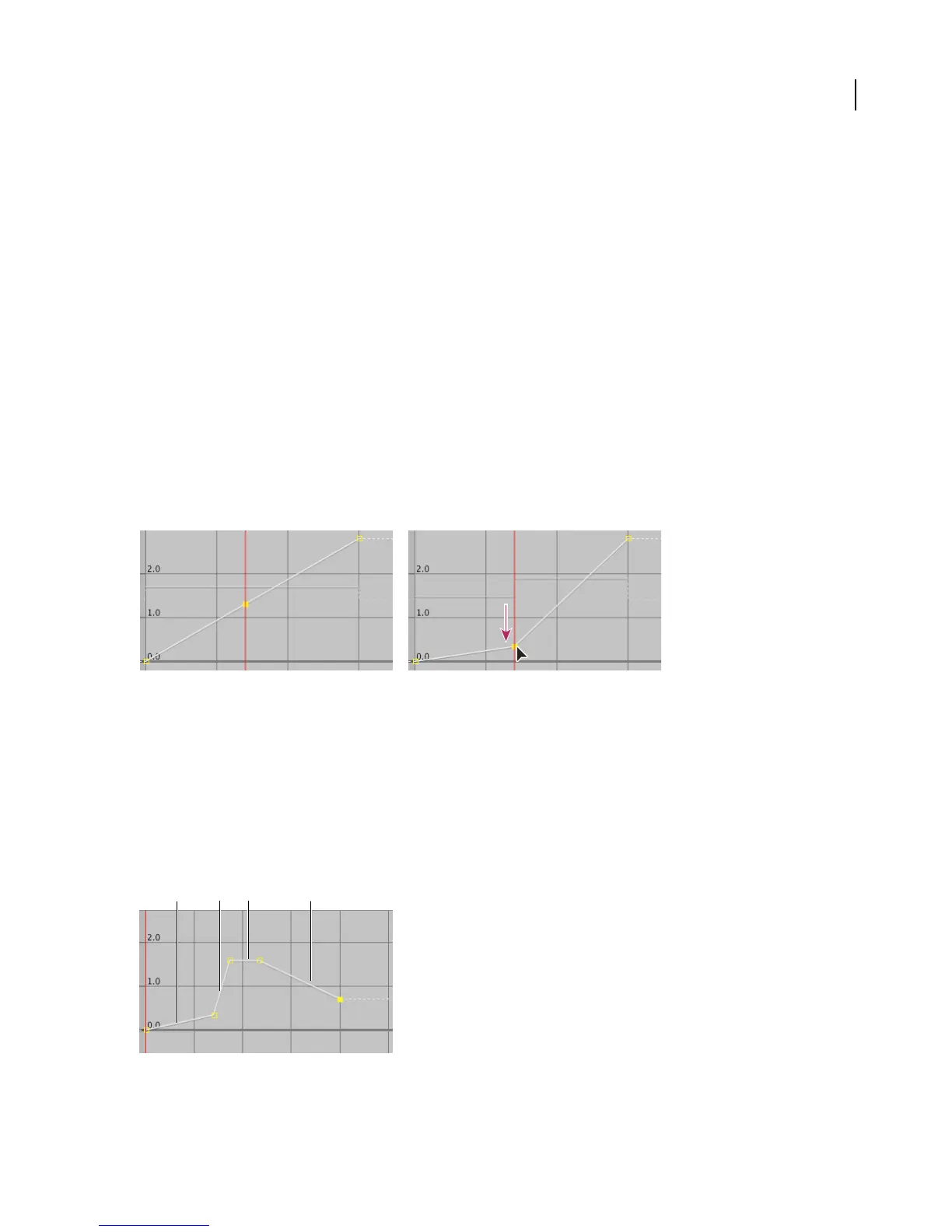
4 On the Time Remap value graph, drag the keyframe marker up or down, watching the Time Remap value as you
drag. To prevent the graph from dropping below the dotted line, press Shift as you drag the graph marker:
Dragging the value graph marker down slows down the layer.
• To slow down the layer, drag the keyframe marker down. (If the layer is playing in reverse, drag up.)
• To speed up the layer, drag the keyframe marker up. (If the layer is playing in reverse, drag down.)
• To play frames backward, drag the keyframe marker down to a value below the previous keyframe value.
• To play frames forward, drag the keyframe marker up to a value above the previous keyframe value.
• Tofreezethepreviouskeyframe,dragthecurrentkeyframemarkertoavalueequaltothepreviouskeyframevalue
so that the graph line is flat. Another method is to select the keyframe and choose Animation > Toggle Hold
Keyframe, and then add another keyframe where you want the motion to start again.
Time remap graph
A. No change B. Fast motion C. Freeze frame D. Backward motion
C
D
B
A



 To Next Page