ADOBE AFTER EFFECTS 7.0
User Guide
308
15 Drag the Line Anchor value until the 7 is positioned in approximately its original position in the center of the
Composition panel.
16 Click the Show Last Snapshot button in the Composition panel to see the exact location of the 7 in its original
location. Adjust the Line Anchor value to position the character in the original location.
17 Preview the animation.
See also
“To create a composition” on page 109
“To enter point text” on page 283
“Using keyframes” on page 192
“To take or view a snapshot” on page 145
“Methods for previewing compositions” on page 134
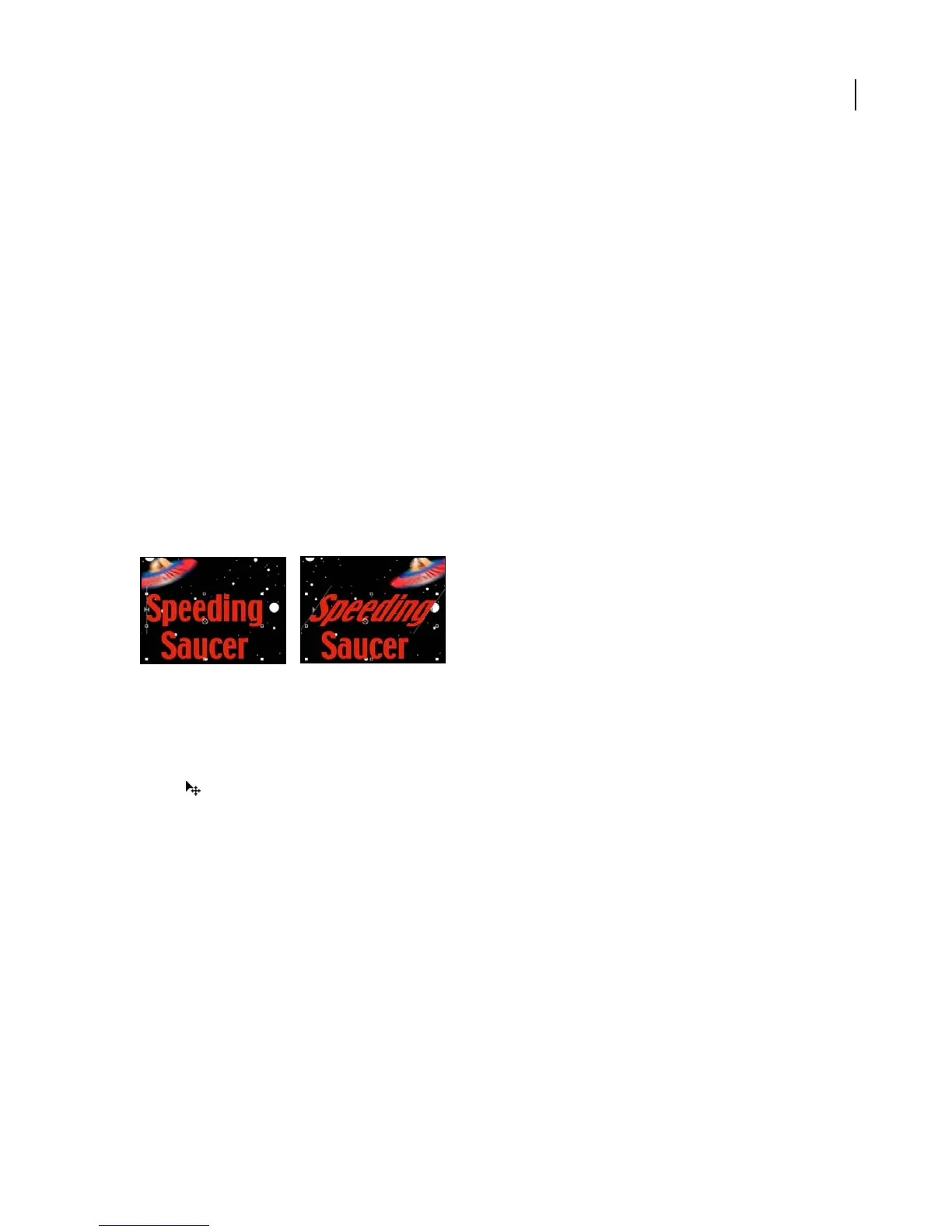
Example: To use selectors to animate specific words
There are many ways to use selectors. This example shows how you can use them to limit an animation to a specific
word.
Animating the skew values in the characters in the word Speeding
1 Create a new composition.
2 Create a new text layer with the words Speeding Saucer.
3 PositionthepointerawayfromthetextintheCompositionpanelandwhenthetypepointerchangestothemove
pointer , drag to move the text to the center of the panel. Resize it if necessary so that it fits within the panel.
4 Choose Animation > Animate Text > Skew.
5 In the Timeline panel, set the Skew value to 35.
6 Expand Range Selector 1.
7 Make sure the current-time indicator is at 0 seconds and click the End stopwatch.
8 In the Composition panel, drag both selector bars to the left side of the S in Speeding.
9 Move the current-time indicator to 2 seconds and drag the right selector bar to the right side of the g in Speeding.
10 Preview the animation.
See also
“To create a composition” on page 109
“To enter point text” on page 283



 To Next Page