ADOBE AFTER EFFECTS 7.0
User Guide
530
Scatter Randomness Specifies whether scattering changes at each frame. To animate scattering without keyframes,
select the Randomize Every Frame option. If this option is not selected, scattering remains the same at each frame
unless keyframes are created for the Scatter Amount and Grain properties.
Strobe Light effect
The Strobe Light effect performs an arithmetic operation on a layer at periodic or random intervals. For example,
every five seconds the layer could appear completely white for one-tenth of a second, or a layer’s colors could invert
at random intervals. The layer’s quality setting does not affect Strobe Light.
This effect works with 8-bpc color.
Adjust the following controls for the Strobe Light effect:
Strobe Color Specifies the color of the light.
Blend With Original Specifies the percentage of the entire effect that is applied to the layer.
Strobe Duration Specifies in seconds how long a strobe effect lasts.
Strobe Period Specifies in seconds the duration between the start of subsequent strobes. For example, if the Strobe
Duration is set to 0.1 second and the Strobe Period is set to 1.0 second, the layer will have the effect for 0.1 second
and then be without the effect for 0.9 seconds. If this value is set lower than the Strobe Duration, the strobe effect is
constant.
Random Strobe Probability Specifies the probability that any given frame of the layer will have the strobe effect,
giving the appearance of a random effect.
Strobe Specifies how the effect is applied. Operates on Color Only performs the strobe operation on all color
channels. Make Layer Transparent makes the layer transparent when a strobe effect occurs.
Strobe Operator SpecifiesthearithmeticoperatortousewhenOperatesonColorOnlyisselectedfromtheStrobe
menu. The default setting is Copy.
Texturize effect
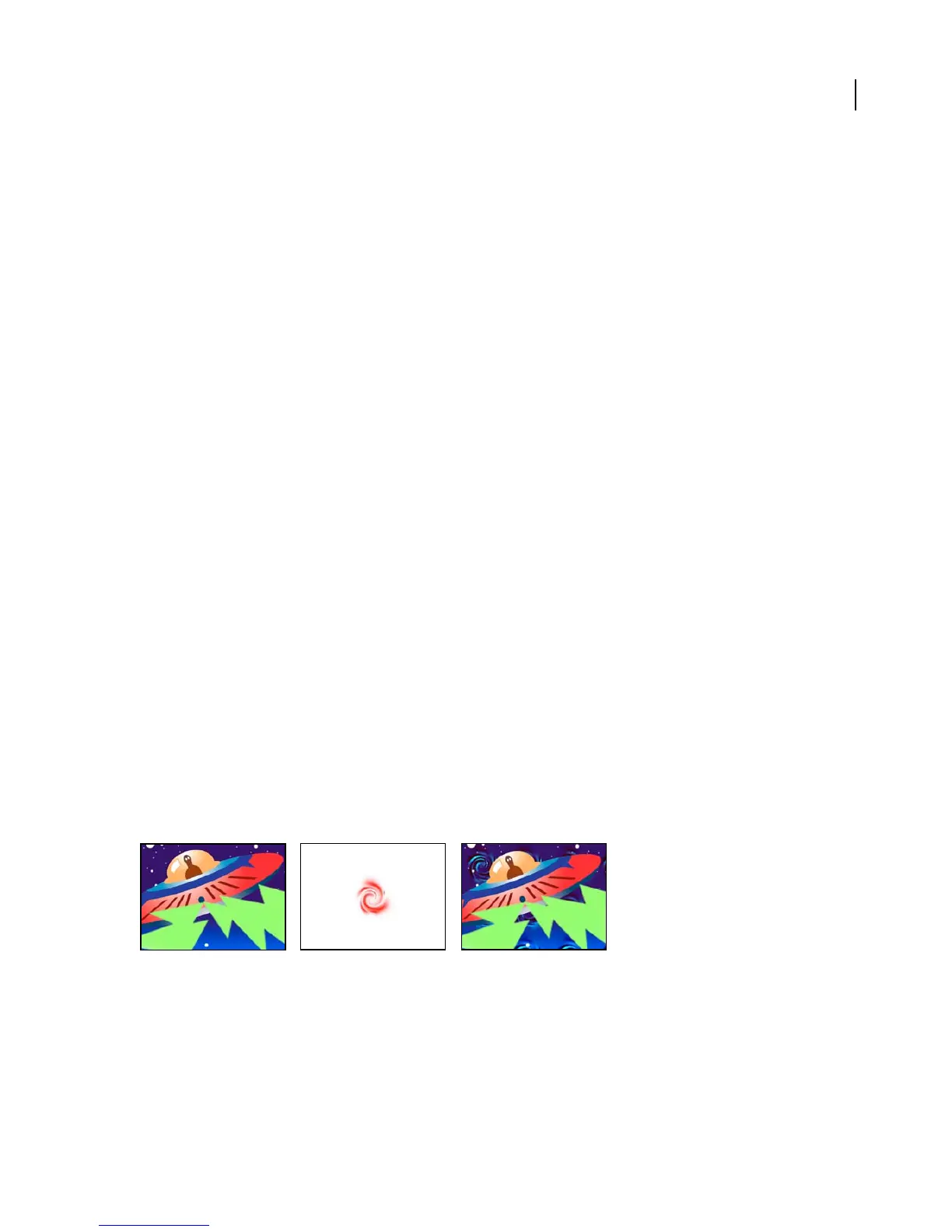
The Texturize effect gives a layer the appearance of having the texture of another layer. For example, you could make
theimageofatreeappearasifithadthetextureofbricks,andcontrolthedepthofthetextureandtheapparentlight
source. At Best quality, the texture layer is positioned and scaled with subpixel accuracy.
This effect works with 8-bpc color.
Original layers (left and center) and with center applied as the texture (right)
Adjust the following controls for the Texturize effect:
Texture Layer Specifies the layer you want to use as the texture.
Light Direction Specifies the angle at which light hits the texture. This setting affects where shadows appear.
Texture Contrast Specifies how distinct the texture appears on the effect layer.



 To Next Page