ADOBE AFTER EFFECTS 7.0
User Guide
200
To copy a value from a layer property that contains no keyframes
You can copy the current value of a layer property to another layer, even when the original layer contains no
keyframes. This can save you the time of having to set up a property the same way on various layers.
1 In the Timeline panel, display the layer property containing the value you want to copy.
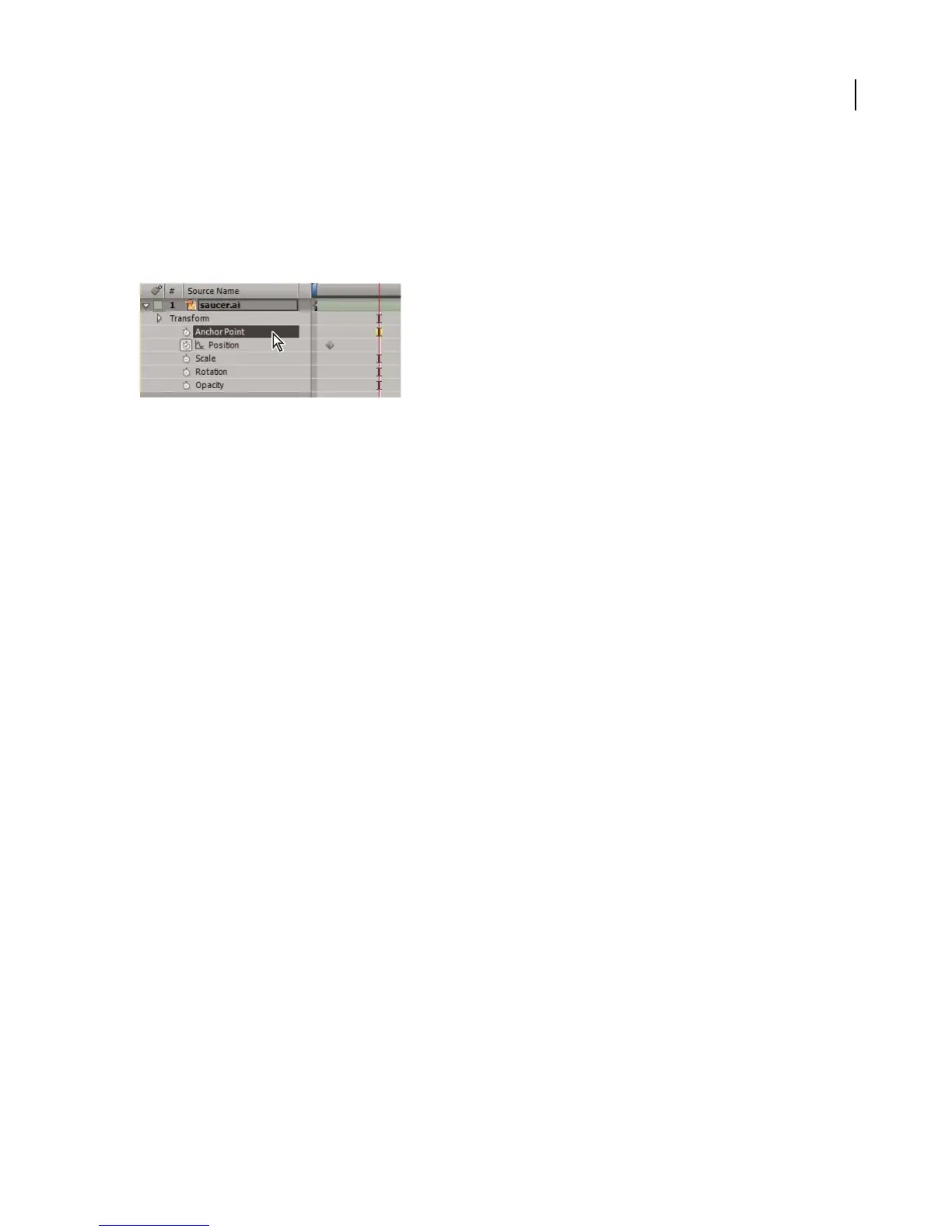
2 Click the name of the layer property to select it.
Anchor Point property selected
3 Choose Edit > Copy.
4 Select the layer into which you want to paste the value.
5 If the target layer contains keyframes, move the current-time indicator to the time where you want to paste the
value. If the target layer does not contain keyframes, the new value applies to the entire duration of the layer.
6 Choose Edit > Paste.
To change multiple keyframe values at once
You can change the values of multiple keyframes on multiple layers at one time; however, all keyframes you select
must belong to the same layer property. The way the values change depends on the method you use to make the
change:
• If you change a value numerically, all selected keyframes use the new value exactly. In other words, you make an
absolute change. For example, if you select several Position keyframes on a motion path and numerically specify
a Position value for one of them, all selected keyframes change to the same position value.
• If you change a value by dragging the underlined value, all selected keyframes change by the same amount. In
other words, you make a relative change. For example, if you select several Position keyframes on a motion path
and drag the underlined value for one of them, all selected keyframe values change by the same amount.
• If you change a value graphically in the Composition or Layer panel, all selected keyframes change using the
difference between the old and new values, not the values themselves. In other words, you make a relative change.
For example, if you select several Position keyframes on a motion path and then drag one of them 10 pixels to the
left, they all move 10 pixels to the left of their original positions.
You can also change the value of several layers at once in layer bar mode by parenting them.
1 Select the keyframes you want to change. All keyframes you select must be for the same property.
2 Change the value of any selected keyframe by one of the methods above. All other selected keyframes change
accordingly.
See also
“About parent and child layers” on page 208
“Using keyframes” on page 192



 To Next Page