ADOBE AFTER EFFECTS 7.0
User Guide
570
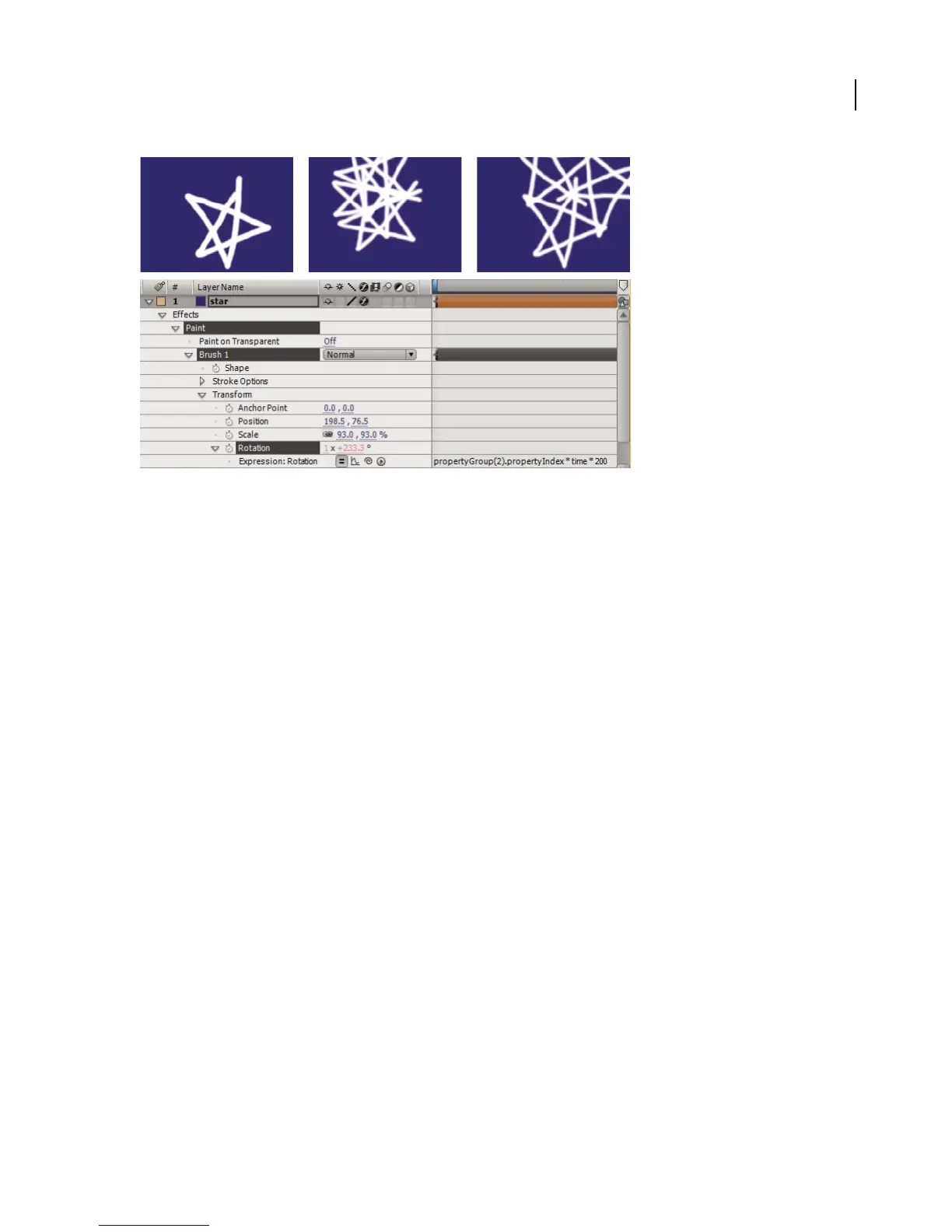
Animating a brush stroke with an expression
1 Open a new composition, and choose Layer > New > Solid to create a new solid layer. Click Make Comp Size in
the Solid Footage Settings dialog box.
2 Double-click the solid in the Composition panel to open it in the Layer panel.
3 Select the Brush tool from Tools, and draw a stroke in the Layer panel. Modify the stroke options as desired.
4 Expand the solid layer in the Timeline panel, expand the Effects property group, expand the Paint property group,
expand the Brush property group, and then expand the Transform property group.
5 Select the Rotation property, and choose Animation > Add Expression.
6 Type the following expression in the expression text field in the timeline:
propertyGroup(2).propertyIndex * time * 200
7 Click outside the expression field, or press Enter on the numeric keypad to activate the expression.
8 Select Brush 1, and press Ctrl+D (Windows) or Command+D (Mac OS) multiple times to duplicate the brush.
9 Press the spacebar to preview your animation.
In this example, each brush stroke’s
propertyGroup method targets the Brush property group because that group is
two property groups up from the Rotation property. The
propertyIndex attribute in each Brush stroke then returns
a unique value for each Brush stroke. The resulting value is then multiplied by the time and 200 and applied to each
rotation value, rotating each brush stroke differently.
After Effects expression elements reference
Using the expression elements reference
Use the After Effects expression elements along with standard JavaScript elements to write your expressions.
Remember that you can also use the Expression Language menu at any time to insert functions into an expression.
If an argument contains an equal sign (
=) and a value (such as t=time or width=.2), then the argument uses the
included default value if you don’t specify a different value.



 To Next Page