ADOBE AFTER EFFECTS 7.0
User Guide
305
Force Alignment Positions the first character at the beginning of the path (or at the specified First Margin location),
positions the last character at the end of the path (or at the specified Last Margin location), and evenly spaces the
remaining characters between the first and last characters.
First Margin Specifies the position of the first character in pixels, relative to the start of the path. The First Margin is
not active when text is right-aligned and force alignment is not enabled.
Last Margin Specifies the position of the last character in pixels, relative to the end of the path. Last Margin is not
active when text is left-aligned and force alignment is not enabled.
See also
“About animation and layer properties” on page 188
“Using keyframes” on page 192
Examples of text animations
Example: To offset characters
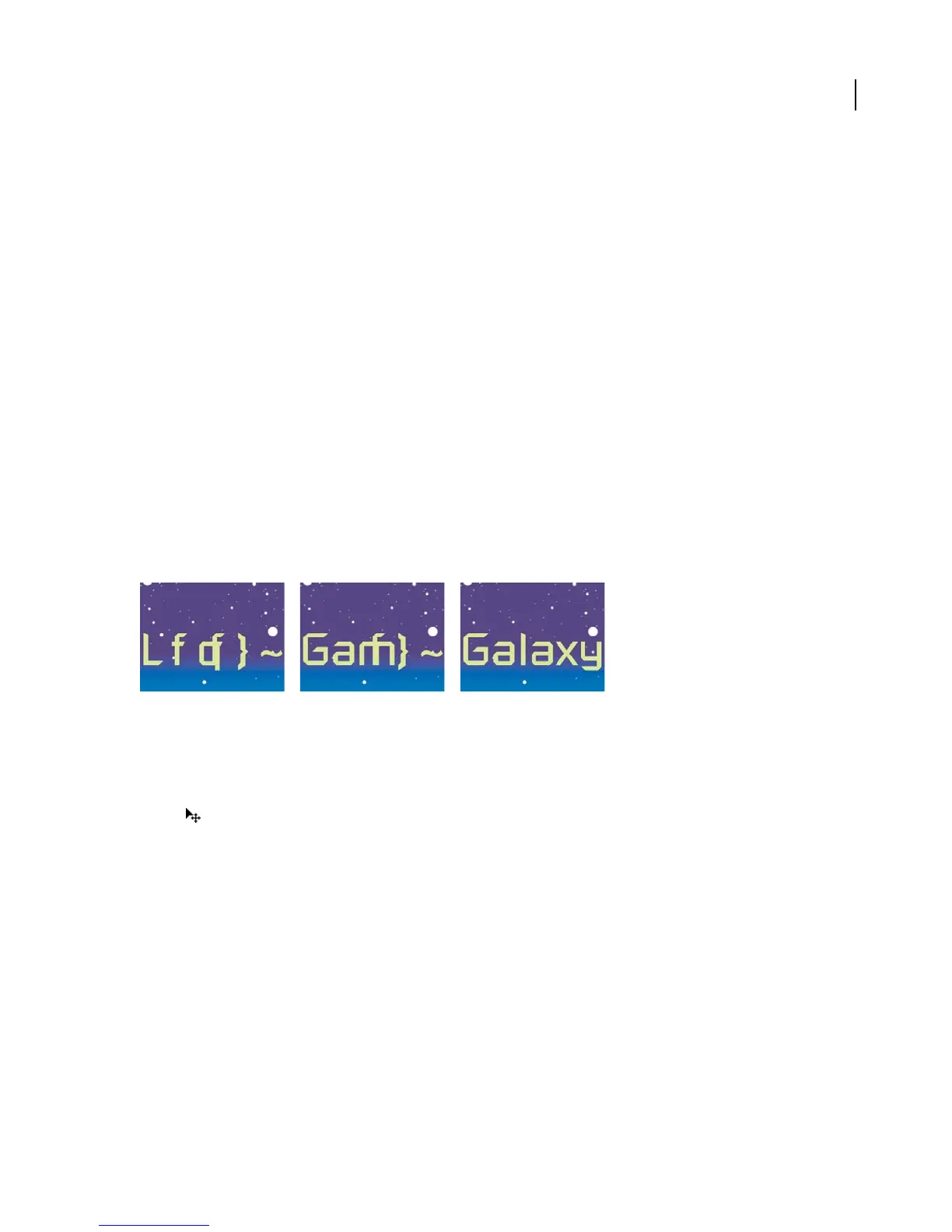
Thisexampleillustrateshowyoucaneasilyanimaterandomcharacterssothattheygraduallyformalegiblewordor
phrase. To do this, specify a Character Offset value and animate the Range selector.
Animating the offset values for the characters in the word Galaxy
1 Create a new composition.
2 Create a new text layer with the word Galaxy.
3 PositionthepointerawayfromthetextintheCompositionpanelandwhenthetypepointerchangestothemove
pointer , drag to move the text to the bottom and center of the panel. Resize it if necessary so that it fits within the
panel.
4 Choose Animation > Animate Text > Character Offset.
5 In the Timeline panel, set the Character Offset value to 5.
6 Expand Range Selector 1.
7 Click the Start stopwatch to set an initial keyframe at 0 seconds and set the value to 0%.
8 Move the current-time indicator to 5 seconds and set the Start value to 100%.
9 Preview the animation.
See also
“To create a composition” on page 109
“To enter point text” on page 283



 To Next Page