ADOBE AFTER EFFECTS 7.0
User Guide
211
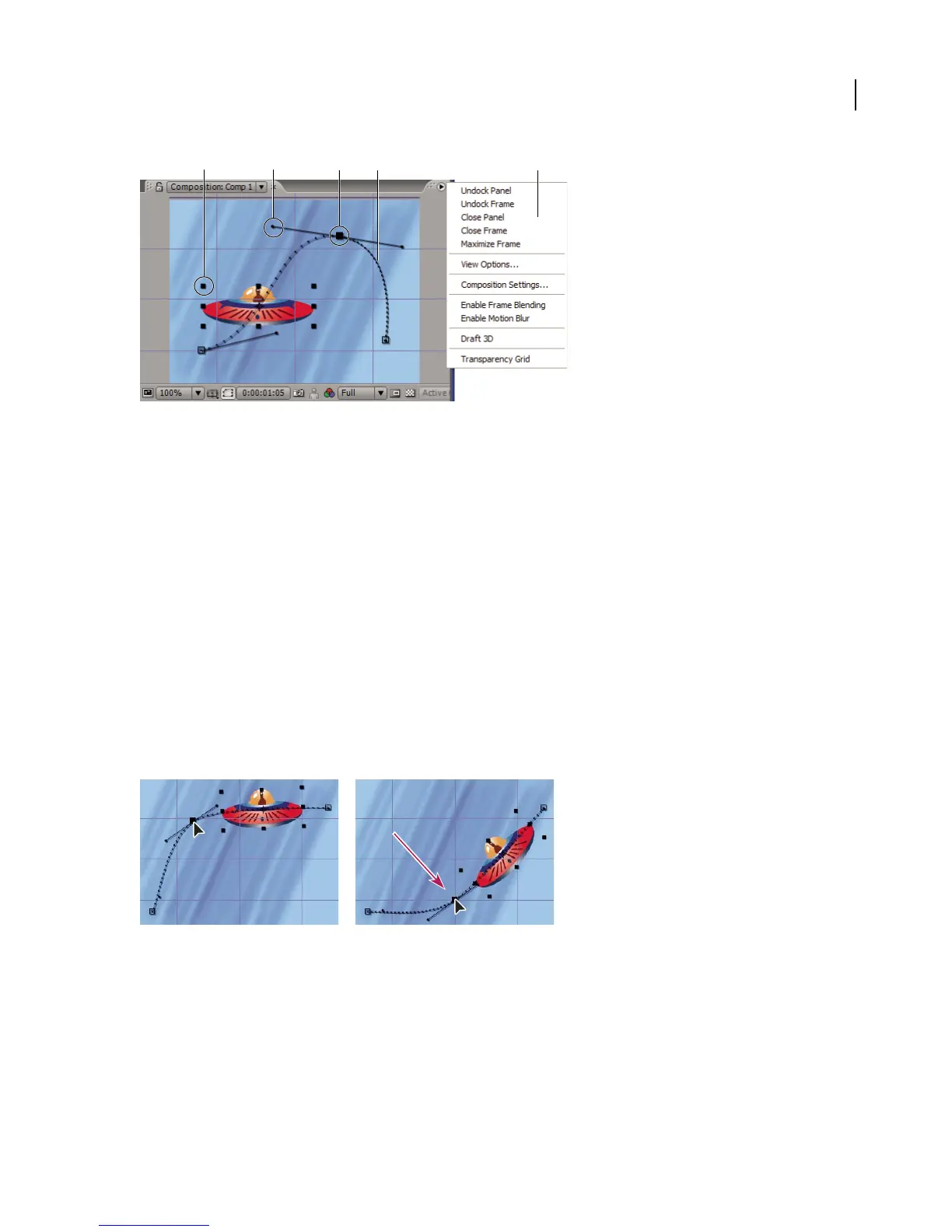
Composition panel with spaceship layer selected
A. Layer handle B. Direction handle on direction line C. Layer keyframe D. Motion path E. Composition panel menu
See also
“About changes in speed” on page 224
“Interpolation methods” on page 220
To move a position keyframe
1
Display the Timeline and Composition panels for a composition.
2 In the Timeline panel, select the layer you want to modify.
3 Press P to display the Position property for the layer.
4 If you cannot see the keyframe you want to modify in the Composition panel, move the current-time indicator in
the Timeline panel to the keyframe.
5 In the Composition panel, use the Selection tool to drag a keyframe marker or its control handles on the motion
path to a new position.
Note: The current-time indicator does not need to be located on a keyframe before you drag it.
Drag a keyframe marker in the Composition panel to move a selected position keyframe.
To add a position keyframe by moving the layer
1
Display the Timeline and Composition panels for a composition.
2 In the Timeline panel, select the layer you want to modify.
3 Press P to display the Position property.
4 In the Timeline panel, move the current-time indicator to the time where you want to add a new keyframe.
BCA
D
E



 To Next Page