ADOBE AFTER EFFECTS 7.0
User Guide
212
5 Move the layer by dragging it in the Composition panel or by changing its Position property value.
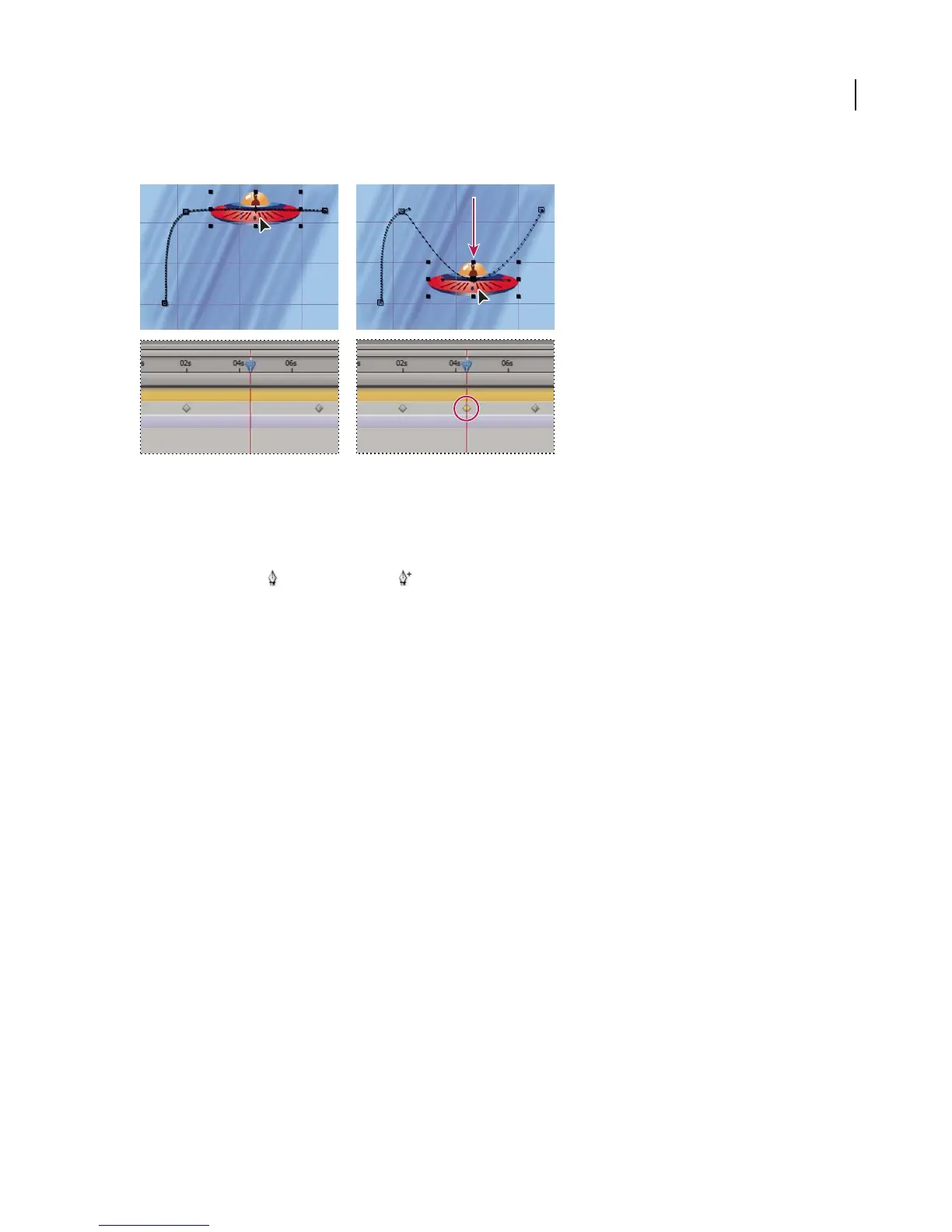
Drag a layer in the Composition panel to add a new position keyframe.
To add a keyframe to a motion path using the Pen tool
1
Display the Timeline and Composition panels for a composition.
2 Select the layer you want to modify.
3 Select the Pen tool or Add Vertex tool from the Tools panel.
4 In the Composition panel, move the Pen tool over the motion path where you want to add the new keyframe and
click to add the keyframe.
A new keyframe appears at the frame you clicked, on the motion path and in the Timeline panel. To move the
keyframe, use the Selection tool.
Note: Though the results are different, the tools for manipulating motion-path curves with the Pen tool work in much
the same way as those used to create masks. See “Creating masks with the Pen tool” on page 245.
To change the number of visible motion-path keyframes
By default, After Effects displays motion-path keyframes and dots in the Composition panel that fall within a 15-
second range from the current-time indicator. However, you can change this default. For greater precision when
extensively modifying a motion path, you can display more keyframes. If you want to speed up screen updates, you
can display fewer keyframes.
1 Choose Edit > Preferences > Display (Windows) or After Effects > Preferences > Display (Mac OS).
2 In the Motion Path section of the Display Preferences dialog box, select one of the following options, and then
click OK:
No Motion Path To prevent the display of a motion path and its keyframes.
All Keyframes To display every keyframe in the panel.
No More Than: __ Keyframes To specify a maximum number of keyframes to display, centered on the current-time
indicator.
No More Than: __ To specify a range of time within which keyframes display, centered on the current-time indicator.



 To Next Page