ADOBE AFTER EFFECTS 7.0
User Guide
396
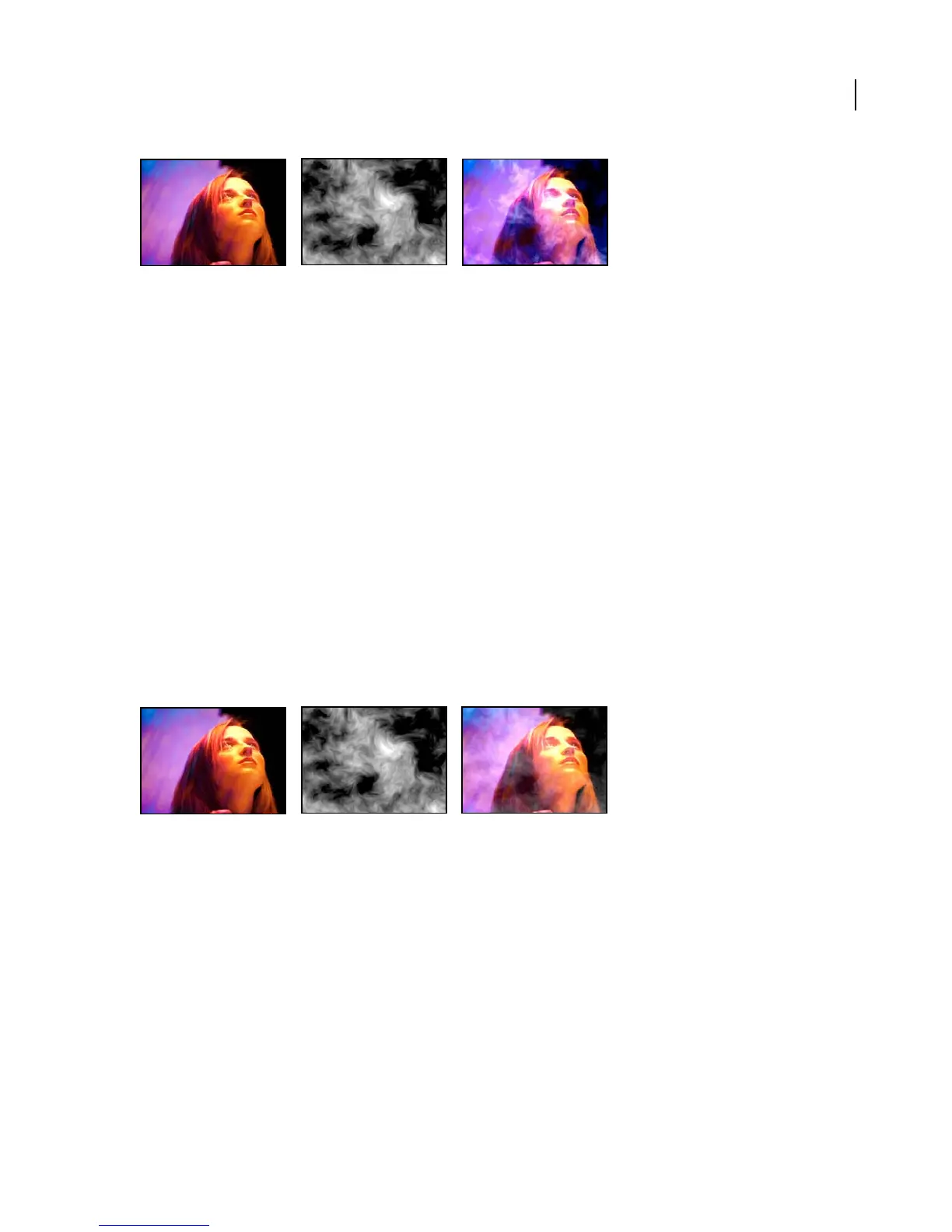
Original (left); matte created with Fractal Noise effect on a solid layer (center); result (right)
Operator Specifies the mathematical operation to perform between the value you specify for each channel and the
existing value of that channel for each pixel in the image:
• And, Or, and Xor Apply bitwise logical combinations.
• Add, Subtract, Multiply, and Difference Apply basic math functions.
• Max and Min Select each pixel in the color channel that is respectively less or greater than the specified value and
set it at the specified value.
• Block Above and Block Below Turn the channel off everywhere that it is respectively greater or less than the
specified value.
• Slice Turns the channel off where it is below the value specified and turns it on where it is above the specified
value.
Clip Result Values Prevents all functions from creating color values that exceed the valid range. If this option is not
selected, some color values may wrap around from on to off, or vice versa.
Blend effect
The Blend effect blends two layers using one of five modes.
This effect works with 8-bpc and 16-bpc color.
Original (left); matte created with Fractal Noise effect on a solid layer (center); result of Blend effect with Mode set to Crossfade (right)
Note: You can create blends more easily and quickly using blending modes, but you can’t animate blending modes. The
advantage of using the Blend effect is that you can animate it. (See “About blending modes” on page 259.)
Adjust the following controls for the Blend effect:
Blend With Layer Specifies the layer to be blended with the original layer.
Mode Specifies the blending mode you want to use. Crossfade fades between the original image and the secondary
image; the original image fades out while the new image fades in. Color Only colorizes each pixel in the original
image based on the color of each corresponding pixel in the secondary image. Tint Only is similar to Color Only but
tints pixels in the original image only if they are already colored. Darken Only darkens each pixel in the original
image that is lighter than the corresponding pixel in the secondary image. Lighten Only lightens each pixel in the
original image that is darker than the corresponding pixel in the secondary image.



 To Next Page