ADOBE AFTER EFFECTS 7.0
User Guide
469
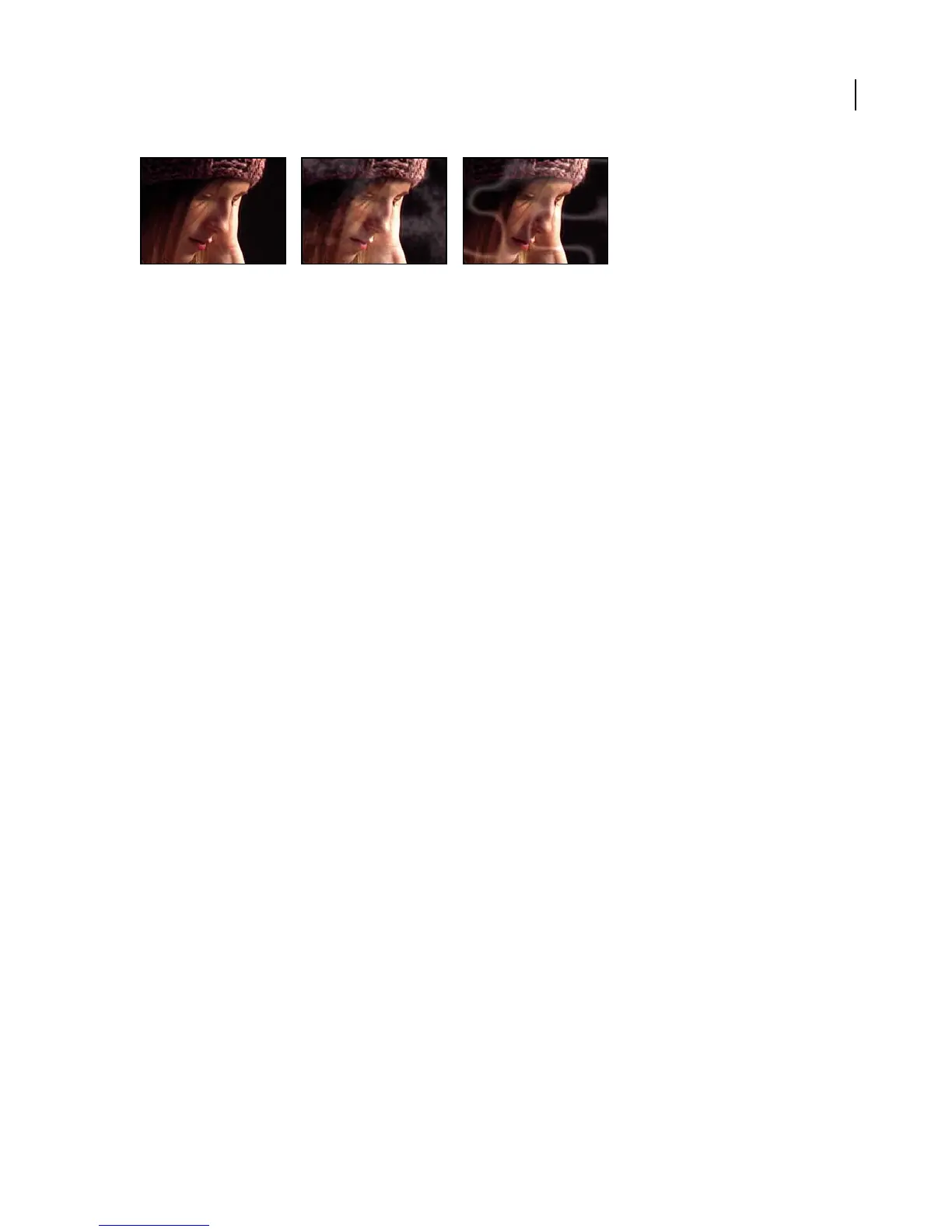
Original (left), result with two kinds of noise (center and right)
Controls for the Fractal Noise effect
Fractal Type Specifies the fractal shape you want to use to create the noise.
Noise Type Specifies the type of noise.
Invert Inverts the noise. Select this option to create a negative or inverse of the current noise layer. Black areas
become white, and white areas become black.
Contrast Adjusts the contrast of the noise layer. The default value is 100. Higher values create larger, more sharply
definedareasofblackandwhiteinthenoise,generallyrevealinglesssubtledetail.Lowervaluesresultinmoreareas
of gray, softening or muting the noise. A layer’s contrast is also affected by the Overflow option.
Brightness Adjusts the brightness of the noise layer.
Overflow Remaps the values that fall outside of the grayscale range of 0–255 using one of the following options:
• Clip Remaps values so that any value above 255 is displayed as pure white, and any value below 0 is displayed as
pureblack.TheContrastvaluecontrolshowmuchoftheimagefallsoutsideofthisrange.Highervaluesresultina
mostly black and/or white image with less gray area. Therefore, higher contrast settings display less subtle fractal
detail. When used as a luma matte, the layer has sharper, better defined areas of transparency.
• Soft Clamp Remaps values on an infinite curve so that all values stay in the range. This option reduces contrast
and makes fractals appear gray with few areas of pure black or pure white. When used as a luma matte, the layer
contains subtle areas of transparency.
• Wrap Back Remaps triangularly, so that values above 255 or below 0 fall back into the range. This option reveals
subtle detail when Contrast is set above 100. When used as a luma matte, the layer reveals more detailed textured
areas of transparency.
Transform Specifies the size and rotation of the noise.
• Rotation Rotates the fractals. Scale specifies the proportional scale of the fractal shapes; the default is 100.
Uniform Scaling scales the noise uniformly. Scale Width and Scale Height specifies the width size and height size
individually for the fractal shapes; available only when Uniform Scaling is not selected.
• Offset Turbulence Specifies the portion of the fractal that is visible in the Composition panel. Because the fractal
shapes are infinite in all directions, only a portion of the fractal is visible at any given time. Use this control to
reposition the shape in the layer.
• Perspective Offset SpecifiesthattheperspectiveisinfluencedbytheSubSettingscontrolSubScaling.Thisoption
makes it possible to create a perspective effect when animating the Offset Turbulence.
Complexity Adjusts the visible level of detail in the fractal shapes. Lower values result in a softer, almost blurred
appearance. Higher values result in more distinct fractal shapes.
Note: Increasing Complexity results in longer rendering times. If appropriate, try reducing the Size rather than increasing
Complexity to achieve similar results and avoid longer rendering.



 To Next Page