ADOBE AFTER EFFECTS 7.0
User Guide
330
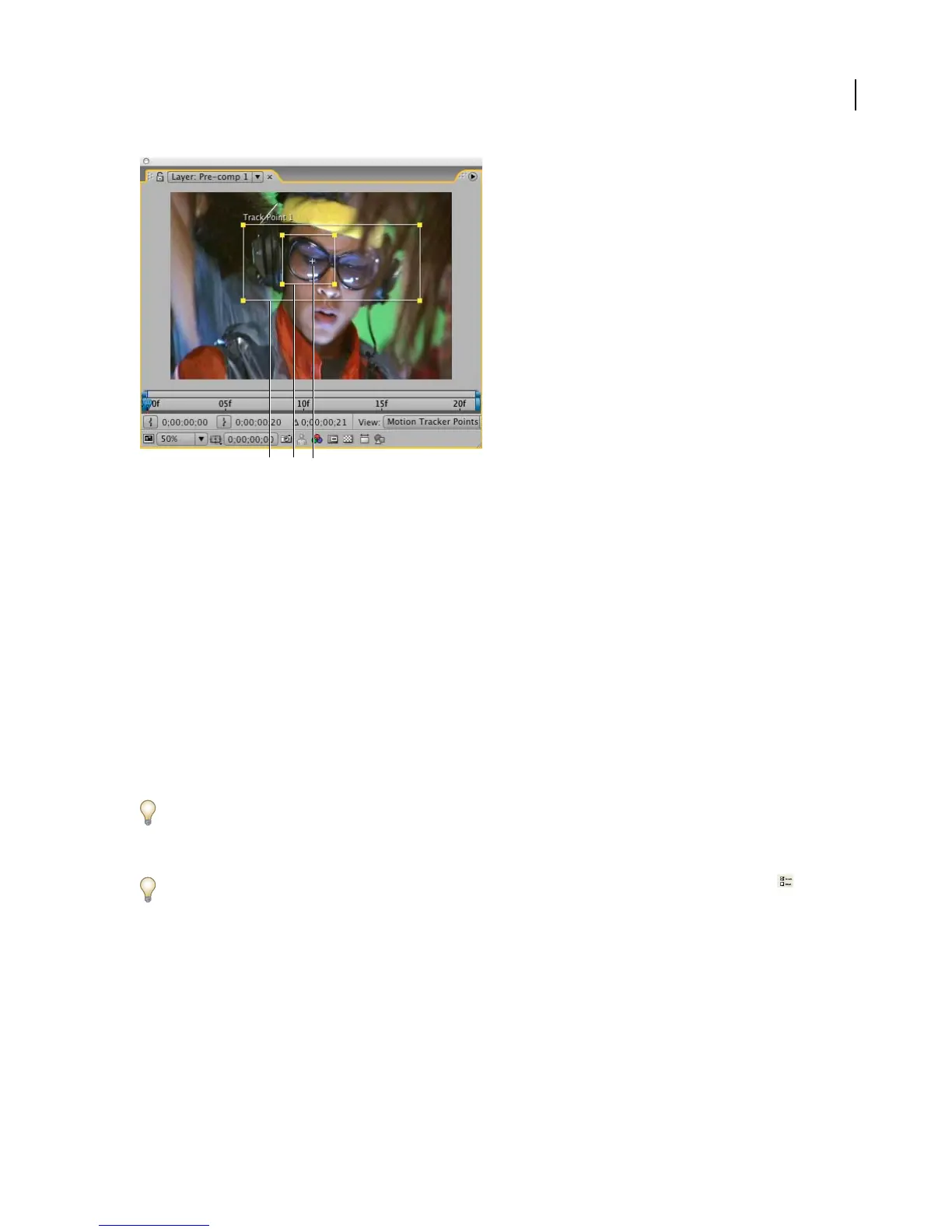
Layer panel with track point
A. Search region B. Feature region C. Attach point
Feature region The feature region defines the area in the moving footage to be tracked. It should surround a distinct
feature. After Effects must be able to clearly identify the feature throughout the footage, despite changes in light,
background, and angle.
Search region The search region limits the area that After Effects must search to locate the feature. The feature needs
to stand out only within the boundary of the search region, not within the entire frame. Confining the search to a
smallregionsavessearchtimeandmakesthesearchprocesseasier,butrunstheriskofthefeatureleavingthesearch
region entirely between frames.
Attach point The attach point designates the place of attachment for the target footage—the layer, image, or effect
that you want to synchronize with the motion footage.
You set up, initiate, and apply motion tracking with the Tracker Controls panel. The Tracker Controls panel lets you
track a feature’s scale, turn feature magnification on or off, choose different actions based on the tracking accuracy,
and show or hide tracked motion paths. You can set up a tracker and its track type before defining a motion target.
To open the Tracker Controls panel, choose Window > Tracker Controls.
For additional information, go to Adobe Studio on the Adobe website.
Adobe periodically provides updates to software and Help. To check for updates, click the Preferences button in
Adobe Help Center, and then click Check For Updates. Follow the on-screen instructions.
Motion tracking workflow (Pro only)
1. Setting up the shot
The key to good tracking is finding a good feature to track, as well as sizing the search region adequately so that After
Effects can easily locate the feature.
ABC



 To Next Page