ADOBE AFTER EFFECTS 7.0
User Guide
315
2 Select the Brush tool in the Tools panel.
3 In the Paint panel, choose Custom from the Duration menu, and specify the duration in frames. Select paint
options as desired.
4 Paint in the layer.
5 Press Ctrl + Page Down (Windows) or Command + Page Down (Mac OS) to advance the number of frames
specified by the Custom duration setting. (To move back the same number of frames, press Ctrl + Page Up
(Windows) or Command + Page Up (Mac OS).
If you use a graphics tablet, map the keyboard shortcuts to the buttons on your pen to work more efficiently. Refer to
your tablet’s documentation for instructions. For more information about using your tablet with the paint tools, see
“To set brush dynamics for graphics tablets” on page 319.
6 Repeat steps 4 and 5 as needed.
See also
“About Filmstrip format” on page 623
Using the Clone Stamp tool
The Clone Stamp tool samples the pixels on a source layer and applies the sampled pixels to a target layer; the target
layer can be the same layer or a different layer in the same composition.
You can use the Clone Stamp tool to clone pixels and repair images in the Layer panel. For example, you can use the
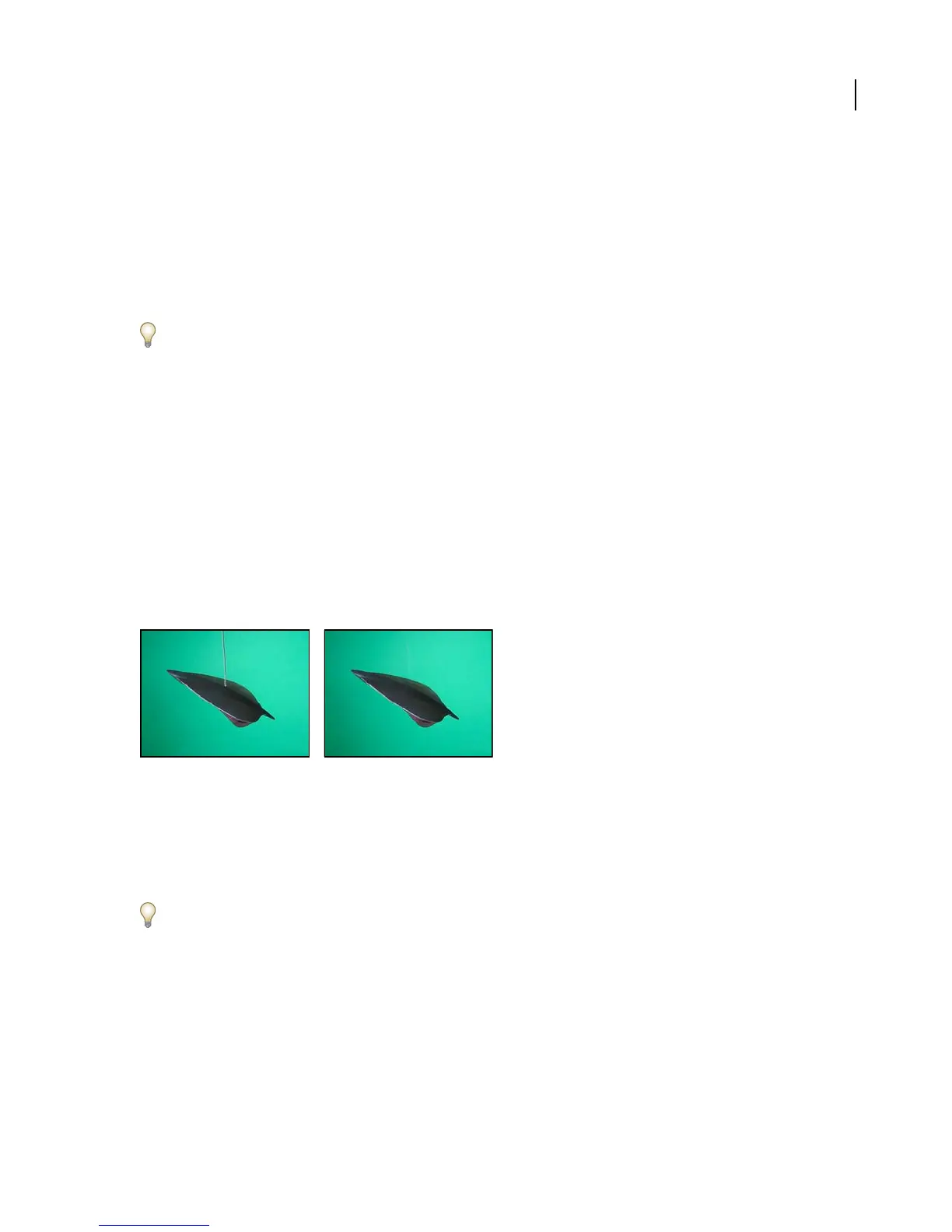
Clone Stamp tool to retouch footage, remove wires or a microphone boom from footage, or add elements to footage.
Removal of wire in moving footage with Clone Stamp tool
You can clone a single frame or apply clone strokes continuously over several frames. Each clone stroke paints on
more of the sample.
TheCloneStamptoolsamplespaintstrokesandeffectsinthesourcelayer,inadditiontothelayersource,whenthe
source layer and target layer are the same.
The clone source time automatically loops back to the starting sample point when the current sampling point goes
beyondtheendofthesourcelayer'sduration.Thisisespeciallyhelpfulwhenyouhavealotofframestorepairinthe
target layer but only a few good frames in the source layer.
Each clone stroke includes properties that are unique to the Clone Stamp tool in addition to blending modes, stroke
options, and transform properties. You can view these properties in the Stroke Options section in the Timeline panel:
Clone Source Specifies the sampled layer.
Clone Position Specifies the x, y location of the sample within the source layer.
Clone Time Specifies the time (measured in seconds) in the Composition panel when you sampled the source layer,
as indicated by the current-time indicator. This property appears only when Lock To Source is selected.



 To Next Page