ADOBE AFTER EFFECTS 7.0
User Guide
451
Using tools with the Fractal effect
When the Fractal effect is selected in the Effect Controls panel, you can use After Effects tools in the following way.
(If you don’t want the Fractal tools active, deselect the effect before using tools.)
• Drag the Selection tool to see if a point’s path lies within the set. If the path leads out of the bounded rectangle (-
2, -2, 2, 2), it has gone into infinity; in such a case, the starting-point color is based on how many line segments it
takes to reach infinity. If the path ends within the rectangle, it is colored black.
• Use the Zoom tool to zoom in or out on a particular point, or hold down Ctrl (Windows) or Command (Mac OS),
click and hold the Magnifying tool over the center of the image, and navigate from the center. For example, to
zoom straight in, stay in the center; to move up, drag up just a little and then quickly move back to the center.
• Use the Hand tool to pan the image. Press Ctrl (Windows) or Command (Mac OS) to pan the opposite fractal. For
example, when viewing the Julia set, press Ctrl (Windows) or Command (Mac OS) to pan the Mandelbrot set and
see how the Julia set depends on the center point of the Mandelbrot set.
• Usethearrowkeystopanthecenterpointby1pixel.PressShiftasyoupressanarrowkeytoadjustthepointby
10 pixels. Press Ctrl (Windows) or Command (Mac OS) as you press an arrow key to adjust the center point of the
opposite set.
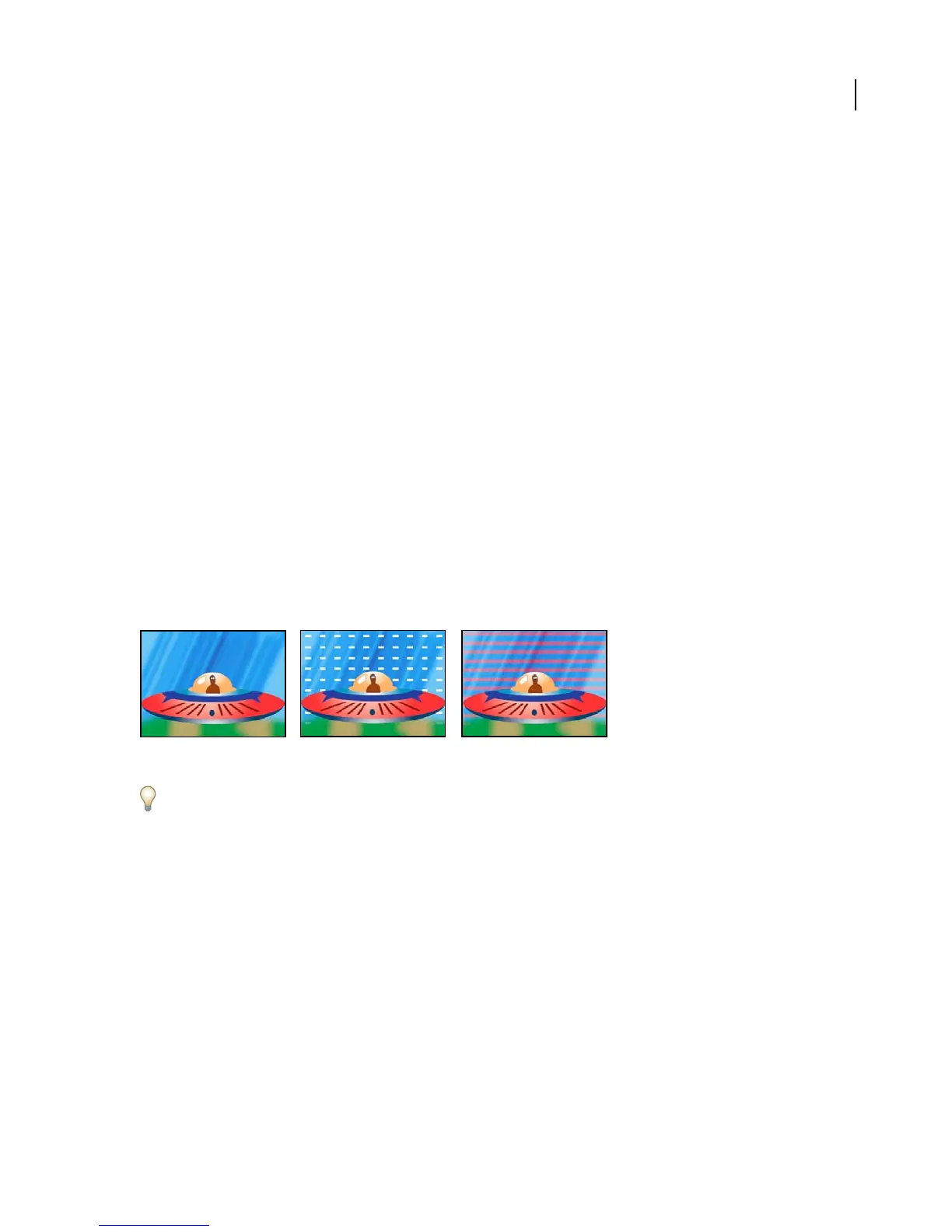
Grid effect
Use the Grid effect to create a customizable grid. Render this grid in a solid color or as a mask in the alpha channel
of the source layer. This effect is good for generating design elements and mattes within which other effects can be
applied.
This effect works with 8-bpc color.
Original (left) and with variations of Grid applied (center and right)
Use Grid with the Advanced Lightning effect to create lightning forks that follow a grid pattern.
Adjust the following controls for Grid:
Anchor Specifies the point of origin of the Grid, based on (x,y) coordinates.
Size From Specifies the grid size. Each option enables the corresponding effect controls.
• Corner Point Determines the spatial relationship between the Corner point and Anchor point controls.
• Width Slider Determines the value set for the Width control. The Grid cells will be square, as the Width value is
used to determine both width and height of the Grid cells.
• Width & Height Sliders Determines the values set for the Width and Height controls. Use this option to set the
width and height of the Grid cells independently.
Corner Specifies the size of the grid cells, based on the spatial relationship between the Corner point and the Anchor
point.



 To Next Page