ADOBE AFTER EFFECTS 7.0
User Guide
323
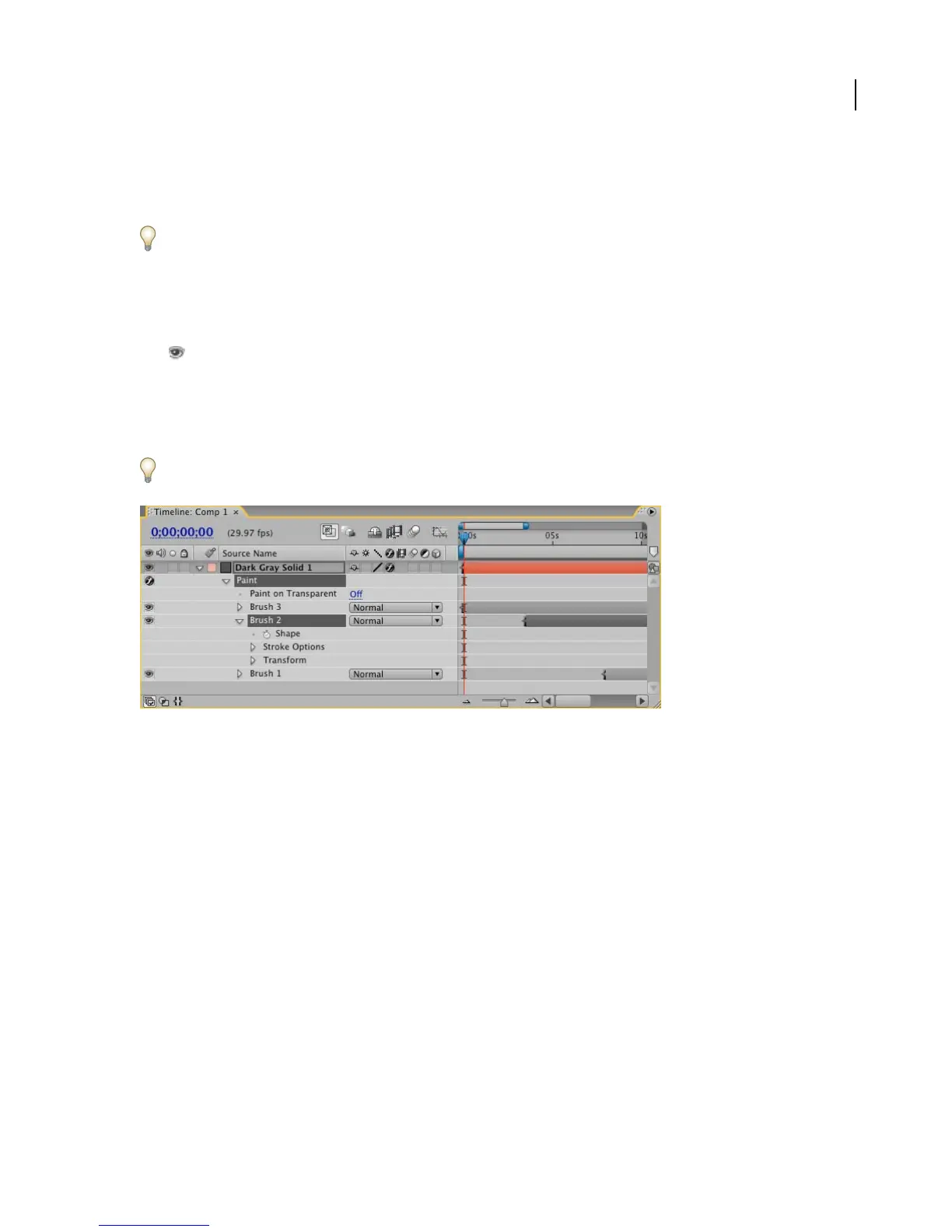
Each paint stroke is labeled numerically in the Effects section of the Timeline panel and is named for the tool that
created it. For example, brush strokes are named as Brush 1, Brush 2; Clone Stamp strokes are named as Clone 1,
Clone 2.
To view paint strokes, select the layer in the Timeline panel, and press the P key twice.
Each paint stroke has a separate duration bar in the Timeline panel, similar to a layer’s duration bar. The initial length
of the duration bar is determined by the Duration option you choose in the Paint panel. Paint strokes behave like
layers: You can drag the In or Out point of the duration bar to change the stroke’s duration and shift the stroke up or
down to change its position relative to other strokes. You can hide a paint stroke from view by clicking the eye
icon next to the stroke.
Note: Select any keyframes for a paint stroke before you move or alter the paint stroke’s duration bar.
You can move a paint stroke’s location in the Timeline panel by dragging its duration bar to another time in the
Timeline panel. To change the order of an overlapping stroke, drag the stroke up or down in the Timeline panel.
Whileyoucan’teditastroke’sshape,youcanchangeitsshapebycopyingandpastingamasktoaselectedstrokein
the Timeline panel.
Each stroke is numbered and includes individual Stroke Options and Transform properties in the Effects section of the Timeline panel.
See also
“To specify paint tool options” on page 313
To select paint strokes
UsetheSelectiontooltoselectstrokesineithertheTimelinepanelortheLayerpanel.Whenyouselectapaintstroke,
it appears in the Layer panel with an anchor point at the start of the stroke and a black line running the length of the
stroke.
• To select a paint stroke, click the paint stroke in the Layer panel or select the paint stroke in the Paint section of
the Timeline panel.
• To select a contiguous range of paint strokes in the Timeline panel, Shift-click the first stroke and last stroke in the
range.
• To select multiple paint strokes in the Layer panel, drag using the Selection tool to draw a bounding box that
surrounds the paint strokes.
• To select non-contiguous paint strokes, hold down the Ctrl key (Windows) or Command key (Mac OS).
Note: To deselect a paint stroke, in the Timeline panel or the Layer panel, click anywhere but the paint stroke.



 To Next Page